
Getting Started with Your Weather App's Home Screen
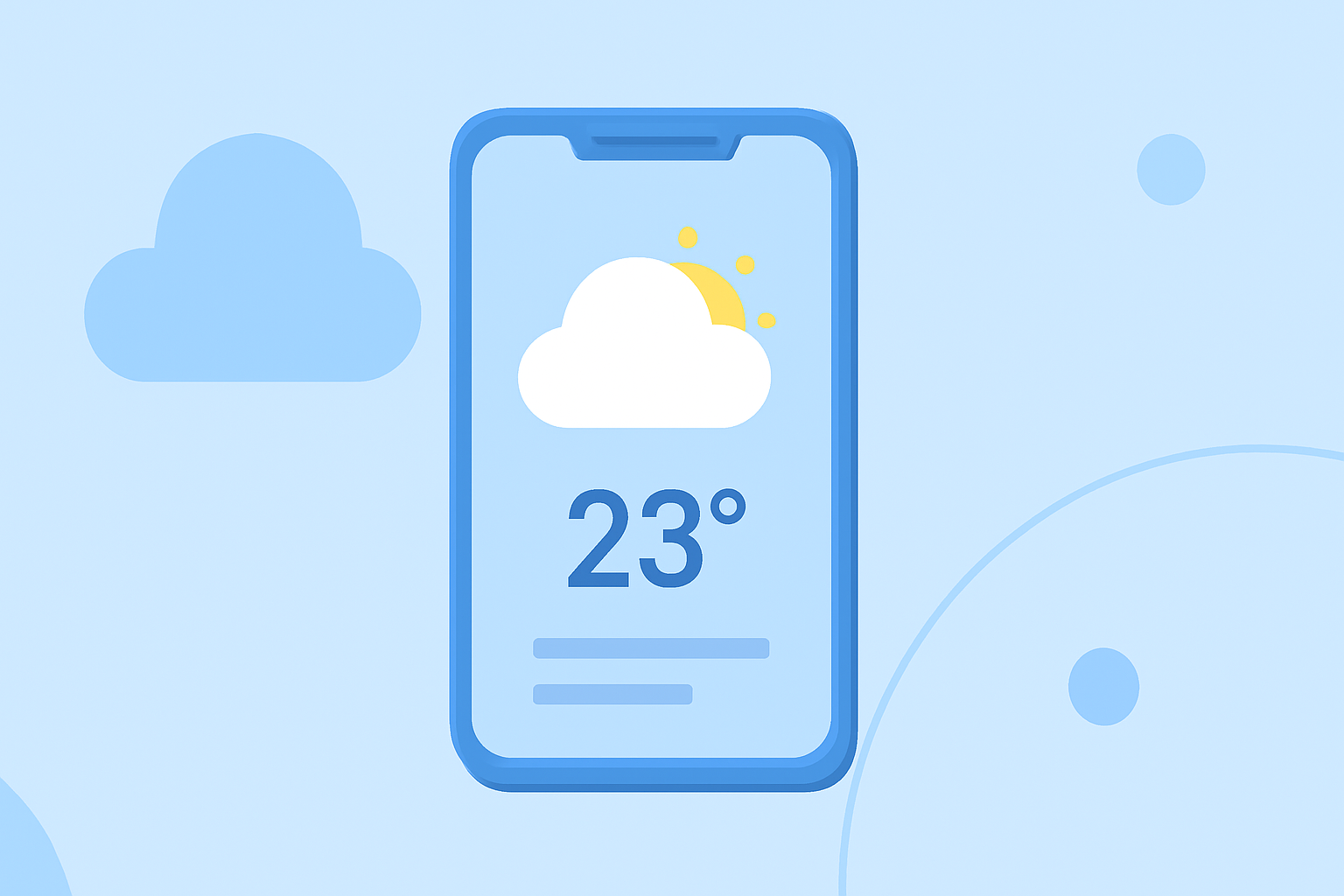
The home screen of your weather app serves as the central hub for accessing real-time weather updates and forecasts. Understanding its features and customization options can enhance your experience and ensure you stay informed about current conditions and upcoming weather patterns.
Key Features of the Home Screen
-
Current Weather Conditions: Displays the latest temperature, humidity, wind speed, and sky conditions for your selected location.
-
Hourly Forecast: Provides a detailed outlook for the upcoming hours, including expected temperatures and precipitation chances.
-
Daily Forecast: Offers a summary of weather conditions for the next several days, highlighting high and low temperatures, precipitation, and other relevant metrics.
-
Interactive Map: Allows you to visualize weather patterns, such as precipitation and wind, across different regions.
-
Weather Alerts: Notifies you of severe weather warnings or advisories in your area.
Customizing Your Home Screen
To tailor the home screen to your preferences:
-
Add Widgets: Many weather apps offer widgets that can be added to your device's home screen for quick access to weather information.
-
Set Favorite Locations: Save multiple locations to quickly switch between them and view weather conditions in different areas.
-
Adjust Units and Settings: Modify temperature units (Celsius or Fahrenheit), wind speed units, and other settings to match your preferences.
Utilizing the Interactive Map
The interactive map is a powerful tool for visualizing weather data:
-
View Precipitation and Wind Patterns: Observe real-time weather patterns across various regions.
-
Customize Map Layers: Enable different layers, such as radar or satellite views, to gain a comprehensive understanding of weather conditions.
-
Zoom and Pan: Navigate to specific areas of interest to get localized weather information.
Setting Up Weather Alerts
To stay informed about severe weather events:
-
Enable Notifications: Allow the app to send push notifications for weather alerts.
-
Customize Alert Settings: Choose the types of alerts you wish to receive, such as severe thunderstorms or tornado warnings.
Conclusion
By familiarizing yourself with the features and customization options of your weather app's home screen, you can ensure timely access to essential weather information, aiding in better planning and safety.
Remember, the specific features and customization options may vary depending on the weather app you use. Consult the app's user guide or support resources for detailed instructions tailored to your application.