
Getting Started with Weather Home Screen Widgets During Hurricane Season
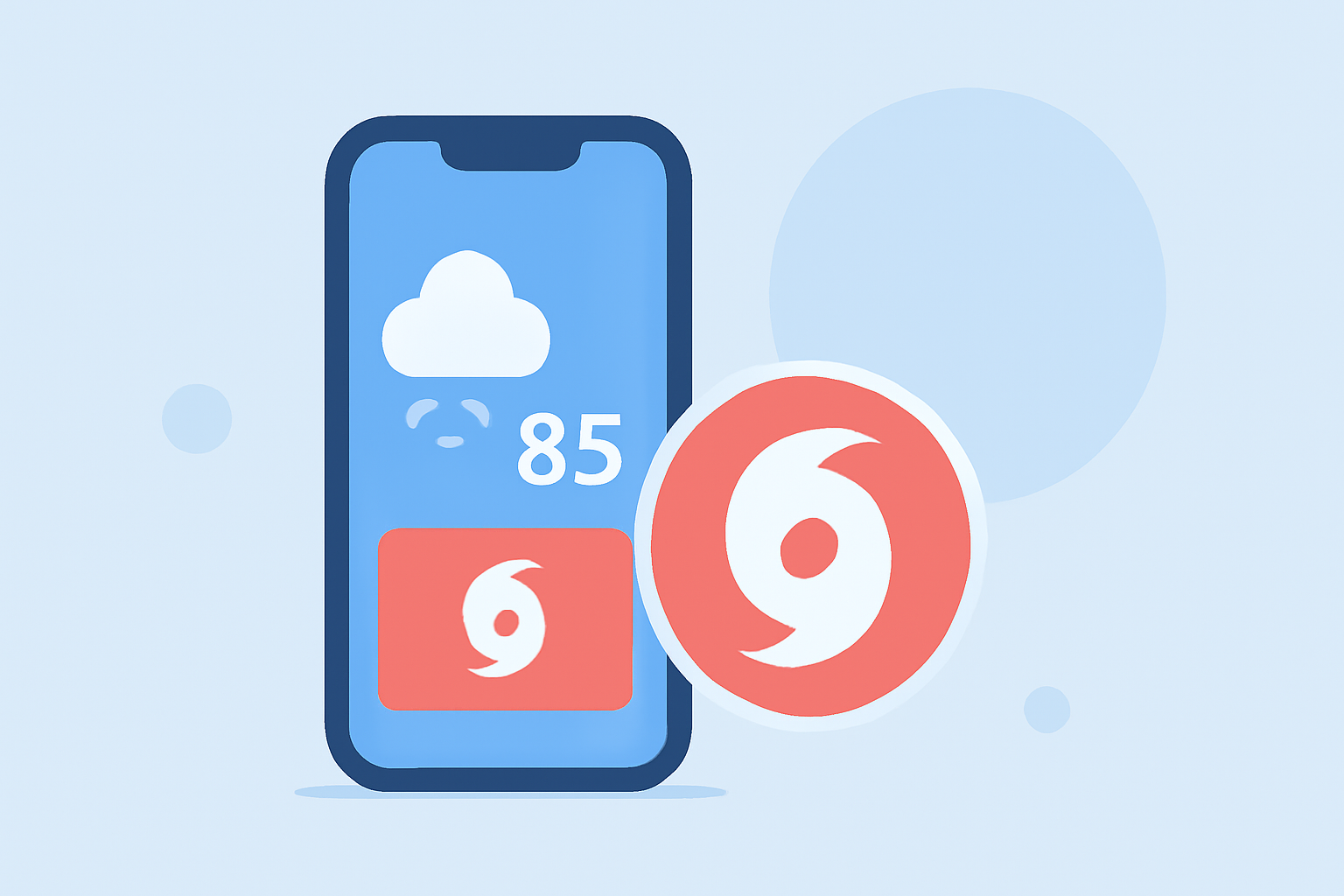
As hurricane season approaches, staying informed about weather conditions is crucial. One effective way to receive timely updates is by adding weather widgets to your smartphone's home screen. These widgets provide real-time information at a glance, ensuring you're always prepared.
What Are Weather Widgets?
Weather widgets are interactive elements that display current weather conditions, forecasts, and alerts directly on your home screen. They eliminate the need to open a dedicated app, offering immediate access to essential weather information.
How to Add Weather Widgets to Your Home Screen
For iPhone Users:
- Access the Widget Gallery: Long-press on an empty area of your home screen until the apps jiggle.
- Add a Widget: Tap the '+' icon in the top-left corner.
- Select Weather Widget: Scroll or search for the Weather widget.
- Choose Widget Size: Swipe through the available sizes and tap 'Add Widget' to place it on your home screen.
For Android Users:
- Open Widget Menu: Long-press on an empty space on your home screen and select 'Widgets.'
- Find Weather Widget: Scroll through the list to locate the Weather widget.
- Add Widget: Tap and hold the widget, then drag it to your desired location on the home screen.
Customizing Your Weather Widget
After adding the widget, you can customize it to suit your preferences:
- Location: Set the widget to display weather information for your current location or any area of interest.
- Size and Layout: Adjust the widget's size and layout to fit your home screen design.
- Theme and Transparency: Modify the widget's theme, colors, and transparency to match your device's aesthetic.
Staying Prepared During Hurricane Season
During hurricane season, having timely access to weather updates is vital. By adding and customizing weather widgets on your home screen, you ensure that critical information is always within reach, helping you make informed decisions and stay safe.
For a visual guide on adding a weather widget to your iPhone home screen, you can watch the following video: