
Getting Started with Weather Lock Screen Widgets on iPhone
Last updated: 2023-09-15
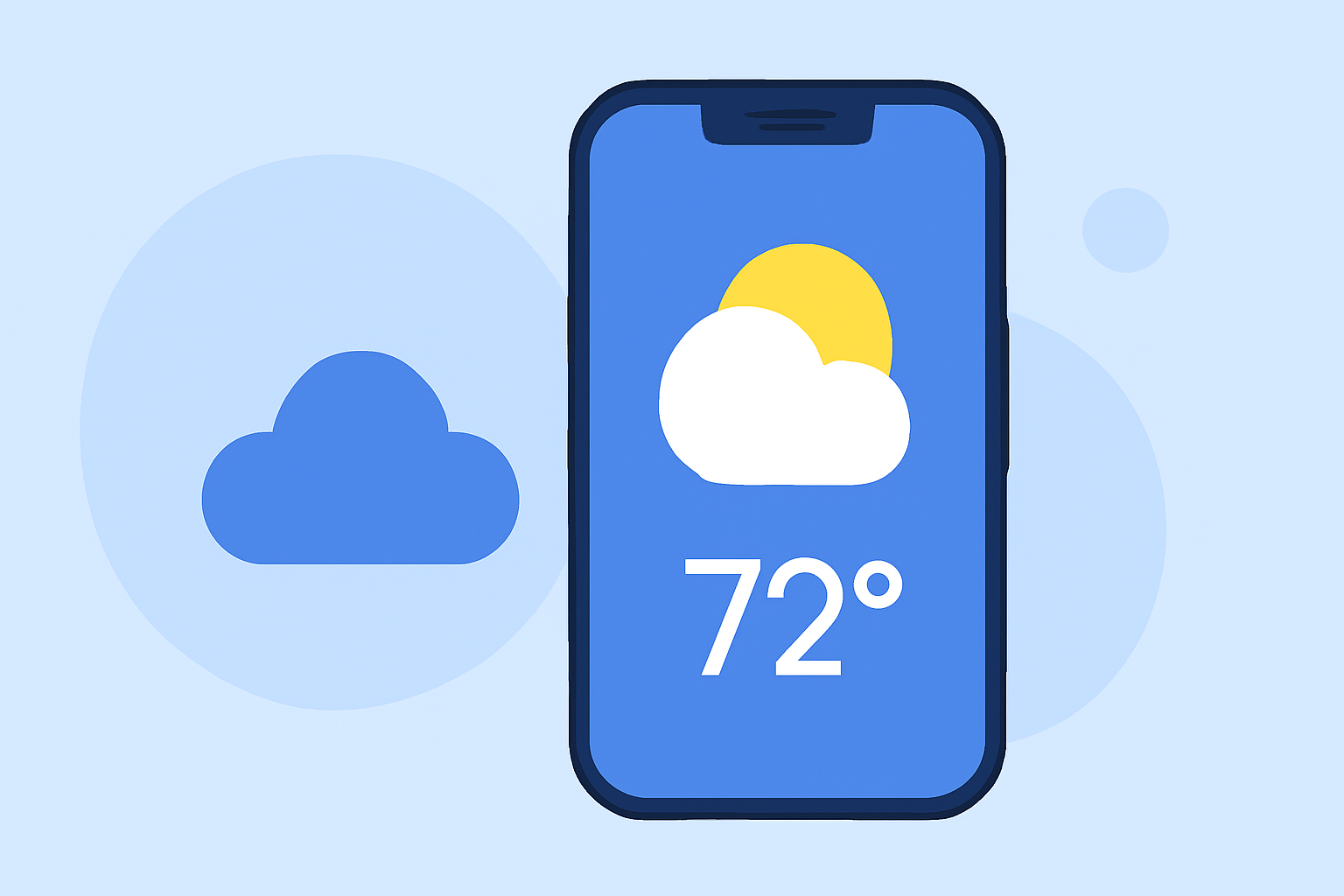
Adding weather Lock Screen widgets to your iPhone is a straightforward way to stay informed about the weather at a glance. This guide will help you set up Clime’s weather widgets on your iPhone, ensuring you can keep track of conditions right from your Lock Screen.
Summary
- Easily add weather widgets to your iPhone Lock Screen for real-time updates.
- Customize settings to display the weather from your current location or any other location you choose.
- Clime’s features include visual NOAA-based maps and detailed forecasts accessible directly from your Lock Screen.
- Experiment with different configurations to tailor your Lock Screen to your needs.
How do I add weather widgets to my iPhone Lock Screen?
To begin, wake your iPhone without unlocking it by swiping up. Then, tap and hold the Lock Screen until the customization options appear. From here, follow the prompts to add widgets, including the Weather widget that can display conditions for your current location or any chosen city.
What features does Clime offer in its weather widgets?
Clime's weather widgets provide users with real-time weather updates, including:
- Forecasts for your current location or other locations, allowing for quick updates to weather conditions.
- Weather alerts for severe conditions, ensuring you remain informed of critical changes.
- Access to detailed temperature readings and other meteorological data right from your Lock Screen.
How can I customize the weather widget for my needs?
The customization process is user-friendly. After adding the Weather widget,
- Tap on it to access settings where you can choose between various locations for your weather forecast.
- Some options like temperature units or visual styles may also be configurable depending on what Clime offers in your app settings.
Are there limitations to Lock Screen widgets for weather apps?
While Lock Screen widgets provide much information at a glance, there are some limitations:
- Certain widgets may not display all features unless on a paid plan, which could affect the visibility of advanced data like radar overlays or pollution levels.
- The scope of weather information might be limited compared to what's available in the full app experience.
How do I make the most of Clime’s Lock Screen weather widgets?
To fully leverage Clime’s weather capabilities on your Lock Screen:
- Regularly update the app to ensure you have the latest features and improvements.
- Adjust your widget settings to reflect your most frequently accessed locations and data points.
- Familiarize yourself with alerts and notifications settings to not miss out on sudden weather changes.
What we recommend
- Explore different locations within the Clime app to expand your weather widget options.
- Stay updated with the latest weather information by checking Clime’s features regularly.
- Utilize multiple widgets if your device allows, giving you access to various forecasts or weather aspects like radar overlays.
- Keep an eye on alerts to receive notifications on critical weather changes directly through your Lock Screen widgets.