
Getting Started with Weather Notification Badges
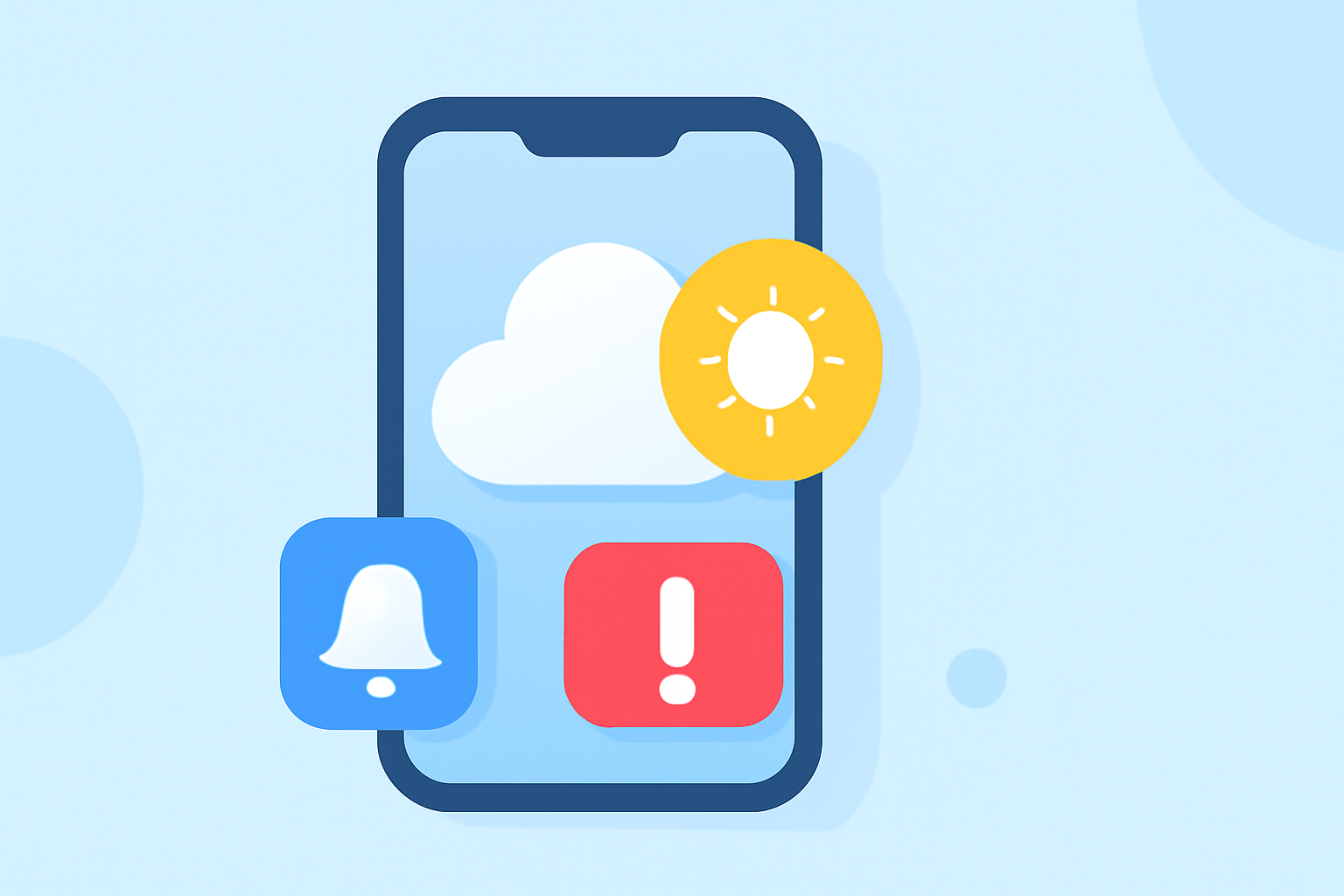
Weather notification badges are small indicators on app icons that display real-time weather information, such as current conditions or alerts. Implementing these badges enhances user engagement by providing immediate access to essential weather updates.
Understanding Weather Notification Badges
A weather notification badge typically appears as a small icon or number on an app's main icon, conveying specific weather data like temperature, weather conditions, or alerts. For instance, a badge might display a snowflake icon during a snowstorm or a number indicating the current temperature.
Benefits of Implementing Weather Notification Badges
- Immediate Access to Information: Users receive instant updates on weather conditions without opening the app.
- Enhanced User Engagement: Regular updates keep users engaged and encourage frequent app usage.
- Improved User Experience: Providing timely weather information adds value and convenience to the app.
Implementing Weather Notification Badges
The implementation process varies depending on the platform:
1. Progressive Web Apps (PWAs)
PWAs can utilize the App Badging API to display badges on their app icons.
-
Check for Support: Ensure the App Badging API is supported in the user's browser.
-
Set the Badge: Use the
navigator.setAppBadgemethod to display a badge. -
Clear the Badge: Use the
navigator.clearAppBadgemethod to remove the badge.
For detailed guidance, refer to the MDN documentation on displaying a badge on the app icon.
2. Android Applications
On Android 8.0 (API level 26) and above, notification badges (dots) appear on app icons when the app has an active notification.
-
Disable Badging: To prevent badges from appearing, set
setShowBadge(false)on theNotificationChannelobject. -
Modify Badge Icon: Use
NotificationCompat.Builder.setBadgeIconTypeto change the badge icon.
More information is available in the Android Developers guide on modifying a notification badge.
3. Windows Applications
Windows apps can display badges on their taskbar icons and Start tiles.
-
Set the Badge: Use the
badgeelement in the app's tile template to define the badge's value or glyph. -
Clear the Badge: Set the badge value to
noneto remove the badge.
Detailed instructions are provided in the Microsoft Learn article on badge notifications for Windows apps.
Best Practices for Weather Notification Badges
- Keep Information Relevant: Display weather data that is pertinent to the user's location and interests.
- Update Badges Regularly: Ensure badges reflect the most current weather information to maintain accuracy.
- Avoid Overuse: Use badges sparingly to prevent overwhelming users with excessive notifications.
Conclusion
Implementing weather notification badges is an effective strategy to keep users informed and engaged with your app. By following platform-specific guidelines and best practices, you can provide timely and relevant weather updates directly through your app's icon.