
Getting Started with Weather on Wear OS: A Comprehensive Guide
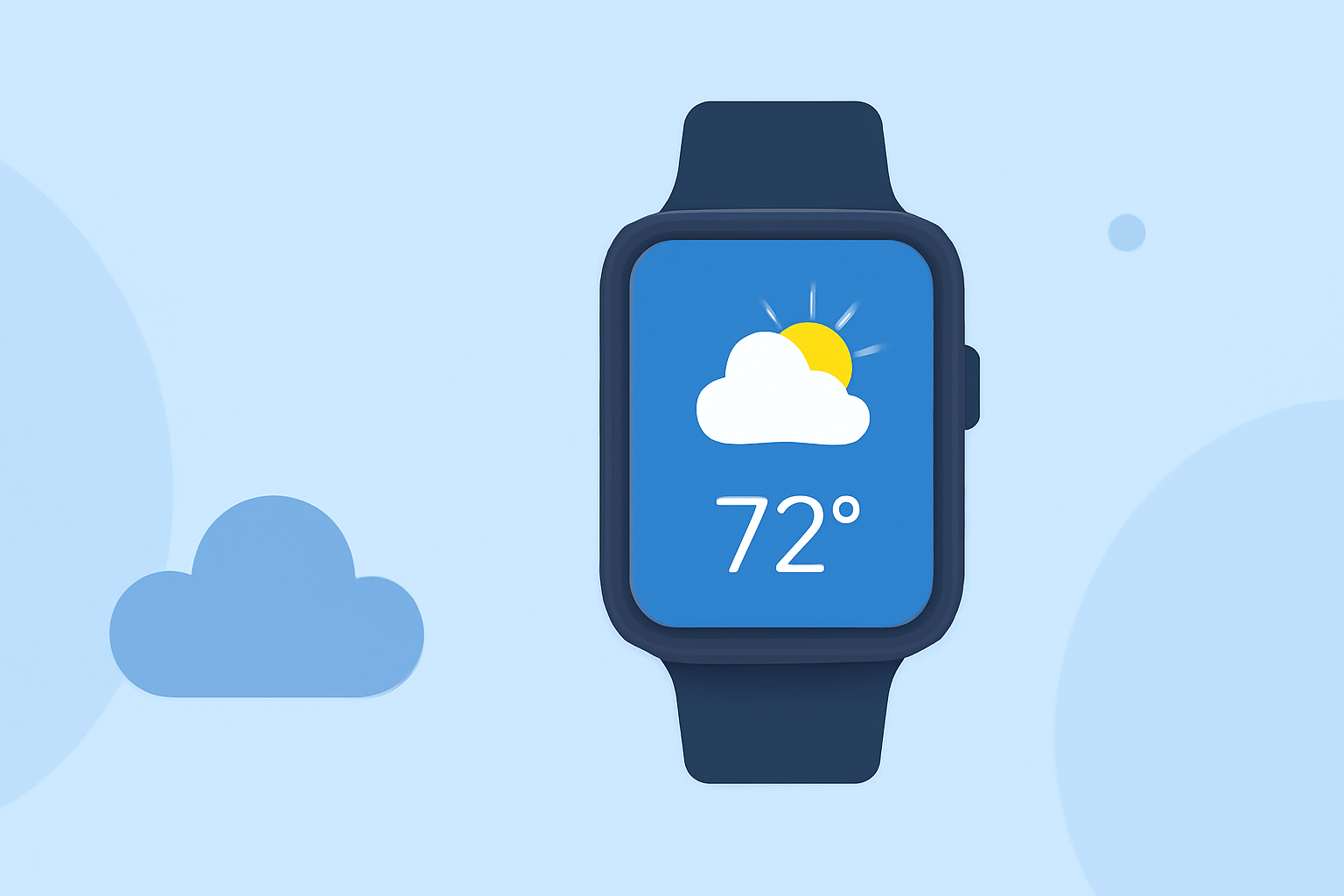
Accessing accurate and timely weather information on your Wear OS smartwatch is essential for planning your day. With recent changes in Google's approach to weather apps on Wear OS, it's important to understand how to effectively utilize your device's capabilities.
Understanding Google's Transition in Weather Apps
In September 2025, Google announced the discontinuation of its default Weather app for Wear OS 6 and newer versions. This decision was influenced by the increasing number of smartwatch manufacturers providing their own weather applications, reducing the necessity for a universal app. Consequently, users are encouraged to use the weather apps provided by their smartwatch manufacturers or explore third-party options available on the Play Store. (9to5google.com)
Utilizing Built-in Weather Features on Wear OS
Despite the removal of Google's Weather app, Wear OS devices still offer built-in features to access weather information:
- At a Glance: This feature displays relevant information, including weather updates, directly on your watch face. To enable it:
-
Touch and hold your watch face.
-
Swipe right three times to access complications.
-
Scroll through the list and select "At a Glance" to add it.
This will provide timely weather updates and other pertinent information at a glance. (support.google.com)
- Tiles: Wear OS allows you to add various tiles for quick access to information. To add a weather-related tile:
-
Swipe left or right to access your tiles.
-
Press and hold the tile you wish to replace.
-
Tap "Add Image" and select a weather-related tile.
This customization enables you to have weather information readily available on your watch. (support.google.com)
Exploring Third-Party Weather Apps
With the shift away from Google's Weather app, third-party applications have become a popular choice for accessing detailed weather information on Wear OS devices. These apps often provide comprehensive features, including:
-
Hourly and Daily Forecasts: Detailed predictions to help you plan your activities.
-
Severe Weather Alerts: Notifications about extreme weather conditions in your area.
-
Interactive Maps: Visual representations of weather patterns and conditions.
When selecting a third-party weather app, consider factors such as user interface design, update frequency, and compatibility with your specific Wear OS device. Reading user reviews and checking app ratings on the Play Store can provide valuable insights into the app's performance and reliability.
Setting Up and Customizing Your Weather App
After choosing a weather app, follow these general steps to set it up on your Wear OS smartwatch:
-
Install the App: Navigate to the Play Store on your smartwatch, search for the desired weather app, and install it.
-
Configure Settings: Open the app and set your location preferences, units of measurement (e.g., Celsius or Fahrenheit), and notification preferences.
-
Add Complications or Tiles: Enhance accessibility by adding app-specific complications to your watch face or tiles for quick access.
-
Enable Notifications: Allow the app to send notifications for weather updates and alerts to stay informed about changing conditions.
Maintaining Optimal Performance
To ensure your weather app functions effectively on your Wear OS device:
-
Regular Updates: Keep the app updated to benefit from the latest features and improvements.
-
Manage Battery Usage: Monitor the app's battery consumption and adjust settings to optimize performance.
-
Check for Compatibility: Ensure the app is compatible with your specific Wear OS version and device model.
Conclusion
While Google's removal of its Weather app from Wear OS 6 and newer versions signifies a shift in approach, users still have access to reliable weather information through built-in features and third-party applications. By exploring these options and customizing your device accordingly, you can stay informed about weather conditions to make well-informed decisions throughout your day.