
Getting Started with Weather Widget Color Themes on Wear OS
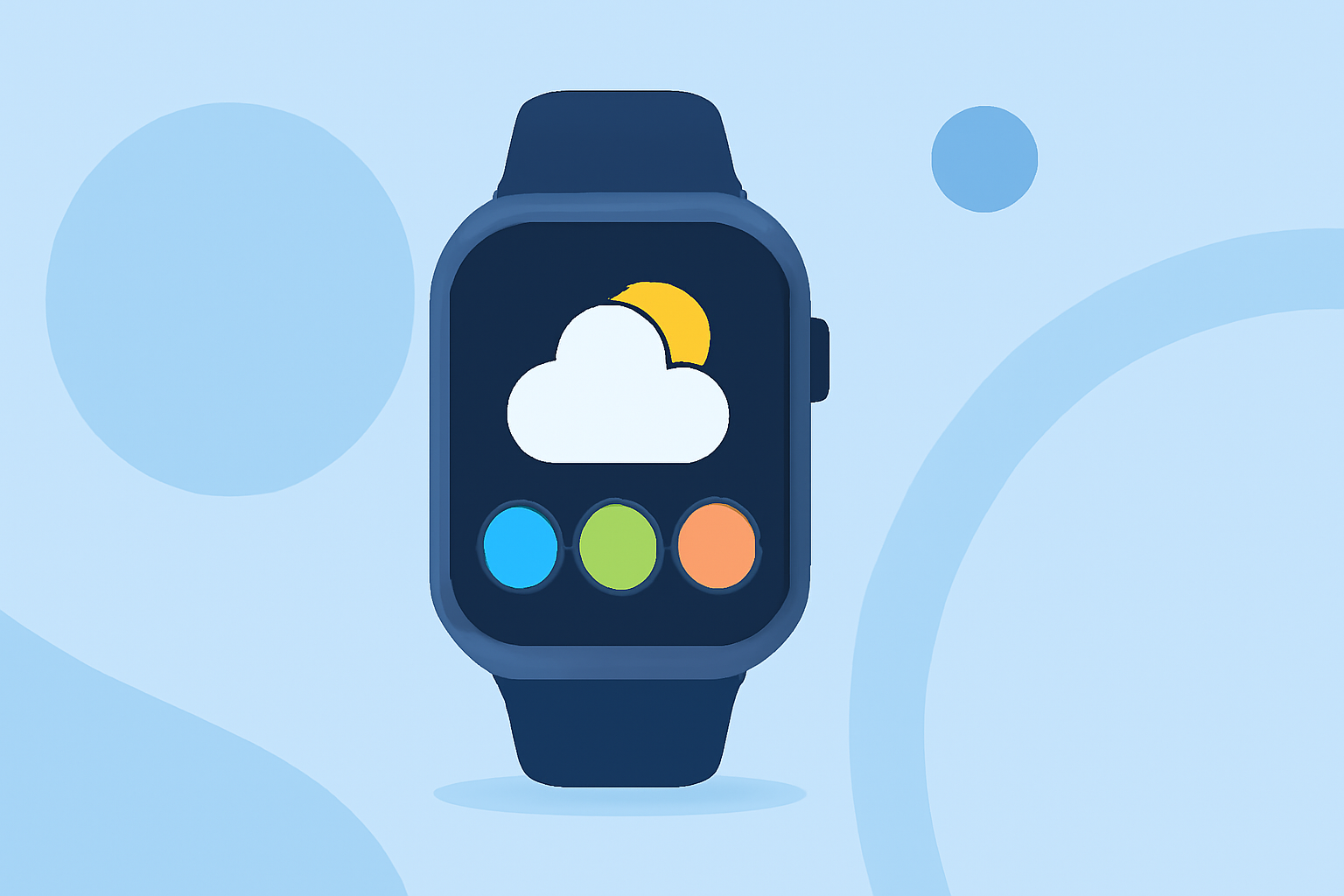
Personalizing your Wear OS smartwatch with customized weather widget color themes can enhance both its aesthetics and functionality. Here's how you can get started:
1. Understand Wear OS 6's Dynamic Color Theming
Wear OS 6 introduces dynamic color theming, allowing your smartwatch's interface to adapt to your chosen watch face. This feature ensures a cohesive and personalized user experience. (googblogs.com)
2. Choose a Compatible Watch Face
Selecting a watch face that supports dynamic theming is crucial. Many watch faces on the Google Play Store offer this compatibility, enabling your weather widget to reflect your preferred color scheme.
3. Customize Your Watch Face
To personalize your watch face:
-
Access Watch Face Settings: Touch and hold your current watch face to enter customization mode.
-
Select a New Watch Face: Browse through available options and choose one that aligns with your desired color theme.
-
Adjust Color Settings: Many watch faces allow you to modify colors. Look for settings related to color customization within the watch face's options.
4. Add the Weather Widget
To keep weather information readily accessible:
-
Add a Tile: Swipe left or right to access your tiles, press and hold to add a new one, and select the Weather tile.
-
Set as Watch Face Complication: Touch and hold your home screen, choose to edit the watch face, and add the Weather complication.
5. Explore Third-Party Watch Faces
If you're seeking more customization options, consider third-party watch faces that offer extensive color themes and weather integration. For instance, the "Hex Watch Face" allows users to customize design colors, display weather updates, and monitor battery levels. (apprecs.com)
6. Stay Updated
Ensure your smartwatch is running the latest version of Wear OS to access the newest features and improvements. Regular updates can enhance performance and introduce additional customization options.
By following these steps, you can effectively customize your Wear OS smartwatch's weather widget color themes, creating a personalized and visually appealing experience.