
Getting Started with Weather Widgets on iPhone
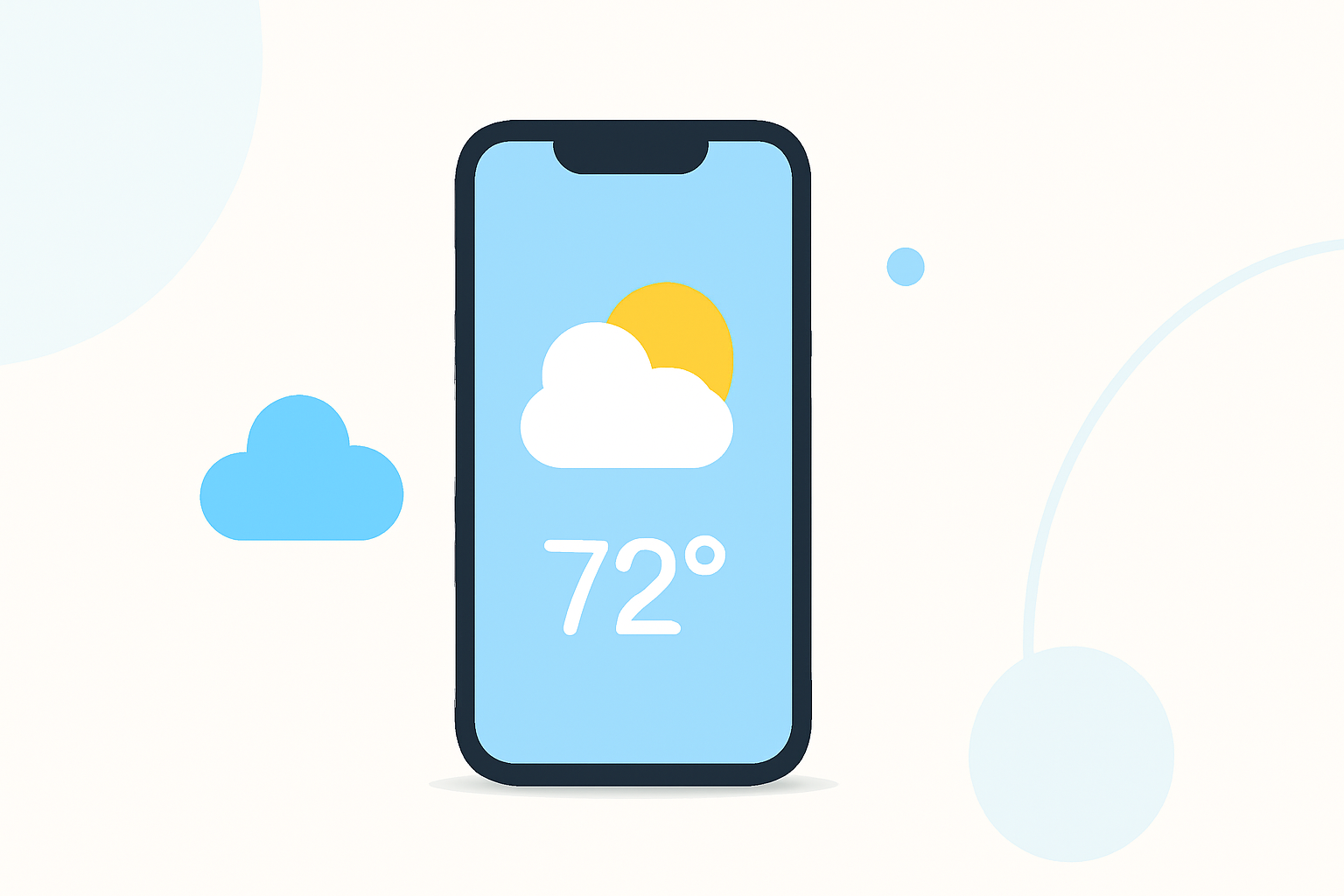
Weather widgets on your iPhone provide at-a-glance information about current conditions, forecasts, and more, directly from your home screen or lock screen. This feature enhances convenience, allowing you to stay informed without opening a dedicated app.
What Are Weather Widgets?
Weather widgets are interactive elements that display weather information on your iPhone's home or lock screen. They offer quick access to current conditions, hourly forecasts, and other relevant data, eliminating the need to launch a separate weather app.
How to Add a Weather Widget to Your iPhone Home Screen
-
Access the Widget Gallery: Touch and hold an empty area on your home screen until the apps begin to jiggle.
-
Open the Widget Gallery: Tap the '+' button in the top-left corner to open the widget selection menu.
-
Select the Weather Widget: Scroll through the list or use the search bar to find the 'Weather' widget.
-
Choose a Widget Size: The Weather widget comes in different sizes, each displaying varying amounts of information. Select the one that best fits your needs.
-
Add the Widget: Tap 'Add Widget' to place it on your home screen.
-
Position the Widget: Drag the widget to your desired location on the screen.
-
Exit Edit Mode: Tap 'Done' in the top-right corner to save your changes.
Customizing Your Weather Widget
To tailor the Weather widget to your preferences:
- Change Location: The widget typically displays weather information for your current location. To view weather for a different area:
-
Open the Weather app.
-
Tap the '+' button to add a new location.
-
Enter the city or area you're interested in.
-
Once added, the widget will display weather information for this location.
- Adjust Widget Size: You can resize the widget to show more or less information:
-
Touch and hold the widget until a menu appears.
-
Tap 'Edit Widget'.
-
Choose the desired size from the options provided.
Using Third-Party Weather Widgets
For enhanced features and customization, consider third-party weather widgets. These apps offer a variety of widget styles, additional data points, and more interactive elements. Many of these apps are available on the App Store and can be added to your home screen following similar steps as above.
Benefits of Using Weather Widgets
-
Quick Access: View current conditions and forecasts without opening an app.
-
Customization: Choose from various widget sizes and styles to match your home screen layout.
-
Multiple Locations: Monitor weather in different cities or regions simultaneously.
Conclusion
Adding and customizing weather widgets on your iPhone is a straightforward process that enhances your device's functionality. Whether you prefer the built-in Weather app or opt for third-party options, widgets provide a convenient way to stay informed about the weather at a glance.
Highlights:
- iOS 26 brings widgets to CarPlay - here's how to customize your dashboard, Published on Monday, October 20