
Getting Started with Weather Widgets on iPhone
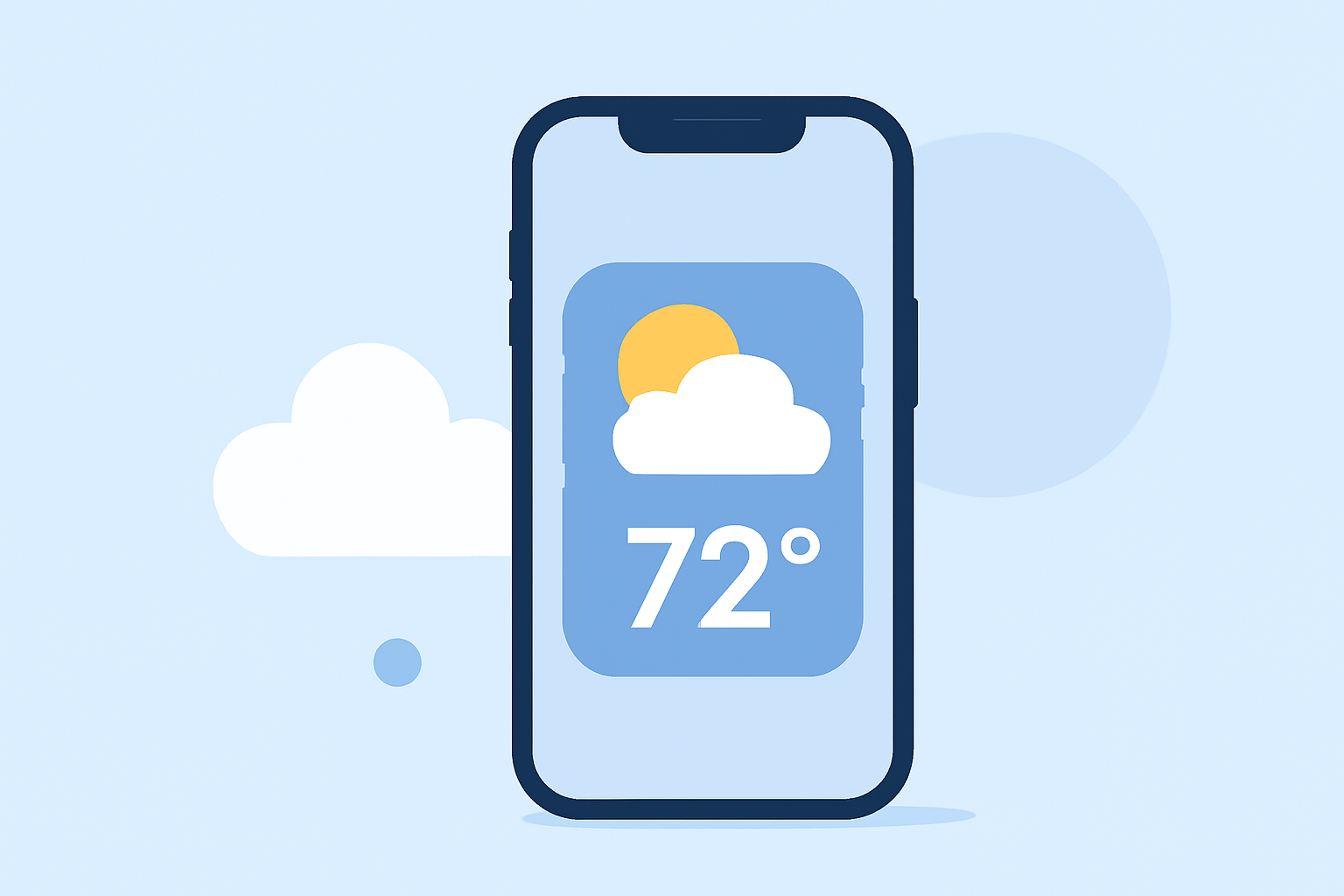
Adding a weather widget to your iPhone's Home Screen provides quick access to current conditions and forecasts without opening the Weather app. Here's how to set it up:
1. Add the Weather Widget to Your Home Screen
-
Enter Jiggle Mode: Touch and hold an empty area on your Home Screen until the apps start to jiggle.
-
Access Widget Gallery: Tap the plus sign (+) in the top-left corner.
-
Select Weather Widget: Scroll through the list and tap on "Weather."
-
Choose Widget Size: Pick a widget size (small, medium, or large) that fits your preference.
-
Add Widget: Tap "Add Widget," then position it on your Home Screen.
-
Exit Jiggle Mode: Tap "Done" in the top-right corner.
2. Customize the Weather Widget
-
Edit Widget: Touch and hold the Weather widget until a menu appears, then tap "Edit Widget."
-
Set Location: Tap "Location" and enter your desired city or allow the widget to use your current location.
-
Adjust Settings: Depending on the widget size, you can choose to display current conditions, hourly forecasts, or a 10-day forecast.
-
Save Changes: Tap outside the widget to save your settings.
3. Add the Weather Widget to Your Lock Screen (iOS 16 and Later)
-
Access Lock Screen Customization: Touch and hold your Lock Screen until the customization options appear, then tap "Customize."
-
Add Widgets: Tap "Add Widgets," then select the Weather widget from the list.
-
Position Widget: Drag the widget to your preferred location on the Lock Screen.
-
Save Customization: Tap "Done" to apply the changes.
4. Use Smart Stacks for Dynamic Weather Information
Smart Stacks allow you to stack multiple widgets and let iOS display the most relevant one based on factors like time of day or activity.
-
Create a Smart Stack: Touch and hold an empty area on your Home Screen, tap the plus sign (+), select "Smart Stack," and tap "Add Widget."
-
Add Weather Widget to Stack: Touch and hold the Smart Stack, tap "Edit Stack," then tap "Add Widget" to include the Weather widget.
-
Enable Smart Rotate: Ensure "Smart Rotate" is turned on to allow iOS to automatically display the most relevant widget.
By following these steps, you can keep weather information readily accessible on your iPhone, enhancing your daily planning and preparedness.
(support.apple.com)