
Glanceable Weather Widgets: Essential Tools for Commuters
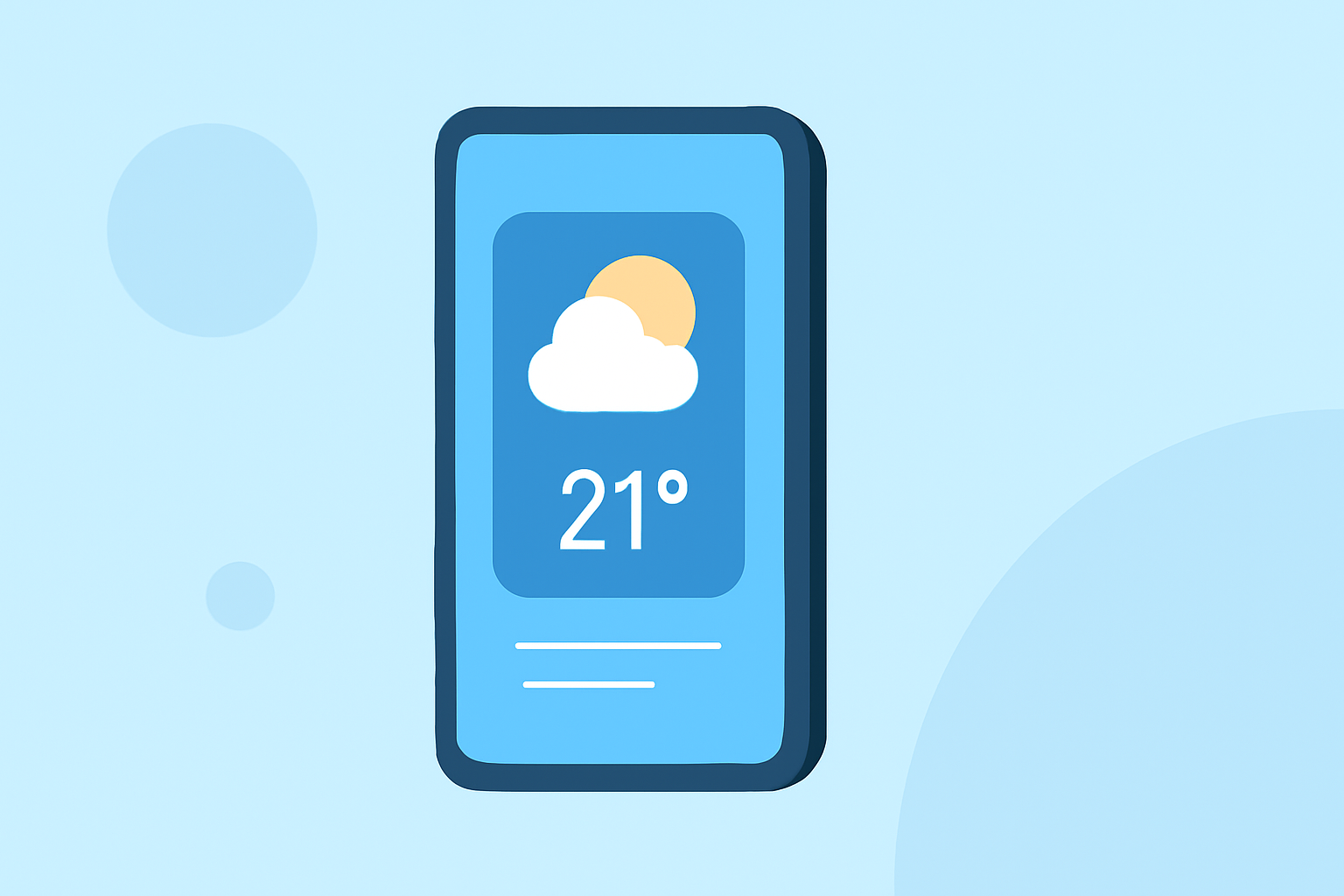
As a commuter, staying informed about current weather conditions is crucial for a safe and efficient journey. Glanceable weather widgets offer a convenient solution by providing real-time updates directly on your device's home screen.
What Are Glanceable Weather Widgets?
Glanceable weather widgets are small, interactive elements that display current weather conditions, forecasts, and alerts without the need to open a full app. They offer quick insights into temperature, precipitation, wind speed, and more, tailored to your location or selected destinations.
Why Are They Important for Commuters?
For commuters, having immediate access to localized weather information aids in planning activities, dressing appropriately, and ensuring safety during trips. Widgets eliminate the need to launch an app, providing instant updates at a glance.
Key Features to Look for in Weather Widgets
When selecting a weather widget, consider the following features:
- Real-Time Updates: Ensure the widget provides current weather conditions and forecasts.
- Customization Options: Look for widgets that allow you to adjust size, theme, and information displayed.
- Severe Weather Alerts: Widgets that offer notifications for severe weather events can help you stay prepared.
- Battery Efficiency: Choose widgets that update at appropriate intervals to conserve battery life.
Clime: A Leading Solution for Commuters
Clime offers a comprehensive suite of features tailored for commuters, including NOAA-based radar, RainScope® minute-by-minute precipitation forecasts, and a 14-day hourly forecast. Its widgets provide real-time weather updates, ensuring you're always informed about current conditions and upcoming forecasts. Clime's user-friendly interface and accurate data make it a top choice for those on the move. (climeradar.com)
How to Set Up a Weather Widget on Your Device
For Android Devices:
- Press and hold on an empty space on your home screen.
- Tap "Widgets."
- Browse through the available widgets and select the weather widget you prefer.
- Drag the widget to your desired location on the home screen.
For iOS Devices:
- Press and hold on an empty space on your home screen until the apps jiggle.
- Tap the "+" icon in the top-left corner.
- Search for the weather widget you want to add.
- Select the widget size and tap "Add Widget."
Conclusion
Incorporating a glanceable weather widget into your daily routine can significantly enhance your commuting experience by providing timely and relevant weather information at a glance. By choosing a widget that aligns with your needs and preferences, you can stay prepared and make informed decisions throughout your day.