
Glanceable Weather Widgets: A Non-Technical User's Guide
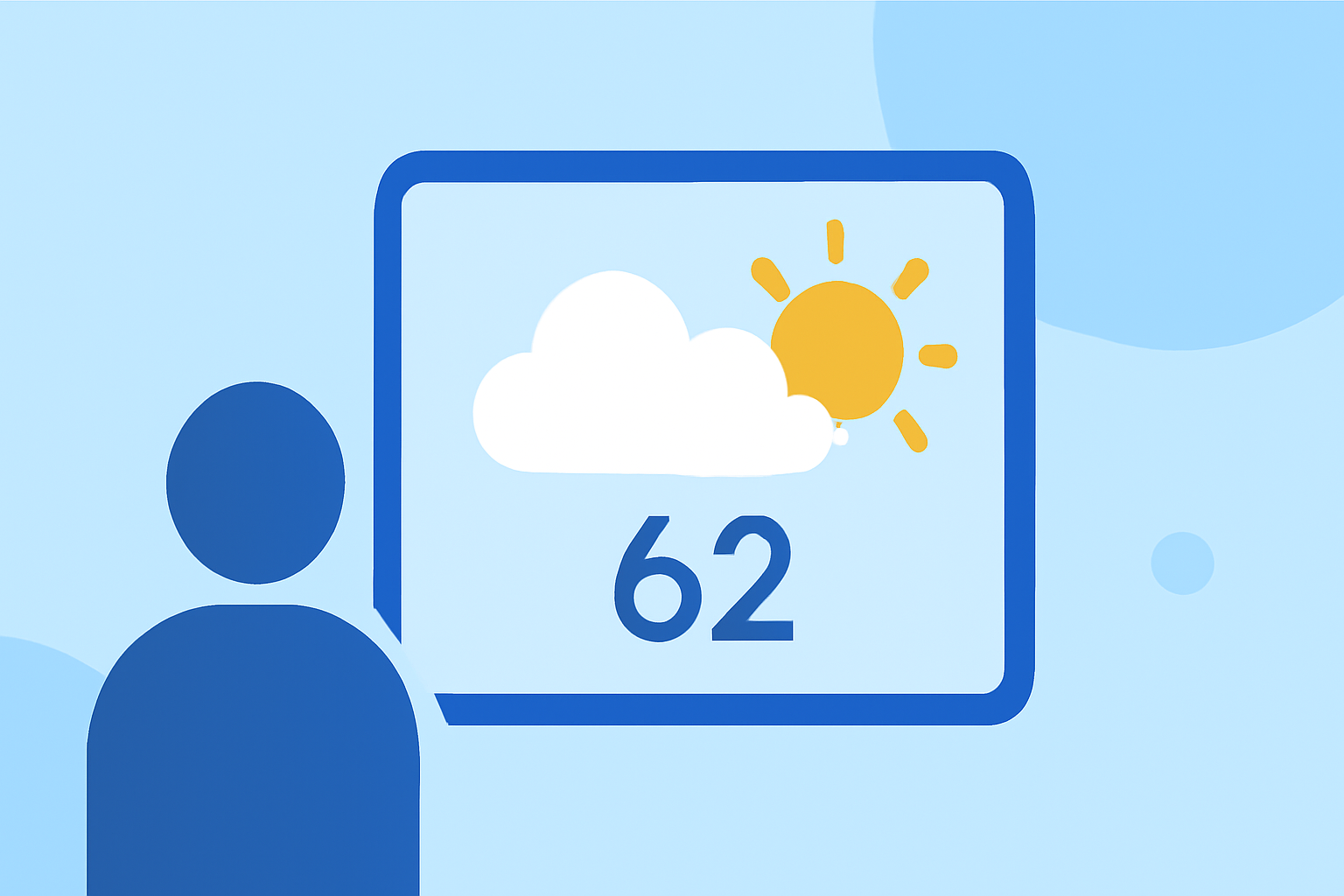
Weather widgets are small, interactive panels that display essential weather information directly on your device's home screen or lock screen. They provide quick access to current conditions, forecasts, and severe weather alerts without the need to open a full-fledged weather app. This guide will help you understand and utilize these widgets effectively, regardless of your technical expertise.
What Are Glanceable Weather Widgets?
Glanceable weather widgets are compact tools that present key weather data at a glance. They typically show information such as temperature, weather conditions (e.g., sunny, cloudy, rainy), and sometimes additional details like humidity or wind speed. These widgets are designed to be easily readable and accessible, allowing you to check the weather without navigating through multiple screens or apps.
Why Use Glanceable Weather Widgets?
- Instant Access: Quickly view current weather conditions and forecasts without opening an app.
- Customization: Choose from various widget sizes and styles to fit your device's layout and personal preferences.
- Efficiency: Stay informed about weather changes that may affect your daily activities, such as commuting or outdoor events.
How to Add and Customize Weather Widgets on Your Device
For iOS Devices (iOS 14 and Later):
- Add a Widget:
- Press and hold an empty area on your home screen until the apps jiggle.
- Tap the '+' button in the top-left corner.
- Scroll to find the weather app or widget you want to add.
- Select the widget size (small, medium, or large) and tap 'Add Widget.'
- Customize the Widget:
- After adding, press and hold the widget to access customization options.
- Choose the location or specific weather details you want to display.
For Android Devices (Android 12 and Later):
- Add a Widget:
- Tap and hold an empty area on your home screen.
- Tap 'Widgets.'
- Scroll to find the weather widget you prefer.
- Tap and hold the widget, then drag it to your home screen.
- Customize the Widget:
- After adding, tap and hold the widget to access resizing and customization options.
For Windows 11 Devices: (microsoft.com)
- Enable Widgets:
- Right-click on your taskbar and select 'Taskbar settings.'
- Ensure the 'Widgets' toggle is switched to 'On.'
- Access the Weather Widget:
- Click the Widgets icon on your taskbar to view the weather panel.
Best Practices for Using Weather Widgets
- Placement: Position the widget in a location on your home screen or lock screen where you can easily view it without unlocking your device.
- Size Selection: Choose a widget size that balances visibility with the available space on your screen.
- Location Settings: Ensure the widget is set to display weather information for your current location or any other area of interest.
- Regular Updates: Keep your device's software and weather app updated to ensure accurate and timely weather information.
Conclusion
Glanceable weather widgets are invaluable tools for staying informed about weather conditions without the need for technical knowledge. By adding and customizing these widgets on your device, you can quickly access essential weather information, helping you plan your day more effectively.
Remember to regularly update your device and weather app to maintain the accuracy and reliability of the information displayed.
By following these steps and best practices, you can make the most of glanceable weather widgets, ensuring you're always prepared for the day's weather, no matter where you are.
Highlights:
- Weathercaster: Chart-Based Weather for iPhone and Apple Watch, Published on Monday, April 20