
Mastering Glanceable Weather Widgets: A Comprehensive Guide
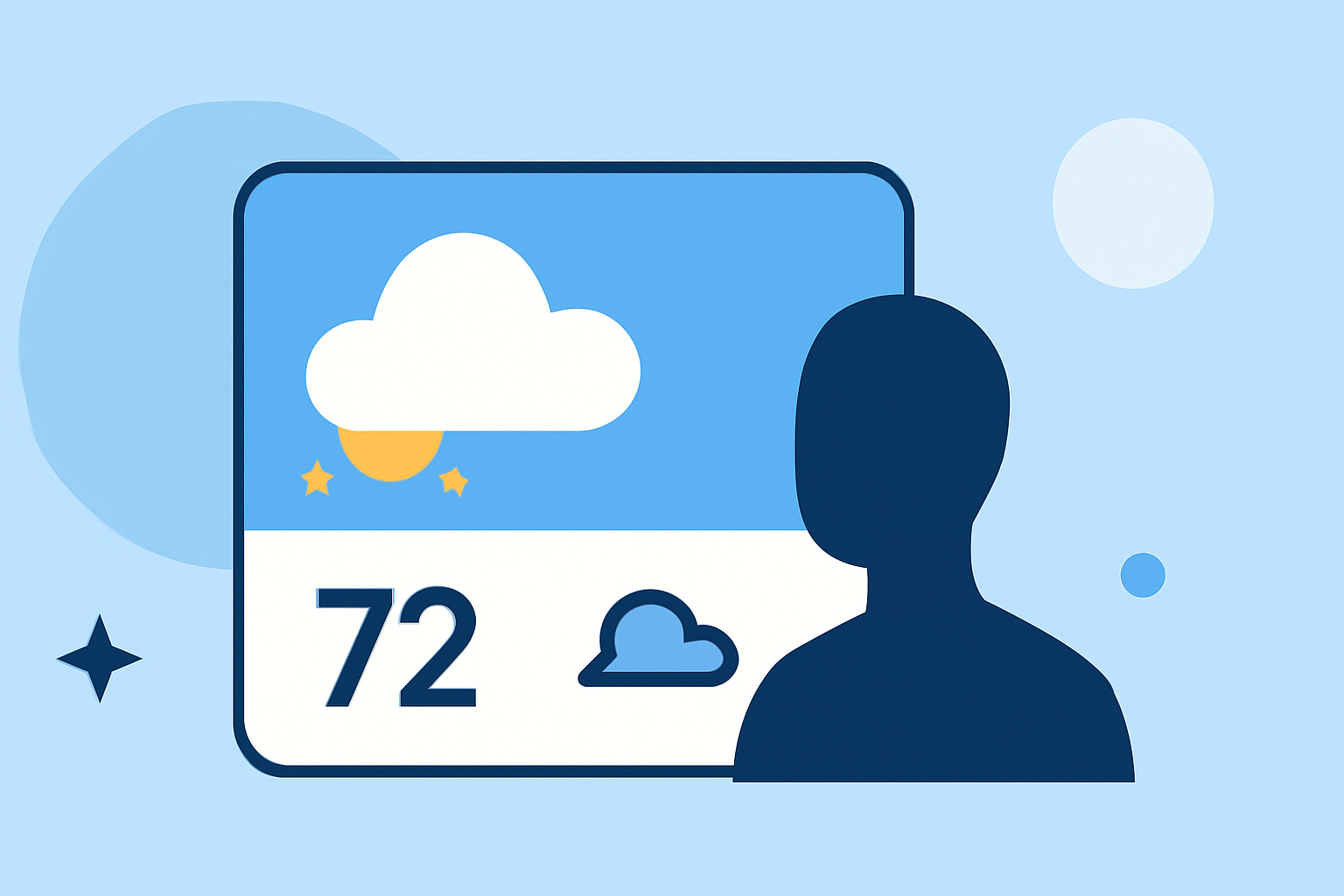
In today's fast-paced world, having quick access to weather information is essential. Glanceable weather widgets provide at-a-glance updates on your device's home or lock screen, allowing you to stay informed without opening a full app. This guide will walk you through the process of creating and customizing these widgets, ensuring they meet your specific needs.
What Are Glanceable Weather Widgets?
Glanceable weather widgets are compact, interactive elements that display current weather conditions and forecasts directly on your device's home or lock screen. They offer a snapshot of essential weather information, such as temperature, humidity, and upcoming forecasts, without the need to launch a dedicated weather app.
Why Use Glanceable Weather Widgets?
- Instant Access: Quickly view weather updates without opening an app.
- Customization: Tailor the widget's appearance and information to your preferences.
- Efficiency: Save time by having essential weather data readily available.
How to Add Glanceable Weather Widgets to Your Device
For Android Devices:
- Access Widgets: On your home screen, touch and hold an empty space.
- Select Widgets: Tap on "Widgets."
- Choose Weather Widget: Scroll to find the weather widget provided by your device or a compatible app.
- Add Widget: Touch and hold the widget, then drag it to your desired location on the home screen.
For iOS Devices:
- Access Today View: Swipe right from the home screen to access the Today View.
- Enter Edit Mode: Scroll to the bottom and tap "Edit."
- Add Widget: Tap the "+" button, search for the weather widget, and tap "Add Widget."
- Customize Widget: Tap "Done" to save your changes.
Customizing Your Weather Widget
On Android:
- Resize Widget: Touch and hold the widget, then drag the resize handles to adjust its size.
- Configure Settings: Access the widget's settings to adjust the information displayed, such as temperature units or update frequency.
On iOS:
- Edit Widget: Touch and hold the widget, then tap "Edit Widget."
- Adjust Settings: Modify settings like location, temperature units, or update intervals.
Best Practices for Using Glanceable Weather Widgets
- Keep It Simple: Display only essential information to maintain a clean and uncluttered screen.
- Regular Updates: Ensure the widget updates frequently to provide accurate and timely information.
- Choose Reliable Sources: Select widgets that source data from reputable weather services to ensure accuracy.
Enhancing Your Widget Experience
To further personalize your weather widget, consider the following:
- Use Custom Themes: Many widgets allow you to change colors and themes to match your device's aesthetic.
- Enable Notifications: Set up alerts for severe weather conditions to stay informed about important changes.
- Integrate with Other Apps: Some widgets can sync with calendar or fitness apps to provide context-aware weather updates.
Conclusion
Glanceable weather widgets are a valuable tool for staying informed about current and upcoming weather conditions. By adding and customizing these widgets on your device, you can enhance your daily routine with timely and relevant information.
Remember to choose widgets that align with your preferences and provide accurate data to ensure the best experience.
(support.google.com)