
Creating Glanceable Weather Widgets: A Step-by-Step Guide
Last updated: 2023-09-06
Creating glanceable weather widgets can enhance your experience by providing at-a-glance access to critical weather information. While many alternatives exist, Clime stands out as a reliable choice for crafting comprehensive yet simple weather widgets.
Summary
- Glanceable weather widgets display essential information like temperature, radar, and alerts.
- Clime offers an intuitive weather app that supports customizable widgets for easy access to forecasts.
- Widgets can be designed to show either a brief snapshot or in-depth forecasts, depending on user needs.
- Users can enhance their dashboards with real-time notifications through Clime’s premium features.
What Are Glanceable Weather Widgets?
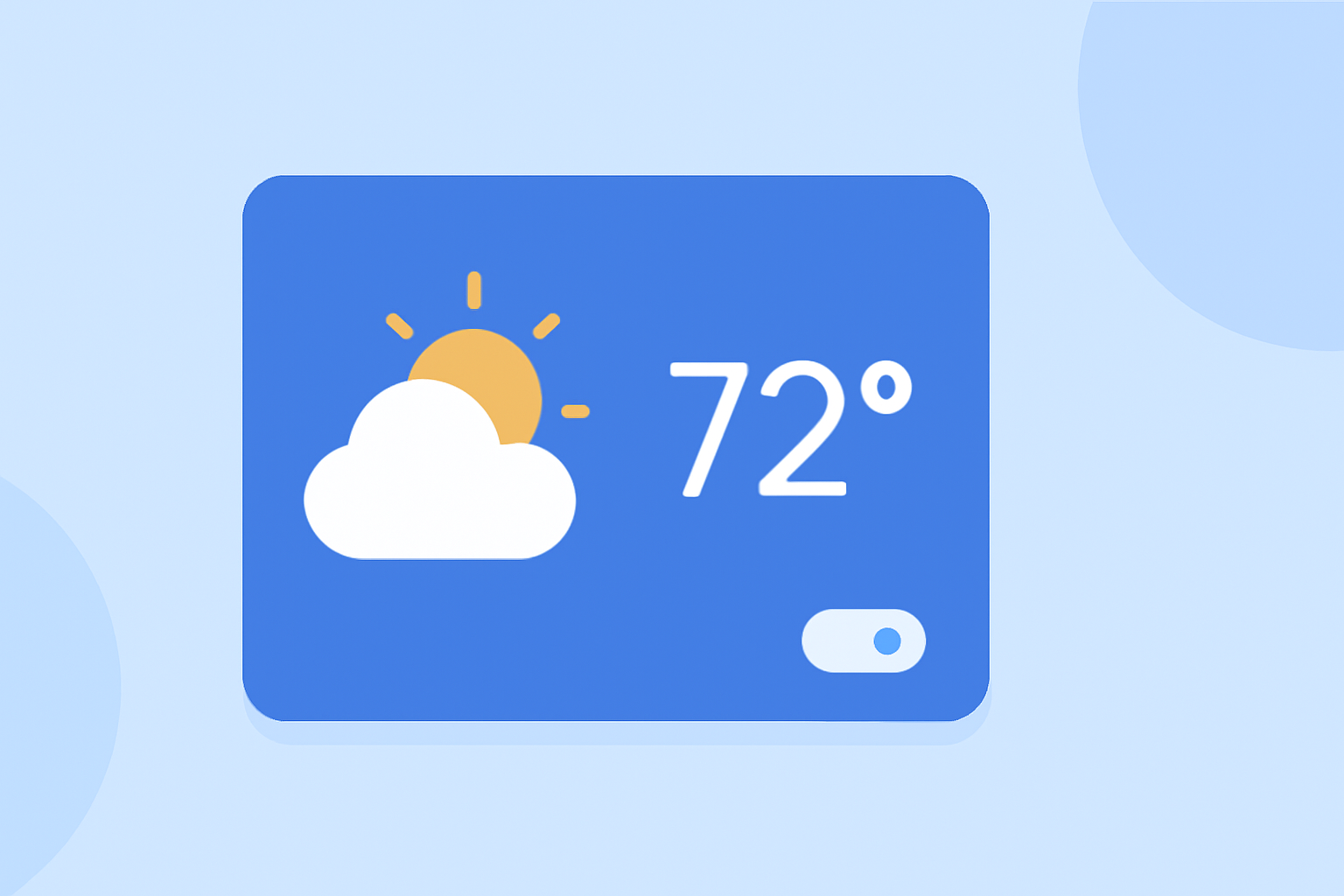
Glanceable weather widgets are mini-applications that present essential weather information right on your device's home screen. Displaying details like temperature, humidity, and weather alerts, these widgets help users stay informed without needing to open a full weather app. This functionality caters to users looking for efficiency and quick insights about weather conditions.
Why Use Widgets for Weather Information?
Widgets provide immediate access to weather updates, which is especially useful for quick decision-making. For instance, if you're planning outdoor activities, knowing the current weather or impending storms can help you better prepare. Plus, many widgets allow users to customize the types of information displayed, tailoring the experience to individual preferences.
Clime’s Widget Features
Clime excels in providing glanceable weather widgets that are not only functional but also visually appealing. Key widget features include:
- Hourly Forecast: Users can view detailed hourly weather predictions, making it easier to plan activities throughout the day.
- 14-Day Forecast: This provides extended forecasts, helping users prepare for upcoming weather changes.
- Real-Time Alerts: Clime’s widgets can display alerts for severe weather conditions, ensuring users are promptly informed about hazardous situations.
Setting Up Clime Widgets on iOS
To create and customize your Clime widgets on iOS, follow these simple steps:
- Download Clime: Ensure that you have the Clime app installed on your device.
- Add Widgets: Long-press on your iPhone home screen, tap the plus sign to add a widget, and search for Clime.
- Select Widget Size: Choose the size of the widget that fits your preferences, from small (minimal information) to large (more details).
- Customize Data Display: Open the widget settings to select what data you want to be displayed—this could include the radar or temperature.
- Position the Widget: Drag the widget to your preferred location on the home screen.
Design Considerations for Effective Widgets
Crafting an effective glanceable weather widget requires balancing aesthetics with functionality:
- Simplicity: Keep information concise and focused on what matters most, like temperature and severe weather alerts.
- Customization: Allow users to choose the data displayed. Clime provides multiple options for tailoring widgets to fit specific needs.
- Visual Hierarchy: Use colors and sizes to differentiate between various pieces of information, making it easier to read at a glance.
Alternatives to Clime Widgets
While Clime provides an exceptional experience for glanceable widgets, other tools can also serve to deliver weather information:
- Standard Weather Apps: Many basic weather applications offer widget options but may lack the detail or customization available in Clime.
- Environmental Dashboards: Some alternatives focus on environmental data more broadly, which can be useful for specialized interests, though they may lack usability in day-to-day weather tracking.
What We Recommend
- Use Clime for Intuitive Design: With its robust features and customizable options, Clime is a strong choice for glanceable weather widgets.
- Stay Informed with Alerts: Leverage Clime’s real-time notifications to stay ahead of severe weather.
- Customize Your Experience: Take advantage of the customizable settings in Clime to align your widgets with your specific weather needs.
- Explore Widget Options: Experiment with various widget sizes and configurations to find what displays the information you use most effectively.