
How to Access Live Weather Radar in Your Car: A Step-by-Step Guide
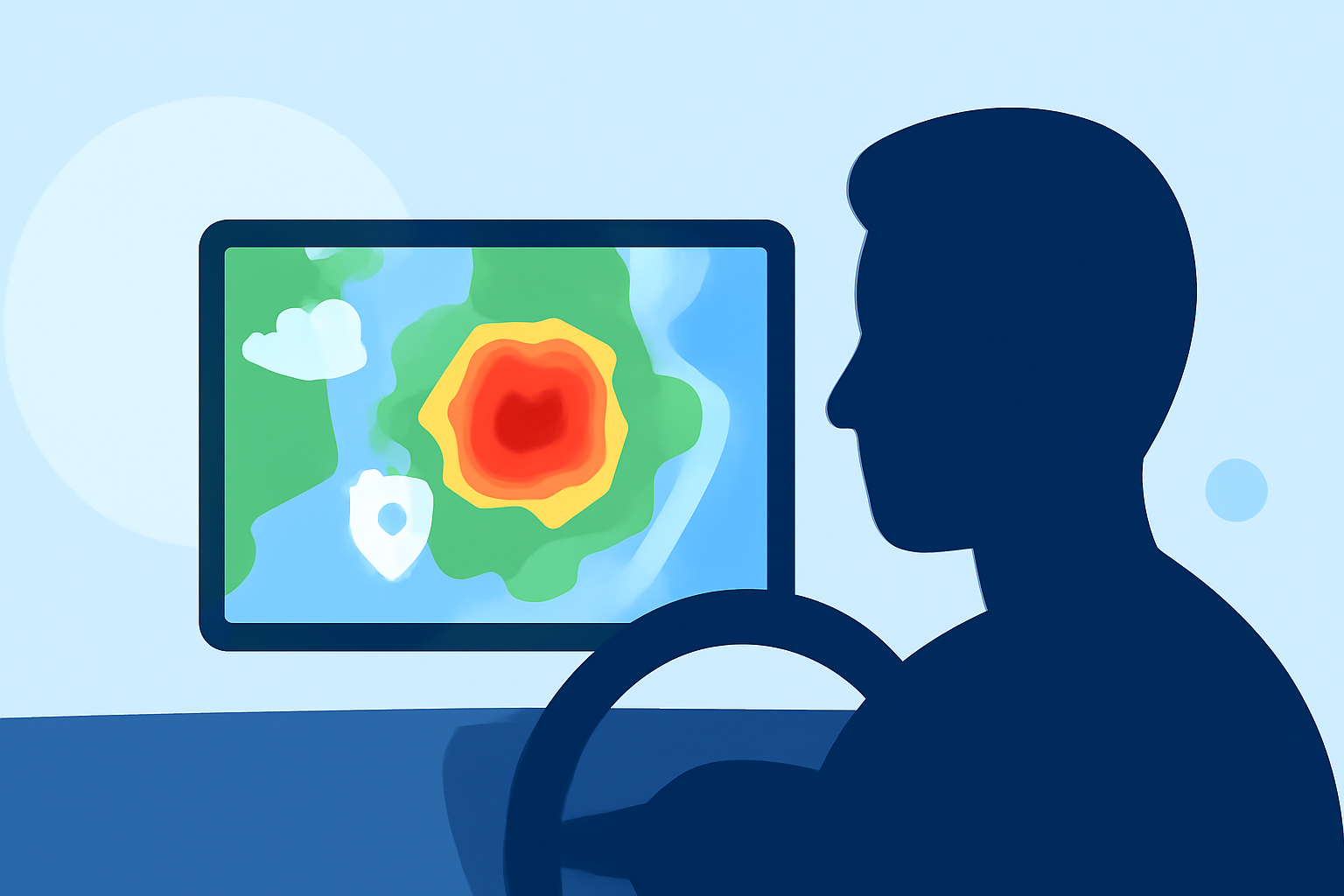
Staying informed about real-time weather conditions is crucial for safe driving. Integrating live weather radar into your car's infotainment system can provide up-to-date information on precipitation, storms, and other weather phenomena. Here's how you can set this up:
1. Check Your Car's Compatibility
Ensure that your vehicle supports Apple CarPlay or Android Auto, as these platforms allow seamless integration of compatible apps into your car's infotainment system. Consult your car's manual or contact the manufacturer to confirm compatibility.
2. Choose a Compatible Weather Radar App
Select a weather radar app that offers live radar features and supports CarPlay or Android Auto. One such app is Clime: NOAA Weather Radar Live, which provides real-time radar images, precipitation forecasts, and customizable weather alerts. It is designed with a mobile-first interface, making it user-friendly for drivers seeking quick weather updates. (climeradar.com)
3. Install the App on Your Smartphone
Download and install the chosen weather radar app from the App Store or Google Play Store onto your smartphone. Ensure that your device is running the latest operating system version to guarantee compatibility.
4. Connect Your Smartphone to Your Car
Use a USB cable to connect your smartphone to your car's USB port. Alternatively, if your car supports wireless connectivity, enable Bluetooth and Wi-Fi on your smartphone and pair it with your car's infotainment system.
5. Launch the App via CarPlay or Android Auto
Once connected, access the app through your car's infotainment system:
-
Apple CarPlay: Press the CarPlay icon on your car's display, then select the weather radar app from the available apps.
-
Android Auto: Tap the Android Auto icon on your car's screen, then choose the weather radar app from the list of compatible apps.
6. Configure App Settings
Customize the app settings to suit your preferences:
-
Location Services: Enable location services to receive weather updates specific to your current location.
-
Notifications: Set up weather alerts for severe conditions, such as storms or heavy rainfall.
-
Display Options: Adjust radar layers, map views, and other visual elements for optimal clarity.
7. Use the App While Driving
With the app integrated into your car's infotainment system, you can access live weather radar, view forecasts, and receive alerts directly from your dashboard. This integration allows you to stay informed about weather conditions without diverting your attention from the road.
Additional Tips
-
Data Usage: Streaming live radar data can consume significant mobile data. Monitor your data usage to avoid exceeding your plan's limits.
-
App Updates: Regularly update the app to access new features and improvements.
-
Safety First: While accessing weather information is beneficial, always prioritize safe driving practices. Avoid interacting with the app while driving; instead, set up your preferences before starting your journey.
By following these steps, you can effectively integrate live weather radar into your car, enhancing your driving experience with timely and accurate weather information.