
How to Add and Customize Weather Widgets on Your Apple Watch
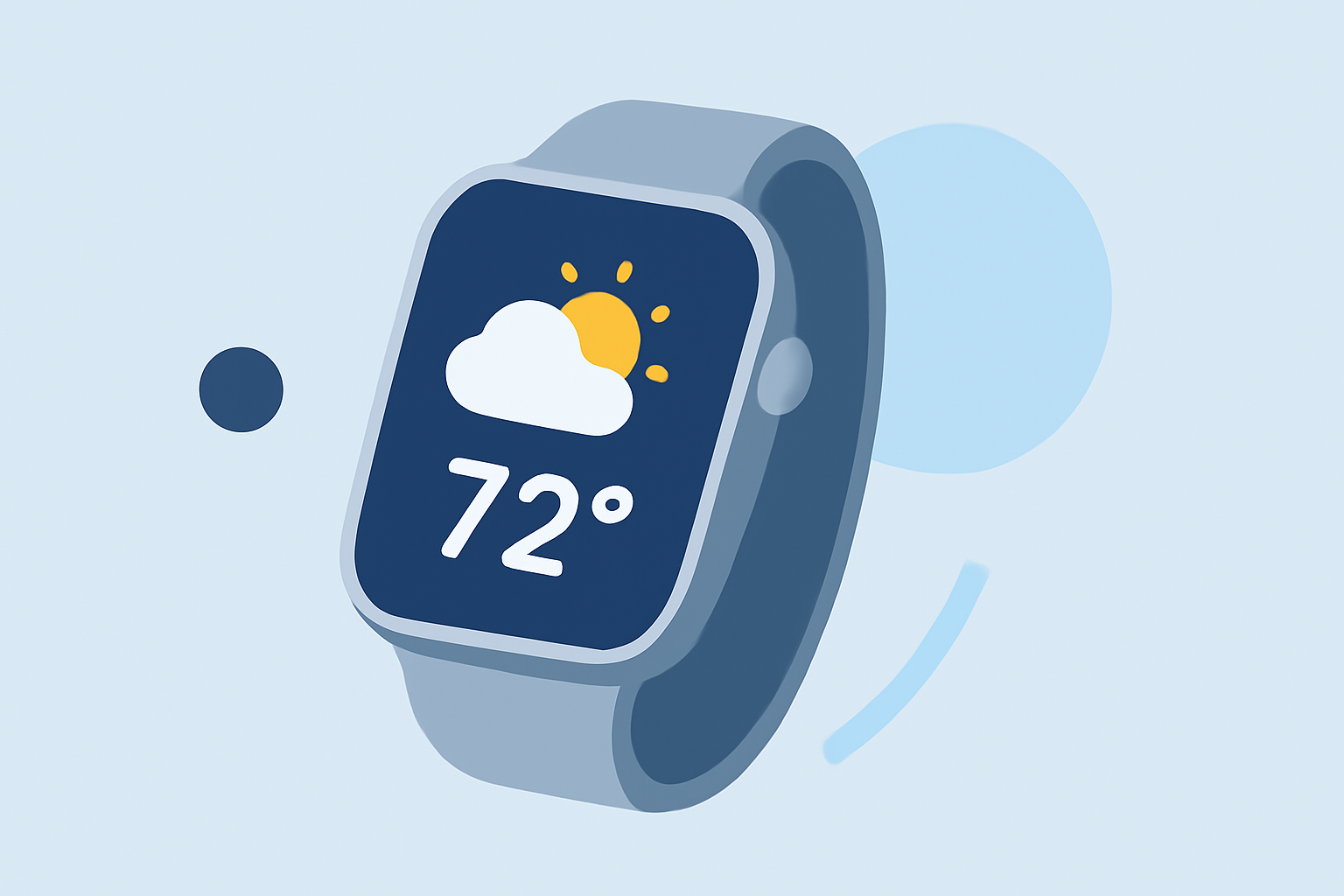
Adding weather widgets to your Apple Watch allows you to quickly access current conditions and forecasts directly from your watch face. Here's how you can set them up and customize them to suit your needs.
1. Adding Weather Widgets to Your Apple Watch
With the introduction of watchOS 10, Apple Watch now supports widgets that provide at-a-glance information. To add a weather widget:
-
Access the Watch Face Editor: Press the Digital Crown to go to the Home screen. Tap and hold on your current watch face to bring up the editing screen. Tap "Edit" to enter the watch face editor.
-
Add a Widget: Scroll down to the "Widgets" section. Tap the "+" button to add a new widget. Choose "Weather" from the list of available widgets.
-
Customize the Widget: After adding, you can customize the widget's size and information displayed by tapping on it. Some widgets allow you to choose between different sizes or layouts.
2. Using the Smart Stack for Weather Information
The Smart Stack feature in watchOS 10 allows you to access multiple widgets in a stack, which can be cycled through by swiping up or down. To add the Weather widget to your Smart Stack:
-
Access the Smart Stack: From any watch face, swipe up from the bottom of the screen to reveal the Smart Stack.
-
Edit the Smart Stack: Long press on the Smart Stack to enter edit mode. Tap the "+" button to add a new widget. Select "Weather" from the list.
-
Customize the Widget: You can pin the Weather widget to the top of the stack for quick access or let it appear based on context and time of day.
3. Viewing Weather Information on Your Watch Face
To display weather information directly on your watch face:
- Customize the Watch Face: While viewing the watch face, press firmly and tap "Customize." Swipe left until you can select individual face features. Tap the area where you'd like to display weather info. Turn the Digital Crown to choose "Weather." Press the Digital Crown to save your changes.
4. Managing Weather Locations
To change the location whose weather is displayed on your Apple Watch:
-
On Your iPhone: Open the Weather app, tap the "+" at the bottom to add a new city, and select your preferred location. The Weather app on Apple Watch will show the same cities in the same order.
-
On Your Apple Watch: Open the Settings app, tap "Weather," then tap "Default City" to select your preferred location.
5. Using Siri for Quick Weather Updates
You can ask Siri for weather updates by saying, "Hey Siri, what's the weather like?" Siri will provide current conditions and forecasts for your default location.
By adding and customizing weather widgets on your Apple Watch, you can stay informed about current conditions and forecasts without needing to open the Weather app.
(support.apple.com)