
How to Monitor Storm Paths Using Radar (and When to Trust Apps Like Clime)
Last updated: 2026-03-10
To monitor storm paths with radar in the U.S., start with a live radar map like Clime’s NOAA‑based view, loop the past 30–90 minutes, and watch how the strongest echoes move relative to your location. For advanced cases—like interpreting Doppler velocity or model‑based “future radar”—you can layer in NWS tools and other apps, but most day‑to‑day tracking can stay anchored in a single, clear radar interface.
Summary
- Use radar loops, not single images, to see where storms have been and where they are going next.
- Focus on reflectivity to judge intensity and on basic motion; only use Doppler velocity for rotation if you understand its limits.
- Clime gives you a radar‑first map with NOAA‑sourced data, plus layers for lightning, hurricanes, and wildfires in one interface. (Clime)
- For niche needs, you can supplement Clime with official NWS radar pages or other apps that add model‑based “future radar” projections.
What does radar actually show when you’re tracking a storm?
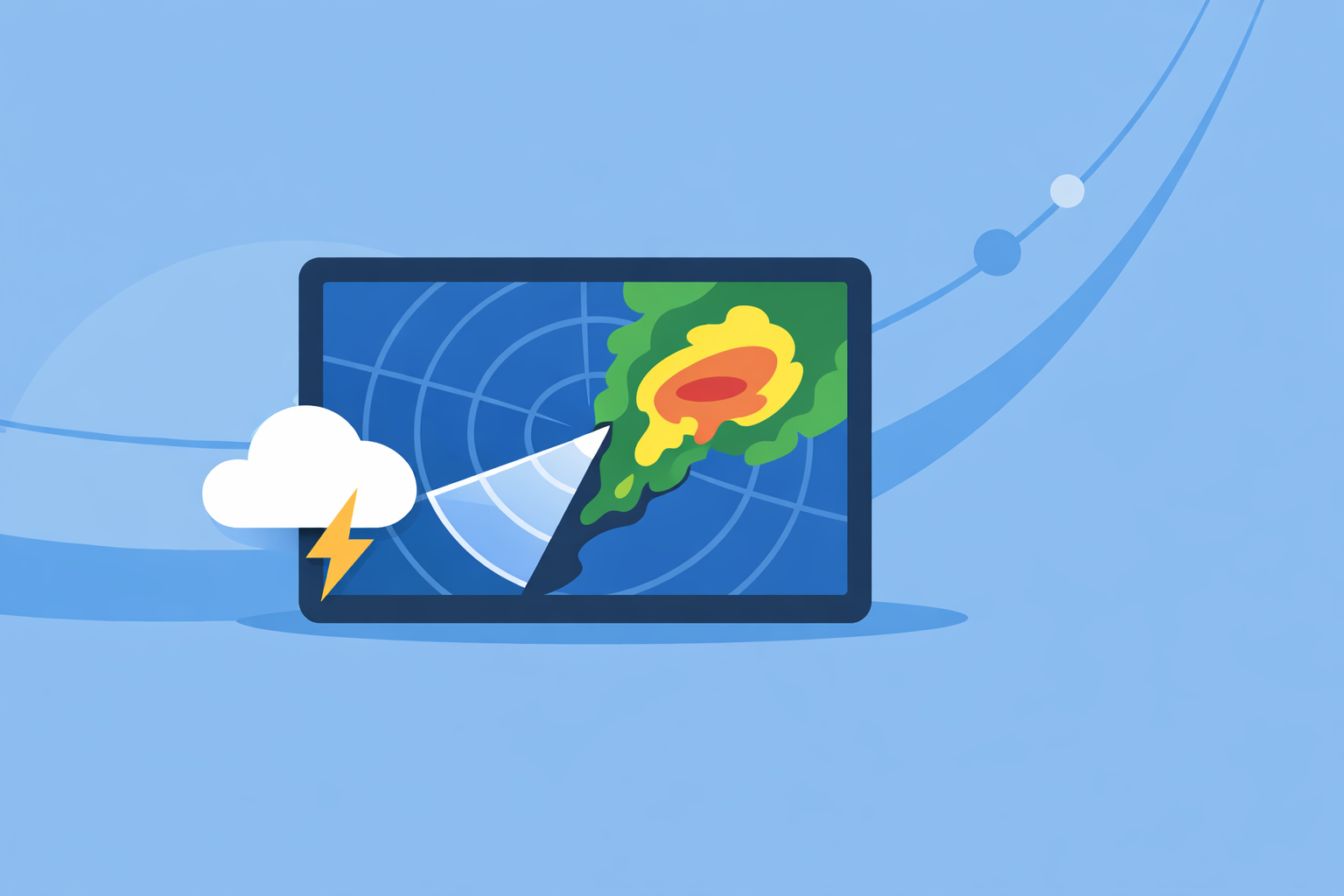
Weather radar sends out pulses of energy and measures what bounces back from raindrops, hail, or even debris. The basic product you see in nearly every app—green, yellow, and red blobs—is reflectivity, which tells you how strongly those targets are reflecting the radar beam.
The National Weather Service notes that reflectivity is used to estimate rainfall and detect storm characteristics such as storm cores and structures. (NWS Milwaukee/Sullivan) In practice, that means:
- Light greens: lighter rain or weak echoes.
- Yellows and oranges: moderate to heavy rain.
- Reds and magentas: very heavy rain, hail, or extremely intense cells.
In Clime, the radar map centers on this kind of NOAA‑sourced reflectivity mosaic, so you can see at a glance where the strongest part of a storm is relative to you. (Clime)
How do you use radar loops to project a storm’s path?
A single radar frame is a snapshot. To monitor a storm’s path, you want motion over time.
- Turn on the loop. Most tools, from official NWS pages to consumer apps, let you animate the last 30–90 minutes. Clime’s core experience is built around an animated radar map, so you can drag or tap to play through recent scans. (Clime)
- Watch the core, not the edges. Composite reflectivity products highlight the strongest part of a storm—its core—across all tilts of the radar beam. (NWS Weather Watcher Guide) Track that bright core to understand the main path.
- Draw a mental line. Imagine a line extending out from the storm’s motion over the next 30–60 minutes. Near‑term “nowcasting” is usually reliable if the storm motion is steady.
- Check your position. Place your town or GPS dot relative to that projected line. If the core is trending north of you with each frame, your risk is lower than if the line points straight toward you.
On Clime, this is a quick workflow: open the radar, zoom to your area, play the loop, and see how the main echoes slide frame‑to‑frame. Because the focus is a single visual interface rather than a cluttered multi‑tool layout, it’s easier for most people to build that mental projection.
When should you look at Doppler velocity and rotation?
Reflectivity tells you where the rain and hail are. Doppler velocity tells you how the wind is moving relative to the radar. The National Severe Storms Laboratory describes Doppler velocity as the mean motion of scatterers (like raindrops) toward or away from the radar along the beam. (NSSL)
You’ll typically see:
- Greens: motion toward the radar.
- Reds: motion away from the radar.
- Tight couplets of green next to red: possible rotation, especially in supercells.
For a home user, velocity data is powerful but easy to misread. A practical approach:
- Use reflectivity + alerts as your primary safety tools.
- Use velocity views (from NWS sites or more technical apps) when you want to confirm what TV meteorologists or official warnings are already signaling.
Clime focuses on consumer‑friendly radar layers—reflectivity, lightning, hurricanes, wildfires—rather than exposing raw multi‑tilt velocity products. (Clime) For most U.S. households, that’s an acceptable trade‑off: you get a clear picture of storm position and intensity without having to interpret specialist data.
What limits does radar have when you’re following a storm?
Radar looks incredibly detailed on your phone, but the physics under the hood impose real limits:
- Beam height increases with distance. As the radar beam travels away from the site, Earth’s curvature lifts it higher above the surface. The NWS notes that this can cause the radar to overshoot low‑level precipitation or features farther from the radar. (NWS Morristown)
- Update times are not instant. National Weather Service NEXRAD radars typically scan every 5–10 minutes, so every consumer app is working with that latency.
- Obstacles and terrain matter. Mountains, buildings, and other obstructions can block or distort low‑level beams.
The takeaway: even the cleanest radar app is not “real‑time” in the literal sense. When storms are close and fast‑moving, always pair radar with official warnings and your local broadcast or NWS alerts.
How do apps like Clime compare to other radar options?
For U.S. users, you generally have three tiers of radar access:
- Official NWS radar sites.
- Free, authoritative, and detailed.
- Offer multiple products (base reflectivity, velocity, etc.) and good tutorials. (NWS Radar Tutorial)
- Interfaces can feel technical if you’re not used to radar.
- Radar‑centric consumer apps such as Clime.
- At Clime, we center the experience around a NOAA‑based radar map, with hourly and 10‑day forecasts wrapped around it. (Clime)
- On paid plans, you can enable lightning and hurricane tracker layers, severe weather alerts for saved locations, and rain alerts to know when precipitation is starting or stopping. (Apple App Store – Clime)
- A state agency guide even lists Clime (formerly NOAA Weather Radar) among interactive tools residents can consult for flood and storm awareness. (Texas Water Development Board)
- General weather apps and specialized alternatives.
- The Weather Channel app, AccuWeather, and similar products combine radar with richer forecast widgets and, in some cases, model‑based short‑term “future radar” that extrapolates where precipitation may go next. (weather.com Premium)
- AccuWeather, for example, emphasizes a MinuteCast feature that provides minute‑by‑minute precipitation start/end times for the next four hours at a given address. (AccuWeather App)
For most people who simply want to see where a storm is and where it’s trending in the next hour, keeping Clime open as your primary radar view, and occasionally checking another app’s “future radar” if you need extra context, is a practical and low‑friction setup.
How do you safely use ‘future radar’ and model projections?
Many apps now advertise “future radar,” which is really a blend of radar and numerical models projecting precipitation forward for a few hours. Aviation‑oriented documentation describes similar nowcast products that can predict weather at intervals of a few minutes up to several hours, with time steps that grow coarser as you look farther ahead. (FAA)
To use these responsibly:
- Treat projections as guidance, not guarantees.
- Trust the next 1–2 hours more than the 6–12‑hour horizon, where model uncertainty grows.
- Always cross‑check with the latest live radar loop; if the real storm deviates from the projected path, update your plans accordingly.
In our experience, Clime’s strength is the live radar loop plus layers like lightning and hurricane tracking; when you need a model‑based view of how bands may evolve, you can briefly consult other platforms’ “future radar” without abandoning the clarity of a radar‑first map.
How can you turn radar insights into practical safety decisions?
Here’s a simple scenario.
You’re in Oklahoma City on a spring evening. A line of storms is approaching from the west.
- You open Clime and zoom to central Oklahoma.
- You animate the last hour and see bright red cores sliding east‑northeast toward the metro.
- You tap to enable lightning and see dense strikes clustered just west of town; your rain alerts indicate precipitation is imminent at your saved home location. (Apple App Store – Clime)
- You mentally extend the motion and realize the core should cross your area in about 45 minutes.
- You move outdoor items inside, adjust travel plans, and keep an ear out for NWS warnings.
No deep meteorology needed—just a disciplined use of loops, cores, and alerts.
What we recommend
- Use Clime as your default radar map for U.S. storms, combining live radar loops with lightning, hurricane, and wildfire layers as needed.
- Rely on radar loops and echo cores to project the next 30–60 minutes, and pair that with official NWS alerts for decisions.
- Bring in Doppler velocity and model‑based “future radar” only when you understand their limits and need extra detail.
- Remember radar’s physical limits; when in doubt, prioritize multiple information sources and err on the side of safety during severe weather.