
How to Quickly Add Multiple Locations to Your Weather Widget
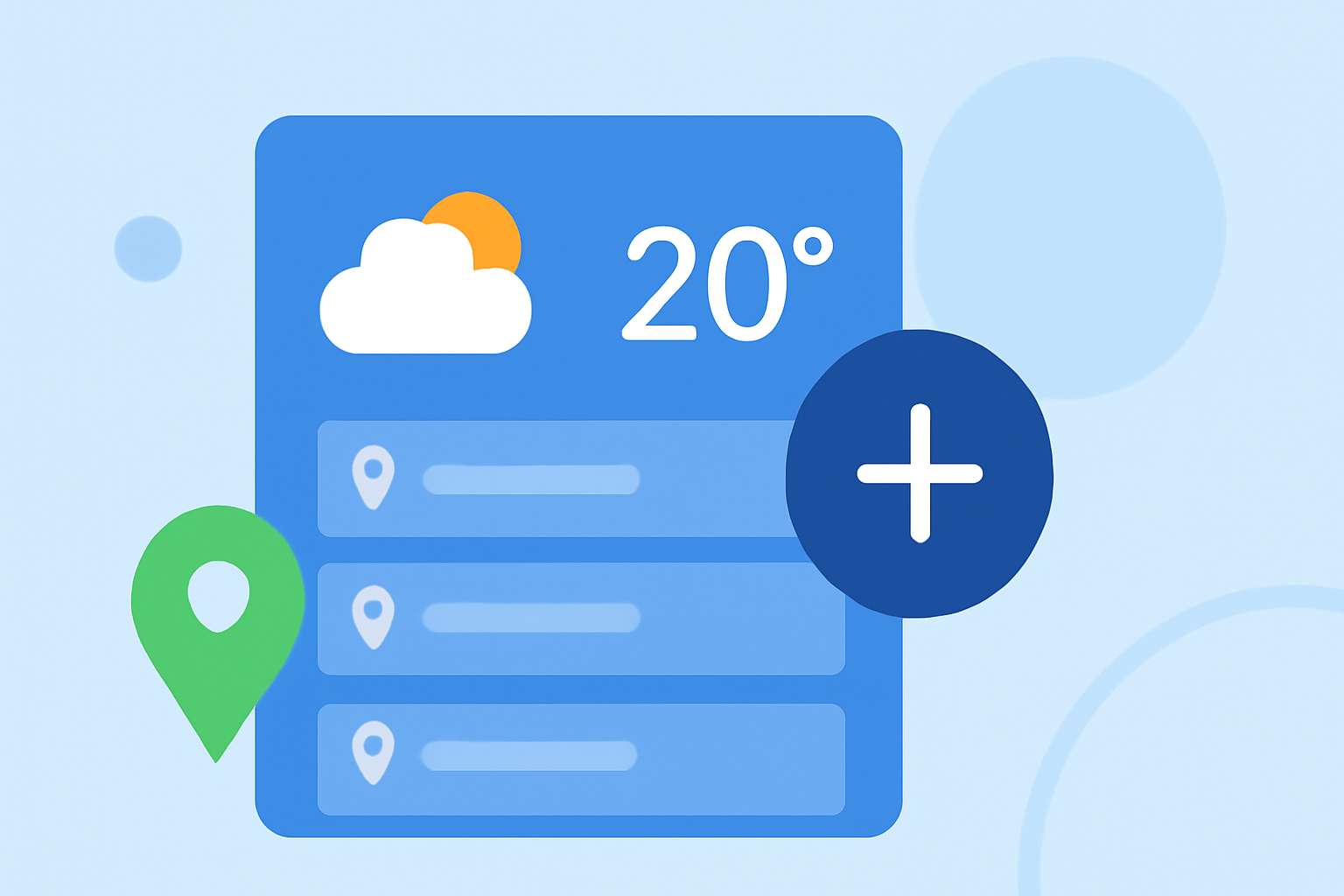
Staying informed about weather conditions in multiple locations is essential for travelers, remote workers, or anyone with connections across different regions. Many weather widgets and apps allow you to add multiple locations, providing quick access to forecasts from various places.
Adding Multiple Locations to Your Weather Widget
On iPhone
The built-in Weather app on iPhone enables users to add and manage multiple locations:
- Open the Weather App: Launch the Weather app on your iPhone.
- Access the Location List: Tap the list icon in the bottom-right corner to view your current locations.
- Add a New Location: Tap the plus (+) button, enter the city or zip code in the search bar, select the desired location from the results, and tap "Add".
- Rearrange Locations: Touch and hold the location, then drag it up or down to reorder.
- Remove a Location: Swipe left on the location and tap "Delete".
This method allows you to monitor weather conditions in various cities directly from your iPhone. (support.apple.com)
On iPad
While the iPad doesn't have a native Weather app, you can still add multiple locations using third-party weather apps:
- Download a Weather App: Choose a weather app from the App Store that supports multiple locations.
- Add Locations: Open the app, use the search function to find and add your desired locations.
- Manage Locations: Rearrange or remove locations as needed within the app's settings.
Ensure the app you select offers the functionality to manage multiple locations.
On Android Devices
The process on Android devices varies depending on the manufacturer and the weather app used. Generally:
- Open the Weather App: Launch the default weather app or any third-party app you've installed.
- Add a Location: Use the search function to find and add a new location.
- Manage Locations: Access the app's settings to reorder or remove locations.
Refer to the app's help section or support resources for detailed instructions.
Using Clime's Weather Widget
Clime offers a versatile weather widget that allows users to monitor multiple locations seamlessly. To add multiple locations:
- Access Widget Settings: Open the Clime app and navigate to the widget settings.
- Add Locations: Enter the city names or zip codes of the locations you wish to track.
- Customize Display: Choose how the locations are displayed, such as in a list or carousel format.
- Save Settings: Save your preferences to update the widget on your home screen.
This feature ensures you have quick access to weather updates from various locations, all within a single widget.
Tips for Managing Multiple Locations
- Prioritize Locations: Place the most important locations at the top of your list for quicker access.
- Regular Updates: Periodically review and update your list to ensure it reflects your current needs.
- Use Widget Stacks: On devices that support widget stacks, combine multiple weather widgets into a single stack to save space and access them easily.
By effectively managing multiple locations in your weather widget, you can stay informed about conditions in various areas, aiding in travel planning, communication with friends and family, and staying updated on global weather patterns.