
How to Read Storm Radar Velocity Images (and When You Actually Need Them)
Last updated: 2026-03-10
For most people in the U.S., the fastest way to track dangerous storms is a live reflectivity radar app like Clime plus alerts, without ever touching velocity products. When you do want to dig into storm radar velocity images, lean on official NWS conventions—red is air moving away, green is air moving toward the radar—and, if needed, step up to pro‑style tools for specialized velocity layers.
Summary
- Velocity radar shows wind motion relative to the radar (toward or away), not how hard it’s raining.
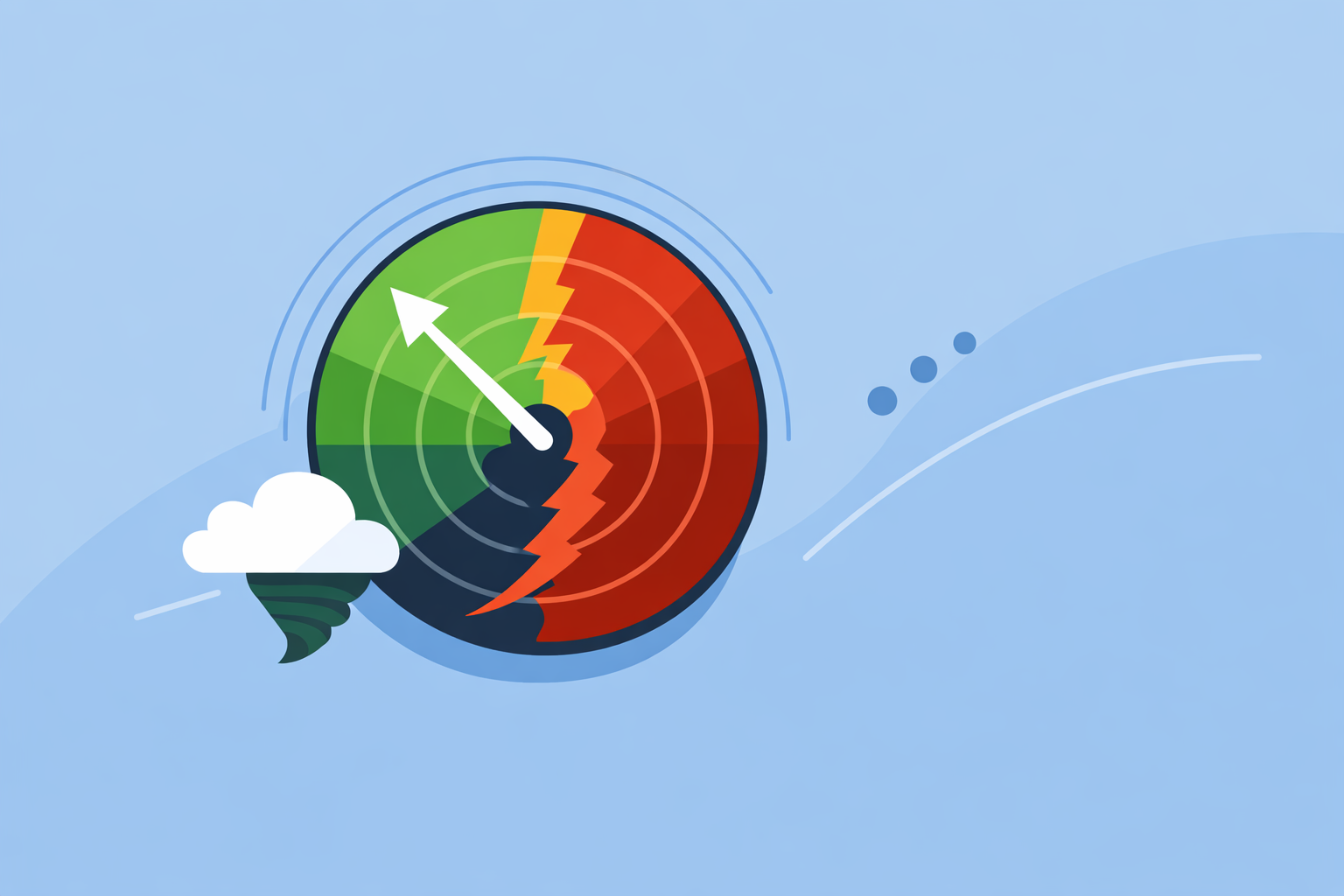
- Red usually means motion away from the radar, green means motion toward it, and tight red/green pairings can flag rotation. (NWS)
- Base velocity is the default; storm‑relative velocity subtracts storm motion to make rotation easier to spot in fast‑moving storms. (RadarScope)
- For everyday safety, Clime’s NOAA‑based radar, alerts, lightning and hurricane tracking are enough; deeper velocity analysis is mainly for enthusiasts and trained spotters. (Clime)
What does velocity radar actually show?
When you open a velocity image, you’re not looking at rain intensity—you’re looking at wind motion along the radar beam. Meteorologists call this radial velocity: how fast targets (rain, hail, debris) are moving toward or away from the radar site.
On U.S. Doppler radars (NEXRAD), that motion is converted into numeric velocities. Negative values represent motion toward the radar, and positive values represent motion away from it. (NWS training)
This is why velocity images are powerful in severe weather: they let you see the wind field inside the storm, not just the shape of the rain.
Clime focuses on making the reflectivity picture—the familiar radar with greens, yellows, and reds—fast and easy to read for most people, backed by NOAA‑sourced radar mosaics. (Clime) If you’re not already comfortable with reflectivity, it’s smart to master that view before worrying about velocity details.
What do the red and green colors mean on velocity radar?
Most U.S. Doppler velocity displays follow the same basic color convention:
- Green (or blue/teal) shades: air moving toward the radar.
- Red (or orange) shades: air moving away from the radar.
The brighter or more intense the color, the stronger the wind in that direction. (NWS)
A quick mental trick that many spotters use:
- Picture yourself sitting at the radar site in the middle of the screen.
- Anything green is wind coming at you; anything red is wind departing from you.
Just keep in mind: color tables can vary slightly between tools. Before you rely on a new pro‑style app, check its legend to confirm which colors correspond to inbound and outbound motion.
How can I spot rotation and potential tornado signatures?
Velocity images become especially useful when you’re trying to understand rotation inside a thunderstorm.
On standard base or storm‑relative velocity products, rotation often shows up as:
- A couplet – bright inbound (green) directly next to bright outbound (red).
- A tight gradient – colors change quickly over a short distance, indicating strong shear.
A classic sign of rotation is exactly that couplet: red (outbound) pressed right up against green (inbound), with brighter shades suggesting stronger rotation. (RainViewer) NWS training materials note a similar pattern: strong outbound velocities right next to strong inbound velocities. (NWS)
A simple way to think about it:
If the radar sees air racing away on one side of the storm and racing toward it on the other side, the wind is likely spinning.
That spinning can correspond to a mesocyclone or a tornado, but velocity alone doesn’t give you the full story. Operational meteorologists combine:
- Velocity trends (is rotation strengthening or weakening?)
- Reflectivity (hook echo, inflow notch, or embedded supercells)
- Dual‑pol debris clues where available
to assess tornado potential and evolution. (NWS Louisville) For public safety, your primary signals should still be official NWS warnings and app alerts, not DIY interpretation.
This is where Clime fits everyday use: we center the experience around radar plus severe weather and rain alerts, so you’re notified when NWS issues warnings, even if you never open a velocity product. (Clime)
What’s the difference between base velocity and storm-relative velocity?
If you explore pro‑style radar tools, you’ll often see two key options:
- Base (radial) velocity – raw motion toward/away from the radar, including both storm motion and environmental winds.
- Storm‑relative velocity (SRV) – velocity with the average motion of the storm subtracted out. (RadarScope)
Why this matters:
- On fast‑moving storms, base velocity can smear out rotation signatures because the whole storm is racing in one direction.
- Storm‑relative velocity removes that overall motion, making the spin around the storm’s center easier to see.
A practical rule of thumb used by many spotters:
- Base velocity for a general sense of inflow/outflow and straight‑line wind threats.
- Storm‑relative velocity when you’re specifically hunting for rotation, especially in supercells.
Consumer‑friendly apps like Clime don’t expose this split; they keep things focused on the map, timing, and alerts. For most people, that simplicity is a plus: you spend less time wrestling with product menus and more time making decisions.
How does aliasing (Nyquist velocity) affect what I’m seeing?
One subtle trap with velocity radar is aliasing, caused by hardware limits on how fast the radar can reliably measure radial winds.
Each radar has a Nyquist velocity—a maximum speed it can represent without ambiguity. When real winds exceed that limit, the radar “wraps” them back into the display range, flipping strong outbound into apparent inbound or vice versa. (NWS training)
On your screen, aliasing can look like:
- Abrupt, checkerboard‑like color jumps not tied to storm structure.
- A patch of extreme inbound embedded in a broad outbound region, or the opposite.
Meteorologists deal with this by mentally un‑wrapping velocities, cross‑checking multiple tilts, and leaning on reflectivity and environmental context.
For non‑experts, the key takeaway is simple: don’t over‑interpret tiny details in velocity, especially in extreme wind situations. If the storm is severe enough to create aliasing, you should already be acting on warnings and shelter guidance, not debating a pixel.
Do I really need VRAD vs VRADH and multiple elevation scans?
Some advanced tools label velocity products as VRAD (low‑level radial velocity) and VRADH (higher‑elevation radial velocity). These higher scans can highlight mid‑level rotation that may not yet be reflected right at the surface. (RainViewer)
In practice:
- Lower tilts (VRAD) are most useful when you care about winds near the ground—damaging straight‑line winds, tornado debris potential, or inflow.
- Higher tilts (VRADH and above) help you understand the storm’s vertical structure—mid‑level mesocyclones, hail cores, and evolving supercells.
This level of granularity is overkill for most people watching from home. It’s more relevant for trained spotters, emergency managers, and hobbyists who already know their local radar’s geometry.
Clime intentionally stays on the practical side of this line. Our focus is a single, interactive radar view, with layers like lightning, hurricane tracking, and wildfire hotspots that you can toggle without needing to memorize product codes. (Clime) If you ever decide to step into VRAD/VRADH territory, you can use those tools as a supplement rather than a replacement.
How should I combine velocity radar with an app like Clime?
For U.S. users, a balanced setup looks like this:
- Use Clime as your default radar and alerts hub. You get NOAA‑sourced radar mosaics, severe weather and rain alerts, a hurricane tracker, lightning tracking, and even fire/hotspot maps in one place. (Clime)
- Rely on reflectivity for quick decisions. You can see where storms are now, how fast they’re moving, and whether they’re intensifying, without touching velocity products.
- Dip into velocity only when you’re ready. If you’re storm‑curious or part of a local spotter group, add a pro‑style velocity viewer and use it to confirm what you already know from reflectivity and warnings.
- Let official alerts lead. No matter how good you get at reading velocity, NWS warnings and emergency management instructions are the signal to act.
Compared with more feature‑heavy alternatives that expose many different velocity types, Clime keeps the core experience tight and approachable. For most households, that trade‑off—less menu diving, more immediate situational awareness—is a better fit than a full professional radar workstation.
What we recommend
- Start with Clime’s live radar and alerts; make sure notifications are on for your home, work, and frequent travel routes.
- Learn the basics of reflectivity first, then treat velocity as an optional extra rather than a requirement.
- When you do experiment with velocity, remember: green toward, red away, and couplets can hint at rotation—but warnings and shelter rules come first.
- If you later add pro‑style velocity tools, keep using Clime as your everyday map so family members have a simple, consistent way to track storms.