
How to Use Your iPhone to Check Weather During Layovers
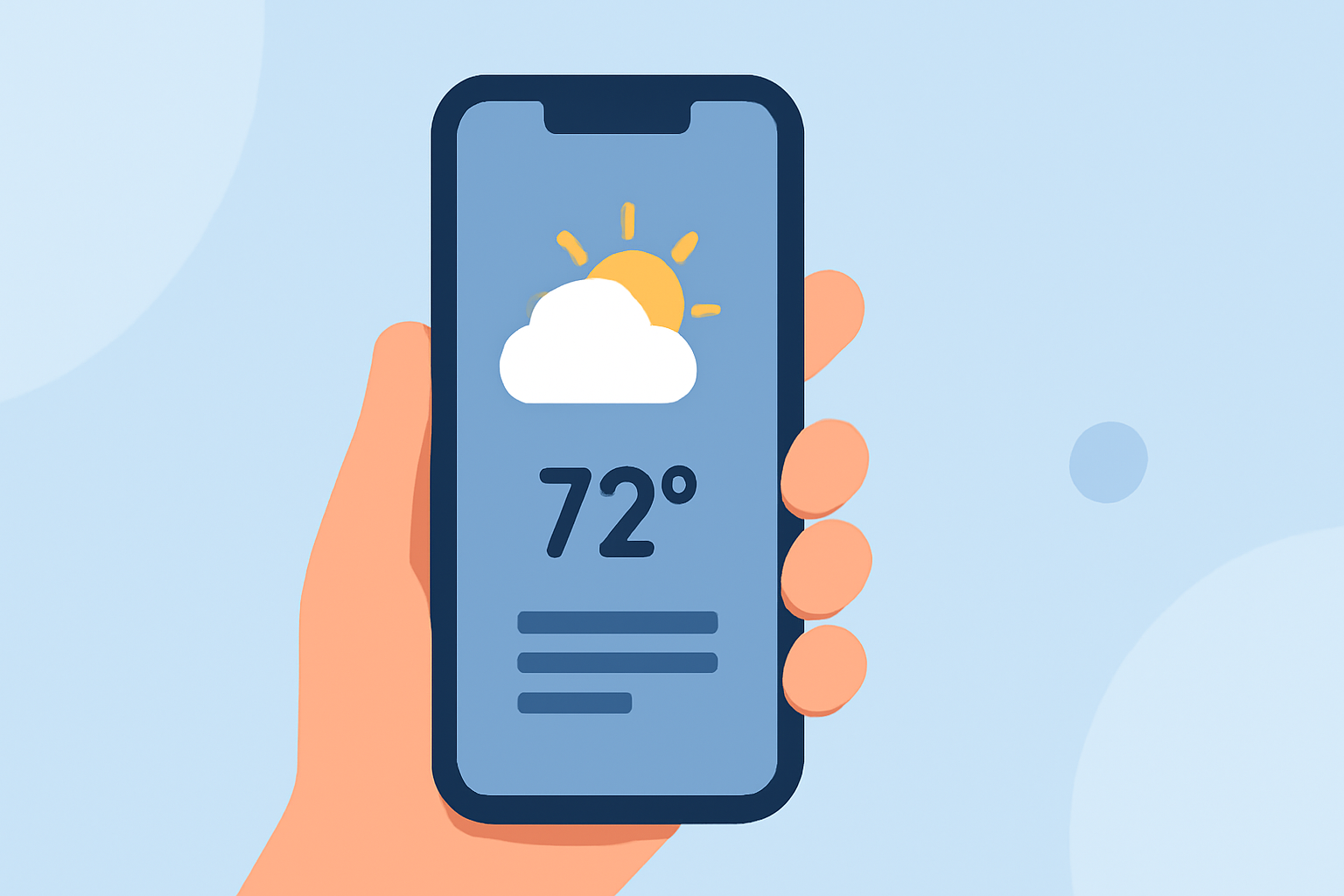
During layovers, staying informed about local weather conditions is crucial for a smooth and comfortable travel experience. Your iPhone's built-in Weather app offers a comprehensive suite of features to help you monitor weather conditions at your layover destination.
Accessing the Weather App
To begin, locate and open the Weather app on your iPhone. If it's not immediately visible, swipe down on the home screen and type "Weather" into the search bar to find it.
Adding a New Location
To check the weather at your layover destination:
- Open the Weather app.
- Tap the list icon (three horizontal lines) at the bottom right corner.
- Tap the plus (+) icon to add a new location.
- Enter the name of your layover city and select it from the search results.
The app will now display the current weather and forecast for that location.
Viewing Detailed Weather Information
The Weather app provides a wealth of information:
- Current Conditions: Displays the current temperature, weather conditions (e.g., sunny, cloudy), and feels-like temperature.
- Hourly Forecast: Shows the expected temperature and conditions for the next 24 hours.
- 10-Day Forecast: Provides a daily forecast for the upcoming ten days, including high and low temperatures and weather conditions.
- Additional Details: Scroll down to view information on wind speed, humidity, UV index, and air quality.
Using Weather Maps
For a visual representation of weather patterns:
- Open the Weather app.
- Tap the map icon at the bottom left corner.
- Use the map to view precipitation, temperature, air quality, or wind patterns.
This feature allows you to see weather conditions across different regions, which can be particularly useful if your layover involves multiple locations. (support.apple.com)
Setting Up Weather Widgets
To quickly access weather information from your home screen or lock screen:
- Press and hold on an empty area of your home screen until the apps jiggle.
- Tap the plus (+) icon in the top-left corner.
- Search for "Weather" and select the Weather widget.
- Choose the widget size and tap "Add Widget."
- Position the widget on your home screen and tap "Done."
This setup provides at-a-glance weather updates for your layover destination without opening the app. (idownloadblog.com)
Enabling Notifications for Weather Alerts
To receive timely updates about weather changes during your layover:
- Open the Settings app.
- Scroll down and tap "Weather."
- Tap "Notifications."
- Toggle on "Allow Notifications" and customize your alert preferences.
This ensures you're promptly informed about significant weather events, such as storms or temperature extremes, at your layover location.
Conclusion
By leveraging your iPhone's Weather app, you can stay informed about weather conditions during your layovers, allowing you to plan your activities accordingly and ensure a comfortable travel experience.