
How to View Radar Data for Storm Tracking Online (U.S. Guide)
Last updated: 2026-03-10
For most people in the U.S., the fastest way to track storms online is to open an interactive radar map like Clime’s NOAA‑based radar and watch the loop over your location. If you need raw government radar products or downloadable data, you can pair that with the National Weather Service’s radar site and NOAA tools.
Summary
- Use an interactive radar map to see where rain and storms are now and where they’re moving.
- Start with a consumer‑friendly app like Clime, which centers on a NOAA‑based radar map and severe weather alerts.
- For official NEXRAD views and downloads, use the National Weather Service radar site and associated NOAA viewers.(NWS radar.weather.gov)
- Add other tools only if you need niche features like long‑range future radar or GIS‑ready data.
How does online radar actually work for storm tracking?
When you view radar online in the U.S., you’re usually looking at imagery derived from the NEXRAD Doppler radar network run by the National Weather Service (NWS). That network scans the atmosphere in 5–10 minute intervals, and consumer tools turn those scans into animated maps you can pan and zoom.(NEXRAD overview)
The NWS itself offers an official interactive radar site at radar.weather.gov. It shows radar data on a map together with forecasts and alerts, and it organizes what you see into local station views, a national mosaic, and location-based views with storm-based alerts.(NWS radar.weather.gov)
Most apps you use on your phone—including Clime and other options—are visual layers built on that same radar backbone, adding features like lightning, hurricane tracking, or notifications.
What’s the simplest way to view radar online right now?
If your goal is “Where is the storm and is it heading toward me?”, you want:
- A clean radar map that opens quickly.
- An animation loop so you see motion, not just a snapshot.
- A few smart layers (lightning, alerts) without learning pro‑level radar products.
At Clime, we optimize specifically for that use case. Our app centers on a live weather radar map built on NOAA radar data, with basic hourly and 10‑day forecasts around it.(Clime overview) You can pinch‑zoom into your neighborhood, start the loop, and immediately see how precipitation is moving.
Compared with many general weather websites that bury radar behind menus, this “radar‑first” approach usually gets you from opening the app to understanding the storm in a few seconds. For most U.S. residents who just need to know if a line of thunderstorms is an hour away, that speed and simplicity matter more than niche radar products.
How do I use the National Weather Service radar site for storm tracking?
If you want the official government view in a browser, use the NWS radar site:
- Go to radar.weather.gov.
- Enter your city or ZIP, or drag the map to your area.
- Choose between station radar (zoomed in), national mosaic (big picture), or “weather for a location” views that pair radar with alerts.(NWS radar.weather.gov)
- Hit play to animate the last several scans and watch storm motion.
NWS recently upgraded this experience, with more frequent updates and higher‑resolution images than its older radar pages.(NWS radar FAQ) For a browser‑based, free, and ad‑free option, it’s hard to beat.
Where it starts to feel heavier is when you want to layer in lightning, wildfire, or hurricane specifics. That’s where many people prefer a consumer app like Clime as their primary radar screen, then pull up NWS radar in another tab when they want to confirm the official picture.
How does Clime compare with other online radar tools?
Plenty of other tools can show you radar; the question is what’s most practical for day‑to‑day storm tracking.
- The Weather Channel and Storm Radar: Their mobile app and Storm Radar offering provide interactive radar and optional Premium radar layers like high‑resolution tiles, windstream, and extended snow forecasts.(Premium Radar) They also market future‑radar timelines and a dedicated storm‑tracking app.(Storm Radar)
- AccuWeather: On the web and in the app, their radar map highlights where precipitation is, what type it is (rain, snow, ice), and how it has been moving recently.(AccuWeather)
- Wind‑ and marine‑focused tools: Platforms like Windy focus more on wind, waves, and model forecasts, and have added radar‑centric features and overlays over time.(Windy community)
These are strong alternatives if you already live in those ecosystems or want a particular specialty. In practice, though, many users mainly want a fast radar loop plus critical risk layers in a single place. That’s exactly where Clime focuses: a NOAA‑based radar map, severe weather alerts, and specialized layers like lightning, wildfire hotspots, and a hurricane tracker on paid plans.(Clime app page)
For most non‑expert users, the practical difference between these tools day‑to‑day is less about the raw data source and more about how quickly you can answer, “Is something dangerous heading my way?” Clime’s map‑first design and storm‑specific overlays are tuned for that.
When should I go beyond simple radar loops?
There are a few scenarios where you might want more than a basic radar animation:
- Severe thunderstorm days: You want to see lightning and get push alerts when warnings are issued. On Clime paid plans, lightning and severe weather alerts sit directly on the radar, so you can both see and be notified about nearby threats.(Clime App Store listing)
- Tropical storm tracking: You care about the broader storm structure over ocean and long‑range paths. AccuWeather emphasizes satellite‑based radar maps to follow tropical systems over water,(AccuWeather press release) while on Clime you can turn on the hurricane tracker layer to follow the storm on top of the radar.
- Data analysis and GIS work: You need files, not just pictures. NWS offers OGC‑compliant radar services for use in your own applications, and radar geoTIFF downloads for MRMS data at a dedicated endpoint.(NWS radar.weather.gov) (NWS radar FAQ)
For everyday awareness—deciding whether to delay a ballgame, heading home before a squall line hits—those advanced paths are often unnecessary. Most readers are better served by a radar loop plus alerts in an app like Clime, then dipping into official or specialist tools when they have a clearly defined need.
How do I quickly read what radar is telling me?
Once you’ve opened a radar map (Clime, NWS, or another site), focus on three things:
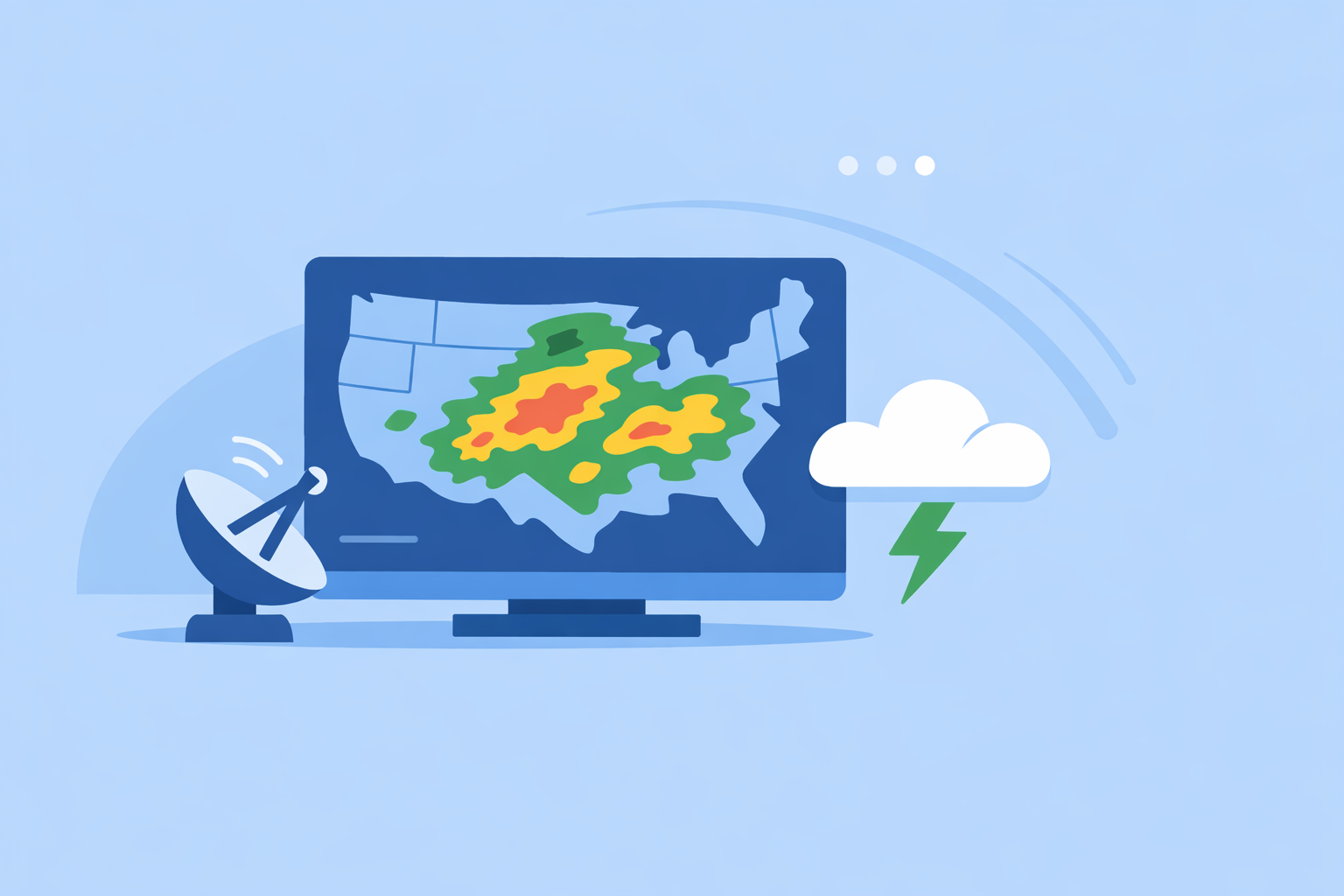
- Color and intensity
- Light greens/blues: light rain or snow.
- Yellows/oranges/reds: heavier rain, thunderstorms, or intense bands.
-
Motion direction Play the loop and watch where the echoes are moving. Mentally project them forward 30–60 minutes over your location.
-
Context layers
- Turn on alert layers to see if your area is under a watch or warning.
- Enable lightning or hurricane layers if available to gauge storm severity.
Clime is built to bring those layers together: radar as the canvas, with optional overlays for lightning, hurricanes, and wildfires, plus severe weather and rain alerts on paid plans.(Clime App Store listing) That way, you don’t have to hop between separate websites to assemble the full picture.
Imagine a summer afternoon in Oklahoma: you see green blobs on the horizon, your phone buzzes with a severe thunderstorm alert, and you open Clime. Within a few seconds, you’re watching the radar loop with the warning polygon overlaid, lightning strikes popping nearby, and can decide whether to get off the highway at the next exit. That’s the level of clarity most people actually need from online radar.
What we recommend
- Start with a radar‑first app like Clime as your everyday storm‑tracking dashboard; it’s tuned around NOAA‑based radar, alerts, and intuitive risk layers.
- Keep the NWS radar site bookmarked for an official, ad‑free browser view and for cases where you want to sanity‑check any app’s depiction of storms.
- Reach for more specialized tools (future‑radar‑heavy apps, marine‑focused platforms, or MRMS downloads) only when you have a specific question they’re designed to answer.
- Focus less on collecting more apps and more on mastering one or two workflows that reliably tell you when and where a storm could affect you.