
Implementing Weather Notification Badges in Your iOS App
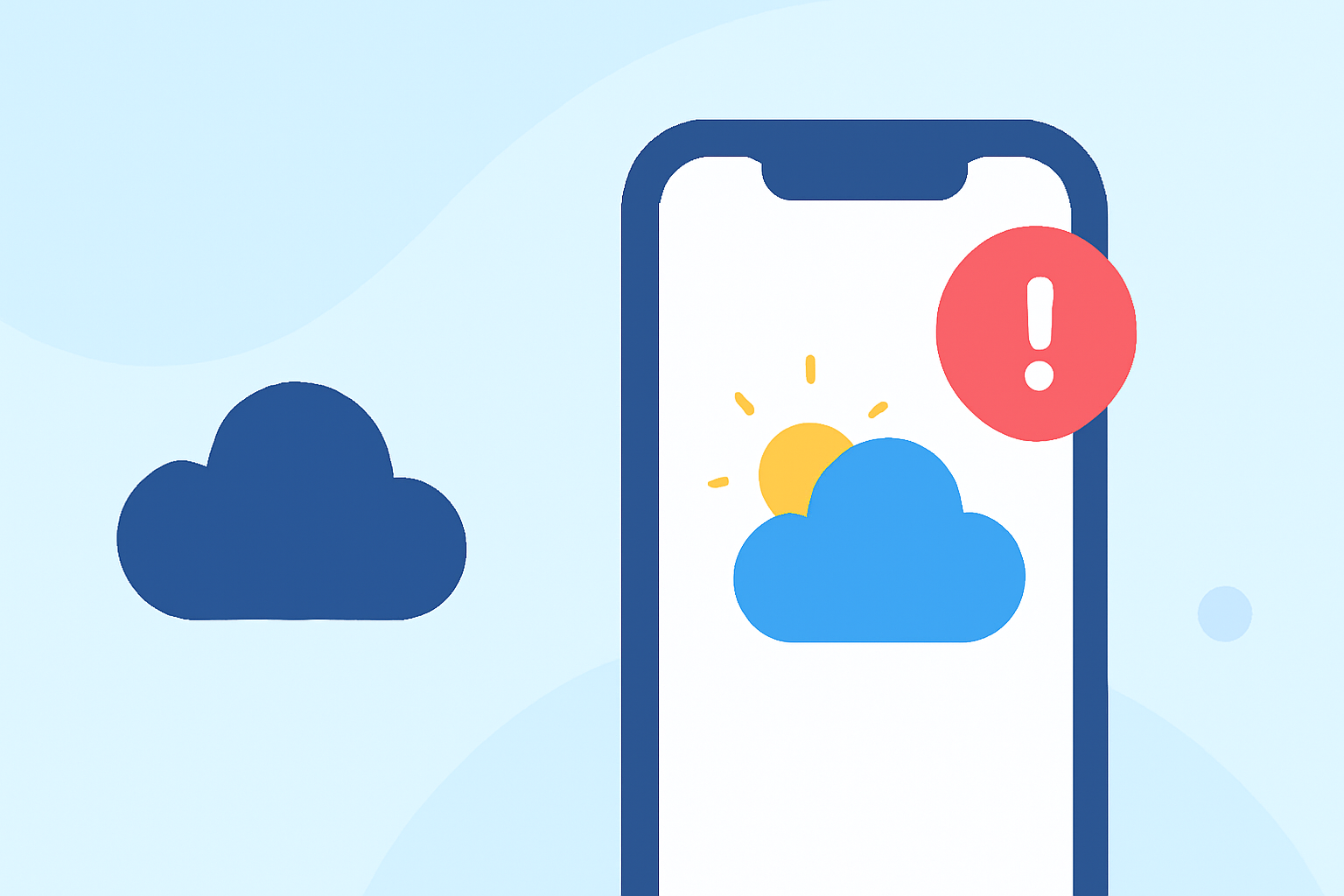
Incorporating weather notification badges into your iOS app can significantly enhance user engagement by providing immediate, at-a-glance information about current weather conditions. This guide will walk you through the process of implementing these badges from scratch, ensuring they are both functional and user-friendly.
Understanding iOS Notification Badges
An iOS notification badge is a small, numbered icon that appears on your app's icon, indicating the number of unread notifications. While traditionally used to signal unread messages or alerts, badges can also be utilized to display real-time weather information, such as current temperature or severe weather warnings. This approach allows users to quickly assess weather conditions without opening the app.
Setting Up Your Development Environment
Before you begin, ensure your development environment is ready:
- Xcode Installation: Download and install the latest version of Xcode from the Mac App Store.
- iOS Device or Simulator: Set up an iOS device or use the iOS Simulator within Xcode for testing.
- Weather Data Source: Choose a reliable weather data provider that offers an API for real-time weather information.
Implementing Weather Notification Badges
Follow these steps to integrate weather notification badges into your app:
- Request Notification Permissions: Your app must have permission to send notifications. Prompt users to grant this permission upon first launch.
import UserNotifications

UNUserNotificationCenter.current.requestAuthorization(options: [.badge, .alert, .sound]) { granted, error in
if granted {
// Proceed with badge implementation
}
}
- Fetch Weather Data: Utilize your chosen weather API to retrieve current weather conditions for the user's location.
// Example function to fetch weather data
func fetchWeatherData {
// Implement API call to fetch weather data
}
- Update App Badge: Based on the fetched weather data, update the app's badge to display relevant information, such as the current temperature.
// Example function to update app badge
func updateAppBadge(with temperature: Int) {
UIApplication.shared.applicationIconBadgeNumber = temperature
}
- Handle Badge Updates: Ensure that the badge updates in real-time as weather conditions change. Implement background fetches to periodically update the badge without requiring the app to be open.
Best Practices for Badge Implementation
- User Consent: Always request user permission before displaying badges.
- Relevance: Ensure that the badge information is pertinent and adds value to the user experience.
- Clarity: Use clear and concise information on the badge to avoid confusion.
- Testing: Thoroughly test badge functionality across different devices and iOS versions to ensure consistent behavior.
Enhancing User Engagement with Weather Notifications
Beyond badges, consider implementing push notifications to alert users about severe weather conditions or significant changes in the forecast. This proactive approach keeps users informed and can drive higher engagement with your app.
By following this guide, you can effectively integrate weather notification badges into your iOS app, providing users with timely and relevant weather information directly from your app's icon.