
Integrating Weather Insights into Your Apple Watch Daily Schedule
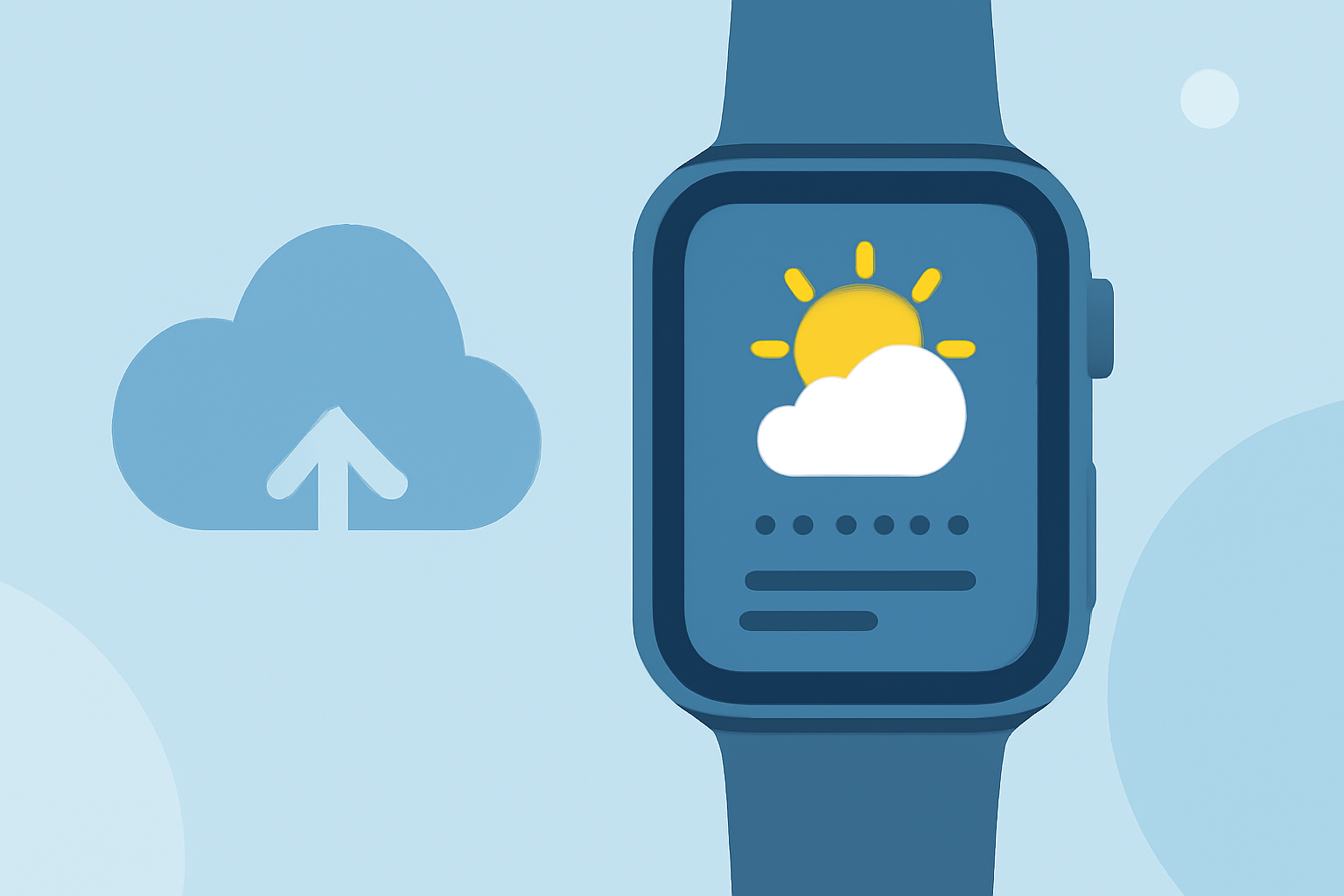
Integrating weather information into your daily schedule can significantly enhance your planning and preparedness. With the Apple Watch, you have a powerful tool at your wrist to access real-time weather updates and forecasts, allowing you to tailor your activities accordingly.
Accessing Weather Information on Apple Watch
The Apple Watch's built-in Weather app provides comprehensive details about current conditions, hourly forecasts, and extended outlooks. To utilize this feature:
- Open the Weather App: Press the Digital Crown to access your apps, then tap the Weather icon.
- View Current Conditions: The main screen displays the current temperature, conditions (e.g., sunny, cloudy), and other relevant metrics.
- Check Hourly and 10-Day Forecasts: Scroll down to see the hourly forecast for the next 12 hours and the 10-day forecast, including high and low temperatures.
For more detailed information, you can tap the display to cycle through various metrics such as wind speed, UV index, and precipitation. (support.apple.com)
Incorporating Weather Data into Your Daily Schedule
By aligning your daily activities with the weather forecast, you can optimize your plans and avoid disruptions. Here's how to integrate weather insights into your schedule:
- Morning Planning: Start your day by checking the weather app to understand the day's conditions. This helps in deciding whether to carry an umbrella, wear sunscreen, or adjust your attire.
- Outdoor Activities: For events like jogging, hiking, or outdoor meetings, refer to the hourly forecast to choose the best time slot with favorable weather.
- Travel Considerations: If you're commuting or traveling, check the weather at your destination to prepare accordingly, ensuring a comfortable journey.
Utilizing Siri for Quick Weather Updates
Siri can provide instant weather updates without navigating through apps:
- Activate Siri: Raise your wrist and say, "Hey Siri," or press and hold the Digital Crown.
- Ask a Question: Inquire about the weather by saying, "What's the weather like today?" or "Will it rain this afternoon?"
Siri will respond with the current conditions and forecast, assisting you in making informed decisions on the go.
Setting Up Weather Complications on Your Watch Face
Adding a weather complication to your watch face allows for quick glances at essential weather information:
- Customize Watch Face: Press firmly on your current watch face and tap "Customize."
- Select Complication: Navigate to the complication area and choose the weather complication.
- Choose Data: Select the specific weather metric you want to display, such as temperature or conditions.
- Save Changes: Press the Digital Crown to save and set the new watch face.
This setup ensures that weather information is readily accessible, aiding in spontaneous decisions throughout the day. (watch.skydocu.com)
Third-Party Apps for Enhanced Weather Integration
For more specialized weather insights, consider third-party apps that offer advanced features:
- Sweather: Tailored for athletes, Sweather provides sport-specific weather scores for 47 sports, helping you plan activities based on optimal weather conditions. (getsweather.com)
- Clement: Designed for outdoor enthusiasts, Clement matches your ideal weather criteria against the 10-day forecast, ensuring you never miss a perfect day for activities like hiking or photography. (clement.day)
These apps can be installed directly on your Apple Watch, offering real-time updates and notifications tailored to your preferences.
Conclusion
Integrating weather information into your daily schedule via the Apple Watch empowers you to make informed decisions, enhancing productivity and comfort. By leveraging built-in features and third-party apps, you can tailor your activities to align with current and forecasted weather conditions, ensuring a seamless and efficient day.