
Integrating Weather Widgets into Your Car's Display: A Comprehensive Guide
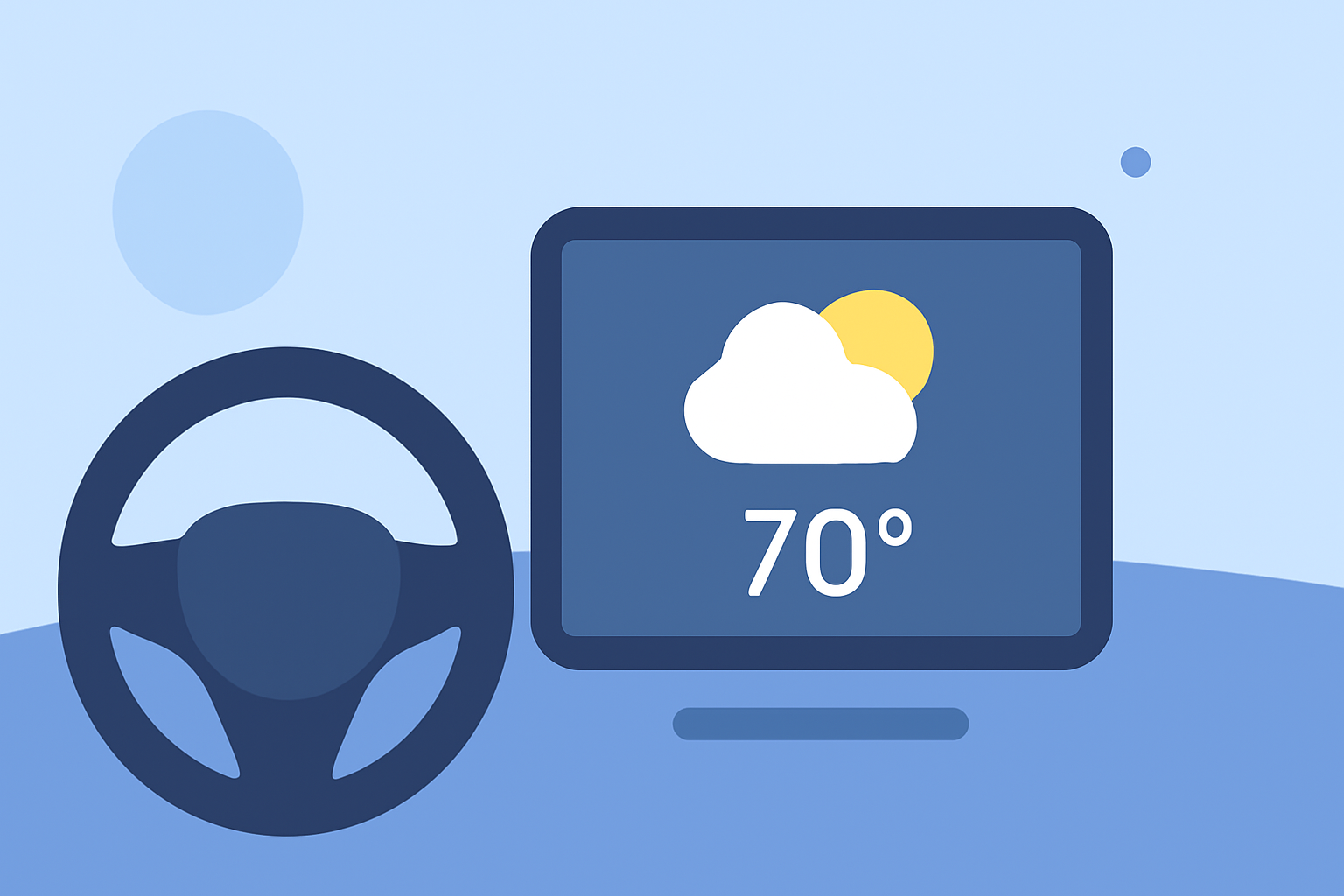
Integrating weather widgets into your car's display can provide real-time updates, enhancing your driving experience with timely information. This guide explores how to add weather widgets to your car's infotainment system, focusing on both Apple CarPlay and Android Auto platforms.
Understanding CarPlay and Android Auto Widget Integration
Both Apple CarPlay and Android Auto have evolved to support widget integration, allowing users to access essential information directly from their car's infotainment screen. This feature enables the display of weather updates, navigation, and other vital data without the need to open individual apps.
Adding Weather Widgets to Apple CarPlay
With the release of iOS 26, Apple introduced widget support for CarPlay, enabling users to add weather widgets to their car's display. To integrate a weather widget:
- Update Your iPhone: Ensure your device is running iOS 26 or later.
- Connect to CarPlay: Connect your iPhone to your car's infotainment system via USB or wirelessly.
- Access Settings: On your iPhone, navigate to Settings > General > CarPlay.
- Customize Widgets: Select your vehicle and toggle on "Show Widgets." You can then add, remove, or rearrange widgets, including weather updates.
This integration allows for a personalized dashboard, providing at-a-glance weather information directly on your car's screen. (tomsguide.com)
Integrating Weather Widgets into Android Auto
Android Auto offers flexibility through third-party apps that enable widget integration. One such application is AAWidget, which allows users to display custom widgets, including weather updates, on their car's Android Auto display. To set up AAWidget:
- Install AAWidget: Download and install the AAWidget app on your Android device.
- Connect to Android Auto: Ensure your device is connected to your car's Android Auto system.
- Configure Widgets: Open AAWidget and select the weather widget to display on your car's screen.
This setup provides real-time weather information directly on your car's display, enhancing your driving experience. (aawidget.com)
Considerations for Using Weather Widgets While Driving
While integrating weather widgets can enhance convenience, it's essential to prioritize safety:
- Minimal Interaction: Set up widgets before starting your drive to minimize distractions.
- Voice Commands: Utilize voice commands to access weather information without taking your hands off the wheel.
- Legal Compliance: Ensure that using such features complies with local traffic laws and regulations.
By thoughtfully integrating weather widgets into your car's display, you can enjoy timely updates while maintaining focus on the road.