
Integrating Weather Widgets into Your Car: A Comprehensive Guide
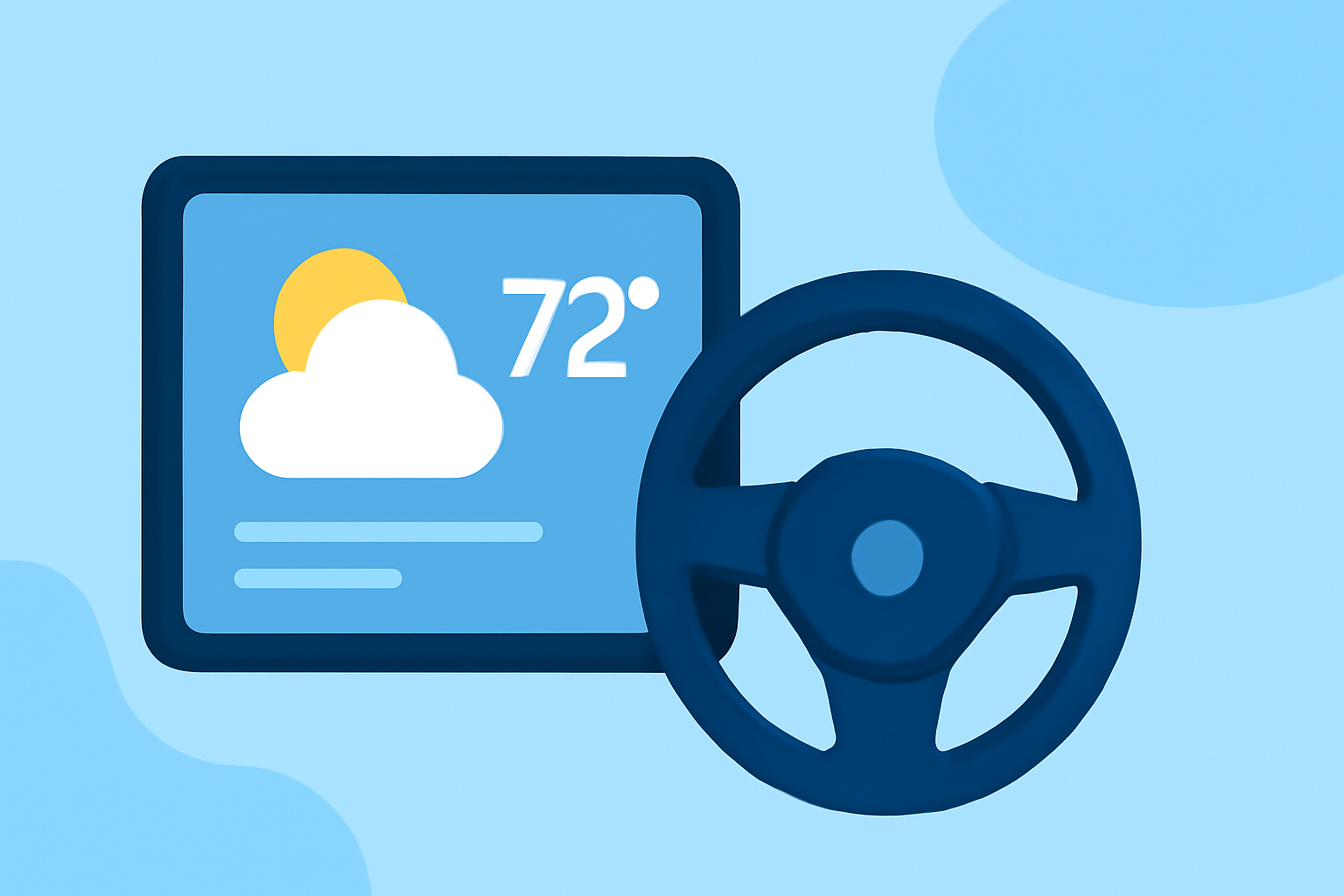
Integrating a weather widget into your car's infotainment system can provide real-time updates, enhancing your driving experience with timely information. This guide explores the benefits, integration methods, and best practices for adding weather widgets to your vehicle.
What Are Weather Widgets?
Weather widgets are applications that display current weather conditions, forecasts, and alerts directly on your device's screen. In the context of in-car systems, these widgets offer drivers immediate access to weather information without the need to consult external devices.
Why Integrate a Weather Widget into Your Car?
Incorporating a weather widget into your car's infotainment system offers several advantages:
- Real-Time Updates: Access current weather conditions and forecasts instantly.
- Enhanced Safety: Stay informed about severe weather alerts, enabling proactive driving decisions.
- Convenience: View weather information without leaving the navigation interface, minimizing distractions.
How to Integrate a Weather Widget into Your Car
Integrating a weather widget depends on your vehicle's operating system and compatibility. Here are some methods:
For Android Auto Users
Android Auto allows the addition of widgets to your car's display. To integrate a weather widget:
- Install a Compatible App: Download an app that supports widget integration with Android Auto.
- Connect Your Device: Ensure your Android device is connected to your car's infotainment system.
- Add the Widget: Follow the app's instructions to add the weather widget to your Android Auto interface.
For detailed guidance, refer to the Android Developers' guide on adapting widgets for cars.
For iOS Users with CarPlay
iOS 26 introduced the ability to add app widgets to CarPlay:
- Update Your iPhone: Ensure your device is running iOS 26 or later.
- Add the Widget: On your iPhone, navigate to the Home Screen, tap and hold an empty area, select "Widgets," and choose the weather widget to add.
- Customize CarPlay: Access CarPlay settings on your iPhone to arrange and customize the widget's appearance.
For more information, see iDownloadBlog's guide on using iPhone app widgets in CarPlay.
For Vehicles with Built-In Systems
Some vehicles come equipped with built-in weather applications:
-
Cadillac's In-Vehicle App: Cadillac offers The Weather Channel In-Vehicle App, providing current conditions, forecasts, and radar maps directly on the vehicle's center display. (cadillaccanada.ca)
-
Android Automotive OS: Vehicles running Android Automotive OS can integrate weather apps designed for this platform, offering seamless access to weather information. (developer.android.com)
Best Practices for Using Weather Widgets in Your Car
To ensure a safe and effective experience with weather widgets:
- Keep Information Concise: Display essential weather details to avoid information overload.
- Update Regularly: Ensure the widget refreshes data frequently for accuracy.
- Limit Interaction: Design the widget for quick glances, minimizing the need for manual input while driving.
- Test Compatibility: Verify that the widget functions correctly with your vehicle's system and screen size.
Conclusion
Integrating a weather widget into your car's infotainment system can enhance your driving experience by providing timely and relevant weather information. By selecting compatible applications and adhering to best practices, you can enjoy a safer and more informed journey.
Highlights:
- The weather widget on Android Auto's new Coolwalk redesign may be making a comeback - PhoneArena, Published on Thursday, June 01