
Interactive Weather Widgets: A Beginner's Guide
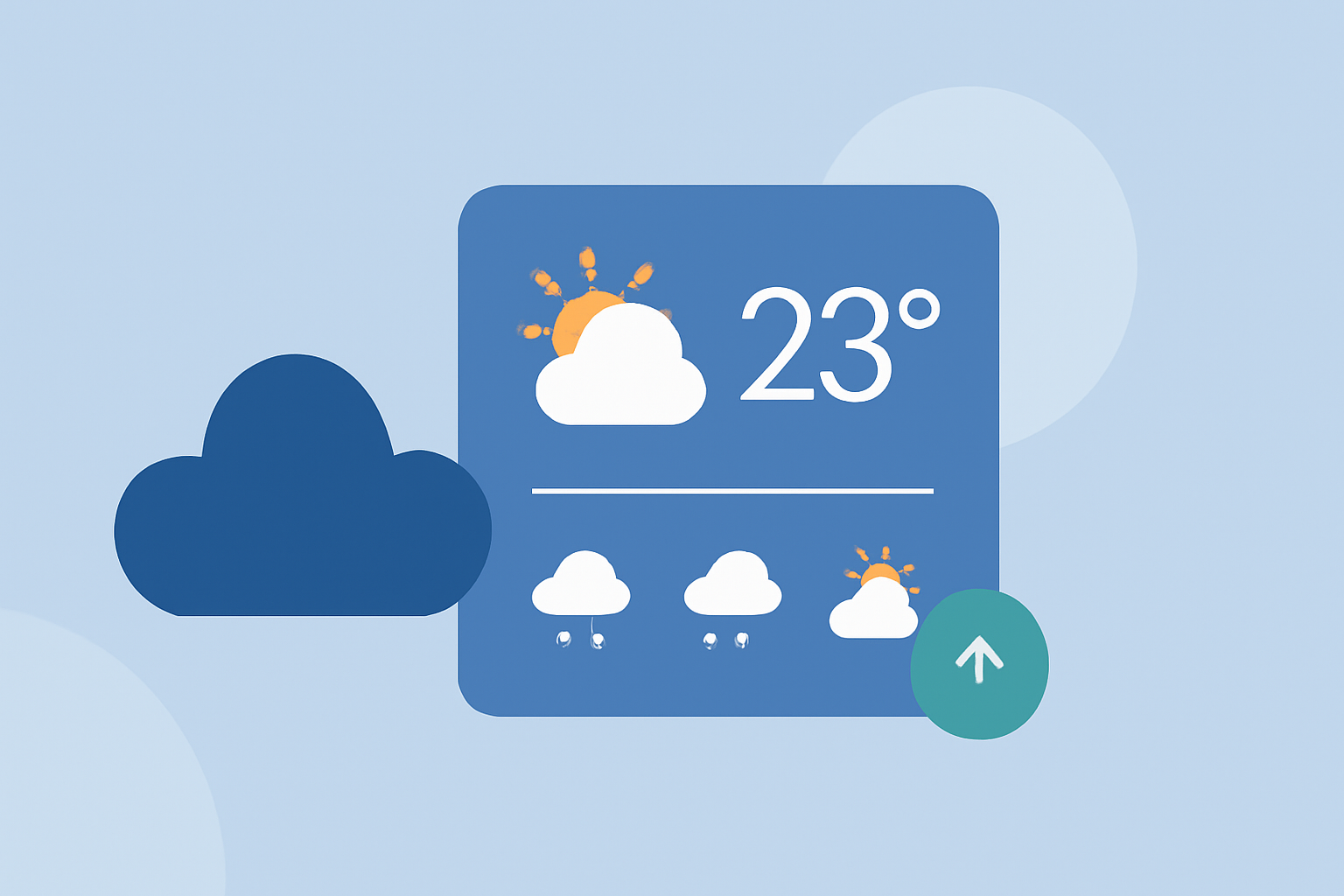
Adding an interactive weather widget to your website can provide visitors with real-time weather updates, enhancing user engagement and offering valuable information at a glance. Here's a step-by-step guide to help you integrate a weather widget into your site in under five minutes.
1. Choose a Widget Provider
Select a weather widget provider that offers customizable and interactive widgets. Ensure the provider offers an API key for accessing weather data.
2. Obtain an API Key
Register with your chosen provider to obtain an API key. This key is essential for fetching real-time weather data.
3. Embed the Widget Code
Most providers offer an embed code for their widgets. Copy this code and paste it into the HTML of your website where you want the widget to appear.
4. Customize the Widget
Adjust the widget's settings to match your website's design and functionality requirements. This may include selecting the location, choosing units (e.g., Celsius or Fahrenheit), and customizing the widget's appearance.
5. Test the Widget
After embedding and customizing, preview your website to ensure the widget displays correctly and updates in real-time.
Example: Integrating a Weather Widget Using OpenWeatherMap
OpenWeatherMap offers a free API that provides weather data for integration. Here's how you can integrate their widget:
- Sign Up and Get an API Key
Visit the OpenWeatherMap website and create an account to obtain your API key.
- Generate the Widget Code
Navigate to the "Widgets" section on OpenWeatherMap's website. Choose the type of widget you prefer (e.g., current weather, forecast) and customize it according to your preferences.
- Embed the Code
Copy the generated HTML code and paste it into the HTML of your website where you want the widget to appear.
- Customize Appearance
Modify the widget's CSS to align with your website's design. Ensure the widget is responsive and adjusts to different screen sizes.
Tips for Effective Integration
-
Responsive Design: Ensure the widget is responsive to provide a seamless experience across various devices.
-
Minimalist Approach: Opt for a clean and simple design to avoid overwhelming visitors with information.
-
Regular Updates: Choose a widget that updates in real-time to provide accurate weather information.
By following these steps, you can successfully integrate an interactive weather widget into your website, offering visitors valuable and timely weather information.