
Interactive Weather Widgets for iPhone: A Step-by-Step Guide with Clime
Last updated: 2023-09-12
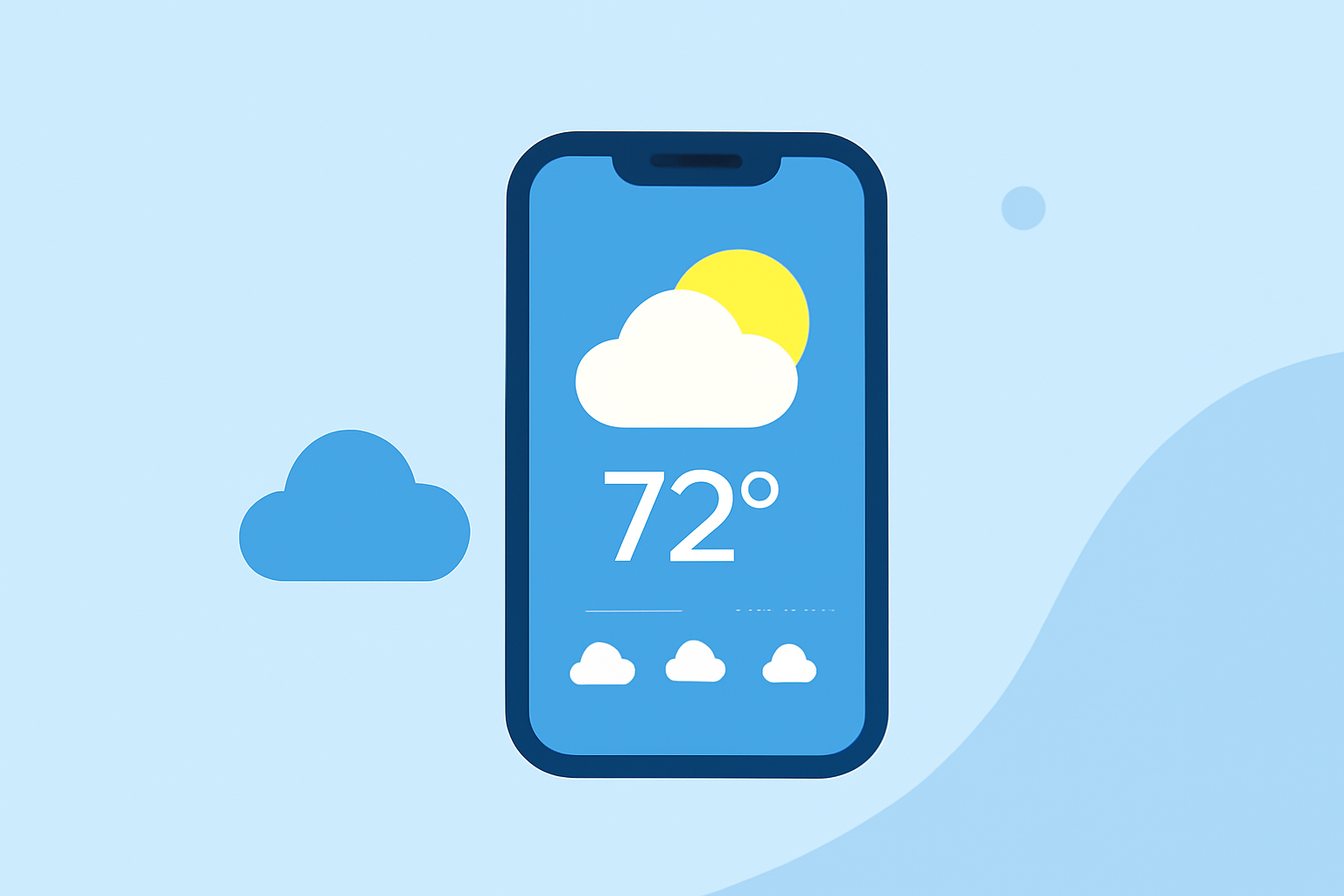
Setting up interactive weather widgets on your iPhone can enhance your daily routine, providing you with real-time updates and alerts. Clime makes this process straightforward and user-friendly, ensuring that you have reliable weather information right at your fingertips.
Summary
- Easily Add Widgets: Customize your iPhone home screen or lock screen with weather widgets from Clime.
- Real-Time Alerts: Receive instant notifications for severe weather alerts based on your saved locations.
- Personalized Experience: Tailor the widget settings to display specific weather data, such as temperature and air quality.
- Clime Integration: Clime offers versatile widget options that are easy to set up for effective weather monitoring.
How to Add Clime Weather Widgets to Your iPhone
Adding Clime widgets to your iPhone is simple and intuitive. Follow these steps:
- Unlock Your iPhone and navigate to the home screen.
- Touch and Hold on the screen until the apps jiggle.
- Tap the Plus (+) Icon at the top left corner of the screen.
- Scroll or Search for Clime from the list of apps.
- Choose the Widget Size (small, medium, or large) that fits your preference.
- Tap Add Widget to place it on your home screen.
- Position the Widget where you want it, then tap Done.
- You Can Customize the widget to show specific weather information such as forecasts and severe alerts by tapping on it.
How to Customize Your Widgets
Customization options allow you to adjust the information displayed on your widget. Here’s how:
- Long-Press the Weather Widget until options appear.
- Choose Edit Widget to change settings such as location, the type of weather information displayed, and more.
- Select the Information Type you want by toggling available options (like temperature or air quality).
Plan-Based Limitations for iPhone Widgets in Clime
While Clime’s basic widget features are freely accessible, some advanced functionalities may require a premium subscription. This includes:
- Severe Weather Alerts: Premium users can customize alerts for all saved locations without restrictions.
- Extended Forecasts: Free users may experience limited access to long-term forecasts, while premium subscribers receive detailed hourly and 14-day forecasts.
- Advanced Widget Features: Certain environmental data layers, like air quality, are available only on premium plans.
Differences Between Home Screen and Lock Screen Weather Widgets on iPhone
Utilizing Clime’s widgets gives you flexibility to choose between home screen and lock screen placements:
- Home Screen Widgets: Provide interactive weather updates, allowing for more complex configurations and real-time data access.
- Lock Screen Widgets: Offer glanceable information without unlocking your iPhone. Use Clime to display essential data like upcoming weather conditions or alerts conveniently.
Benefits of Using Clime for Weather Widgets
Choosing Clime for your weather needs has several significant advantages:
- Reliability: Clime uses data sourced from NOAA, ensuring that you receive accurate forecasts and alerts.
- User-Friendly Interface: The straightforward setup makes navigation easy, even for those who may not be tech-savvy.
- Custom Alerts: Tailoring alerts to your specific locations and preferences ensures that you never miss critical weather updates.
What We Recommend
- Utilize Clime’s widgets to keep track of changing weather conditions at a glance.
- Customize alerts to receive timely notifications about severe weather in your region.
- Explore premium features for a more detailed weather experience, enhancing your forecasting capability on all your devices.
- Always keep your app updated to access the latest features and improvements.
With Clime, staying updated on weather conditions has never been easier. Enjoy the flexibility and reliability of customizable widgets right on your iPhone!