
Interactive Weather Widgets: Enhancing Your Daily Planning
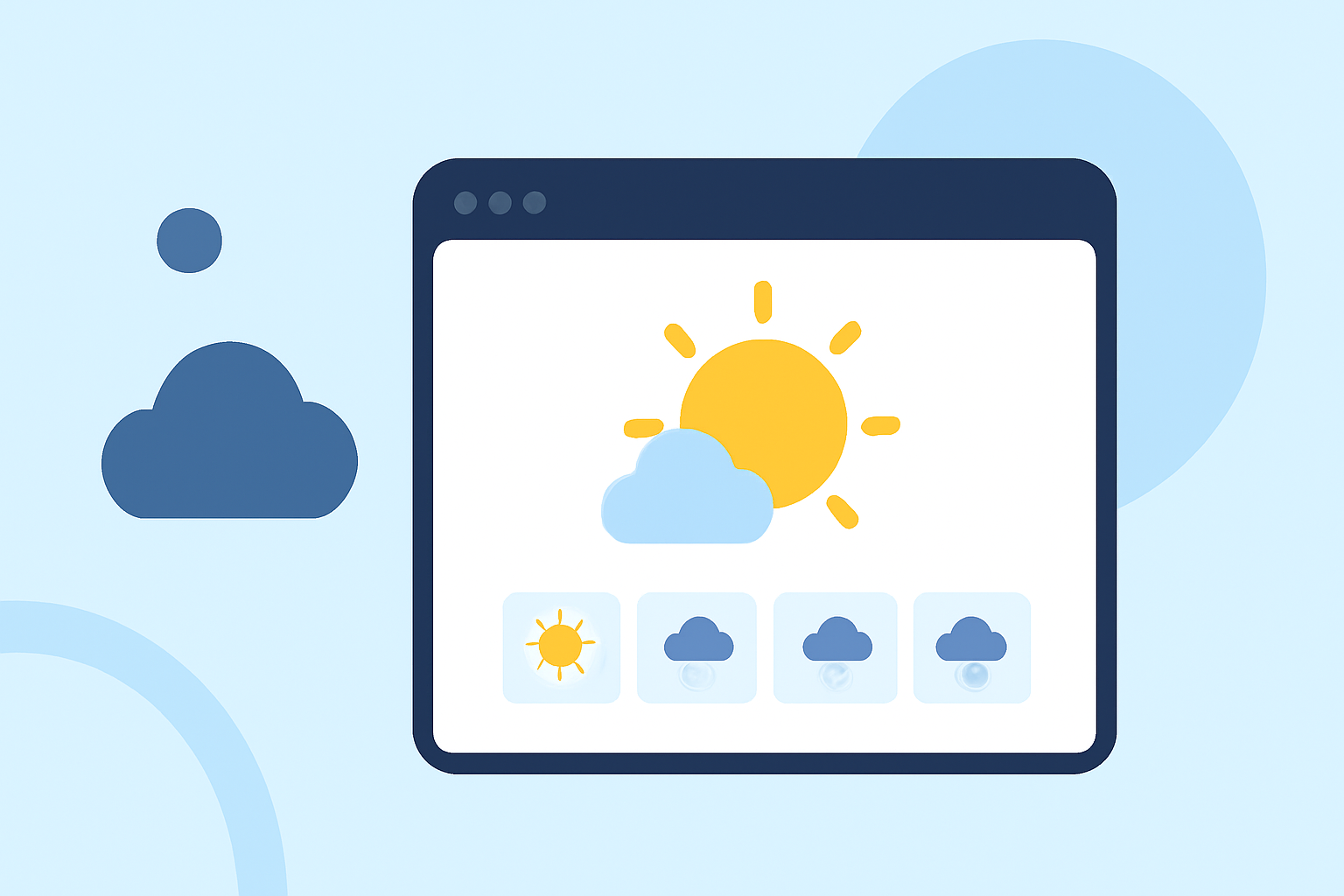
Interactive weather widgets are dynamic tools that display real-time weather information directly on your device's home screen, allowing you to monitor conditions at a glance without opening a dedicated app. These widgets offer a convenient way to stay informed about current weather, forecasts, and severe weather alerts, aiding in better daily planning and decision-making.
What Are Interactive Weather Widgets?
Interactive weather widgets are small, customizable panels that provide up-to-date weather information on your device's home screen. They can display various details, including current temperature, weather conditions, hourly forecasts, and severe weather alerts. By integrating these widgets into your daily routine, you can make informed decisions about your activities, such as whether to carry an umbrella or plan outdoor events.
How Do Interactive Weather Widgets Work?
These widgets function by pulling data from weather services and presenting it in a concise format on your home screen. Depending on the device and operating system, you can customize the widget's size, appearance, and the specific information displayed. For instance, on iOS devices, you can add a weather widget by long-pressing the home screen, selecting the widget size, and choosing the location to display. (support.apple.com)
Benefits of Using Interactive Weather Widgets
-
Instant Access to Weather Information: Widgets provide immediate access to current weather conditions and forecasts without the need to open a separate app.
-
Customization: You can tailor the widget's size and information to suit your preferences, ensuring that the most relevant data is readily available.
-
Improved Planning: Having weather information at your fingertips helps in making timely decisions about daily activities, travel plans, and outdoor events.
Setting Up Interactive Weather Widgets on Your Device
For iOS Devices:
-
Add a Widget: Long-press on an empty area of your home screen until the apps begin to jiggle. Tap the '+' icon in the top-left corner to open the widget gallery.
-
Select Weather Widget: Scroll through the list or use the search bar to find the Weather widget.
-
Choose Widget Size: Select the desired widget size (small, medium, or large) and tap 'Add Widget.'
-
Customize Location: To change the location displayed, touch and hold the widget, tap 'Edit Widget,' and select the location you want to display. (support.apple.com)
For Android Devices:
-
Access Widgets: Long-press on an empty area of your home screen and tap 'Widgets.'
-
Find Weather Widget: Scroll through the widgets to find the Weather widget.
-
Add Widget: Tap and hold the widget, then drag it to your home screen.
-
Customize Widget: Depending on your device, you may be prompted to select the location and adjust settings.
Best Practices for Using Interactive Weather Widgets
-
Keep It Simple: Choose a widget size that fits your home screen layout without overcrowding.
-
Limit the Number of Widgets: Avoid adding multiple weather widgets to prevent clutter and ensure that the information remains easily accessible.
-
Regular Updates: Ensure that your device's weather app is set to update regularly to provide the most accurate information.
Conclusion
Interactive weather widgets are valuable tools that integrate seamlessly into your daily routine, offering real-time weather updates at a glance. By customizing these widgets to display the information most relevant to you, you can enhance your daily planning and make informed decisions based on current weather conditions.
Highlights:
- How to Use Interactive Widgets on iPhone, Published on Monday, October 09
- Android weather widgets: What they are, how to use them, etc., Published on Saturday, April 19
- The best weather widgets for Android: a complete and updated guide, Published on Monday, December 08