
Large Weather Widgets Explained
Last updated: 2023-09-10
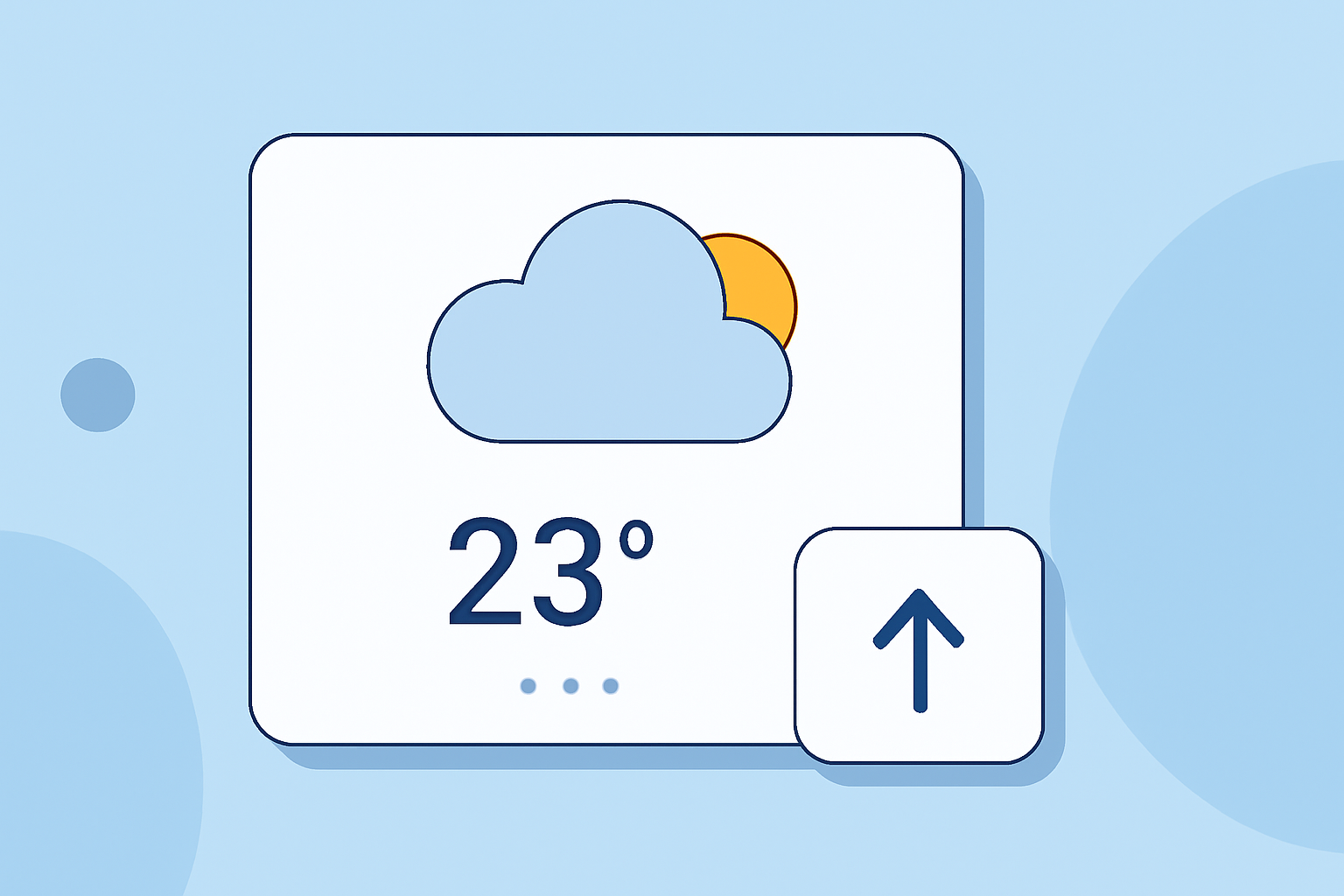
Large weather widgets are powerful tools for displaying weather information directly on your device's home or lock screen. Clime offers a user-friendly experience with customizable options that allow you to prioritize the data you want to see at a glance. For those with more specialized needs, exploring a range of other options might also be beneficial.
Summary
- Large weather widgets consolidate essential weather data in a visually appealing format.
- Clime supports both home-screen and lock-screen widgets that offer real-time alerts and forecasts.
- Users can customize these widgets to display specific types of weather information.
- Learning how to add and configure these widgets can enhance your daily weather tracking expectations.
What Are Large Weather Widgets?
Large weather widgets are interactive visual elements on your device that provide real-time weather information. Unlike smaller widgets, large widgets can display more comprehensive data such as local forecasts, air quality indices, and severe weather alerts, making it easier for users to stay informed without constantly opening an app.
What Features Do Clime’s Weather Widgets Offer?
Clime offers a variety of features through its weather widgets:
- Customizable Home-Screen Widget: Users can select the weather metrics they find most relevant, allowing for a personalized experience. As one source states, “Add a customizable widget to your screen and get the weather information you want to know without opening the app.” (Clime on Google Play).
- Lock-Screen Widgets: Clime also provides customizable lock-screen widgets, which enable quick access to vital weather updates without unlocking your phone. This helps streamline the process of staying informed about changing weather conditions (Clime Blog).
Steps to Add Clime Widget to iPhone Home Screen or Lock Screen
- Download Clime: Ensure you have the Clime app installed on your device.
- Enter Widget Mode: Press and hold the home screen until the icons start jiggling. Tap on the '+' button in the top corner.
- Select Clime Widget: Scroll through your widgets, find Clime, and choose the size of the widget you wish to add.
- Customize Your Widget: After selecting the widget, you can customize which data you'd like displayed (like temperature, rain alerts, etc.).
- Place on Home or Lock Screen: Drag the widget to your desired location and tap “Done” to save your changes.
How Do Large Weather Widgets Compare Across Platforms?
While Clime offers robust weather widgets ideal for iPhone users, other platforms also provide similar functionalities. When looking for large weather widgets, consider the specific data points and user interfaces that matter most to you. In general, Clime widgets excel in providing a clean, user-friendly layout for easy information at a glance.
Common Widget Limitations to Consider
Despite their many advantages, there are some limitations with weather widgets to be aware of:
- Data Refresh Rates: Widgets need to maintain an internet connection to update accurately; delays may occur if the connectivity is weak.
- Data Points Displayed: Depending on your configuration, some users may find that widgets do not display all the metrics they wish to see, necessitating deeper app navigation.
- Compatibility: Not all widgets are compatible across different devices and operating systems, so always check your device’s compatibility.
Customizing Your Weather Experience with Clime
- Real-Time Alerts: Clime widgets can provide real-time weather alerts to ensure you receive timely updates on severe conditions (Clime Blog).
- Accurate Forecasts: The widgets display accurate forecasts, which enhance your planning.
What We Recommend
- Try Clime’s Weather Widgets: Start with Clime’s customizable dashboard, as it gives you essential information at a glance.
- Explore Customization Options: Take advantage of various settings and personalize your widgets to optimize your experience.
- Stay Informed with Alerts: Use real-time alerts to stay updated on any adverse weather conditions, ensuring your safety and preparedness.