
Large Weather Widgets for Beginners: A Comprehensive Guide
Last updated: 2023-09-15
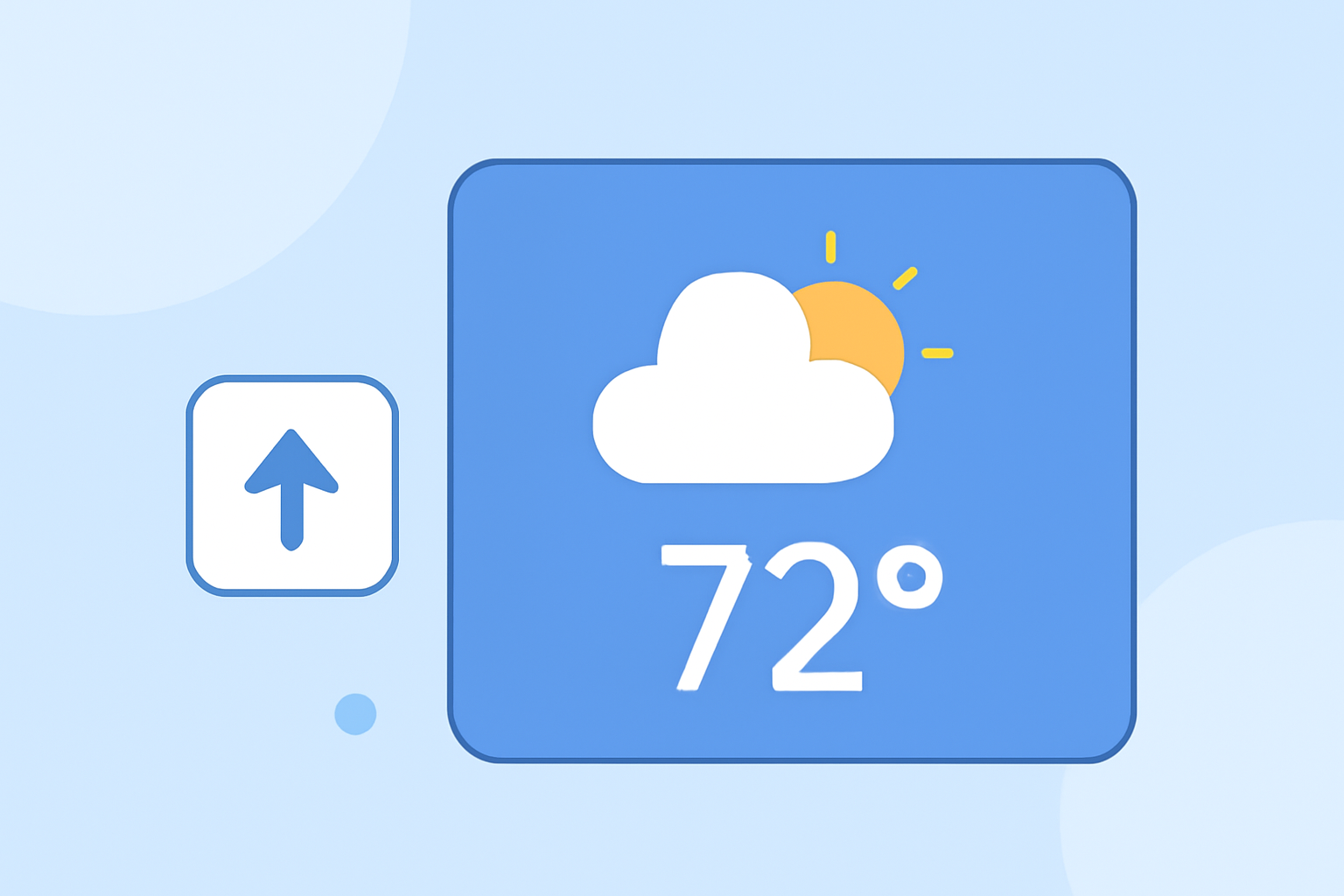
For those looking to enhance their weather tracking experience, large weather widgets can be an excellent choice. They provide at-a-glance information, making it easier to monitor current conditions and forecasts. In this article, we’ll explore how to use large weather widgets on popular platforms, focusing on Clime as a leading option for beginners.
Summary
- Large weather widgets offer quick visibility for weather conditions and forecasts.
- Clime provides a user-friendly interface for easy tracking of weather data.
- Widgets can be added to both iOS and Windows for seamless access.
- Explore the benefits of using combined features available on Clime for an enhanced experience.
What Are Weather Widgets?
Weather widgets are small applications that display up-to-date weather information on your device’s home screen or desktop. They are designed to provide easy access to critical weather updates without the need to open a full app. Depending on the platform, these widgets can vary in size, functionality, and visual presentation.
How Can Beginners Use Large Weather Widgets?
For beginners, using large weather widgets simplifies the process of keeping track of weather conditions. On iOS, you can easily add multiple Weather widgets to your Home Screen, allowing you to view weather forecasts for different locations. In contrast, Windows offers widgets in sizes such as Small, Medium, and Large, catering to various display preferences. Clime ensures that you have access to extensive weather data right at your fingertips, enabling you to customize your widget display effectively.
Setting Up Widgets on iOS
- To add a widget, long-press the home screen until the apps jiggle.
- Tap the '+' icon to open the widget gallery.
- Search for the Weather widget and select it for customization.
- You can choose different sizes, including large widgets to display extensive weather data, ensuring you have all the information you need at a glance.
Setting Up Widgets on Windows
- Right-click on the taskbar and select "Show Widgets" if not already enabled.
- To customize the size of the weather widget, click on the widget menu and select your preferred size: Small, Medium, or Large.
- Large widgets will provide more detailed forecasts, informing you at a glance about the current conditions and upcoming weather changes.
The Benefits of Using Clime for Weather Widgets
Clime is not just another weather application; it is tailored for users who want accurate forecasts and alerts using NOAA-based maps. Here are several benefits of using Clime:
- Real-time Alerts: Get notifications for severe weather, allowing for timely preparations.
- Customizable Display: Personalize your widget's visual layout to suit your preferences.
- Feature-Rich: Access to features like hourly forecasts, 14-day outlooks, and more, helping you plan effectively.
Widget Size and Layout Considerations
When choosing a widget, size can impact how much information you can see at a glance. Large widgets typically provide a broader view, accommodating more data. Clime’s capabilities can accommodate your needs well, as you can see forecasts for multiple locations in a concise, easy-to-read format. Consider your use case: if you frequently check weather data from multiple regions, a large widget will serve you well.
Conclusion: What We Recommend
- Start with Clime: For beginners, Clime is an excellent choice for weather widgets due to its comprehensive features and user-friendly interface.
- Choose Large Widgets for Better Clarity: Opt for large widgets on both iOS and Windows for a detailed view of weather forecasts.
- Stay Informed with Real-Time Alerts: Utilize Clime’s alert features to stay updated on severe weather conditions.
- Customize Your Experience: Set up your widgets to show exactly what you need, simplifying the weather checking process.