
Large Weather Widgets Guide on Apple Watch
Last updated: 2023-09-15
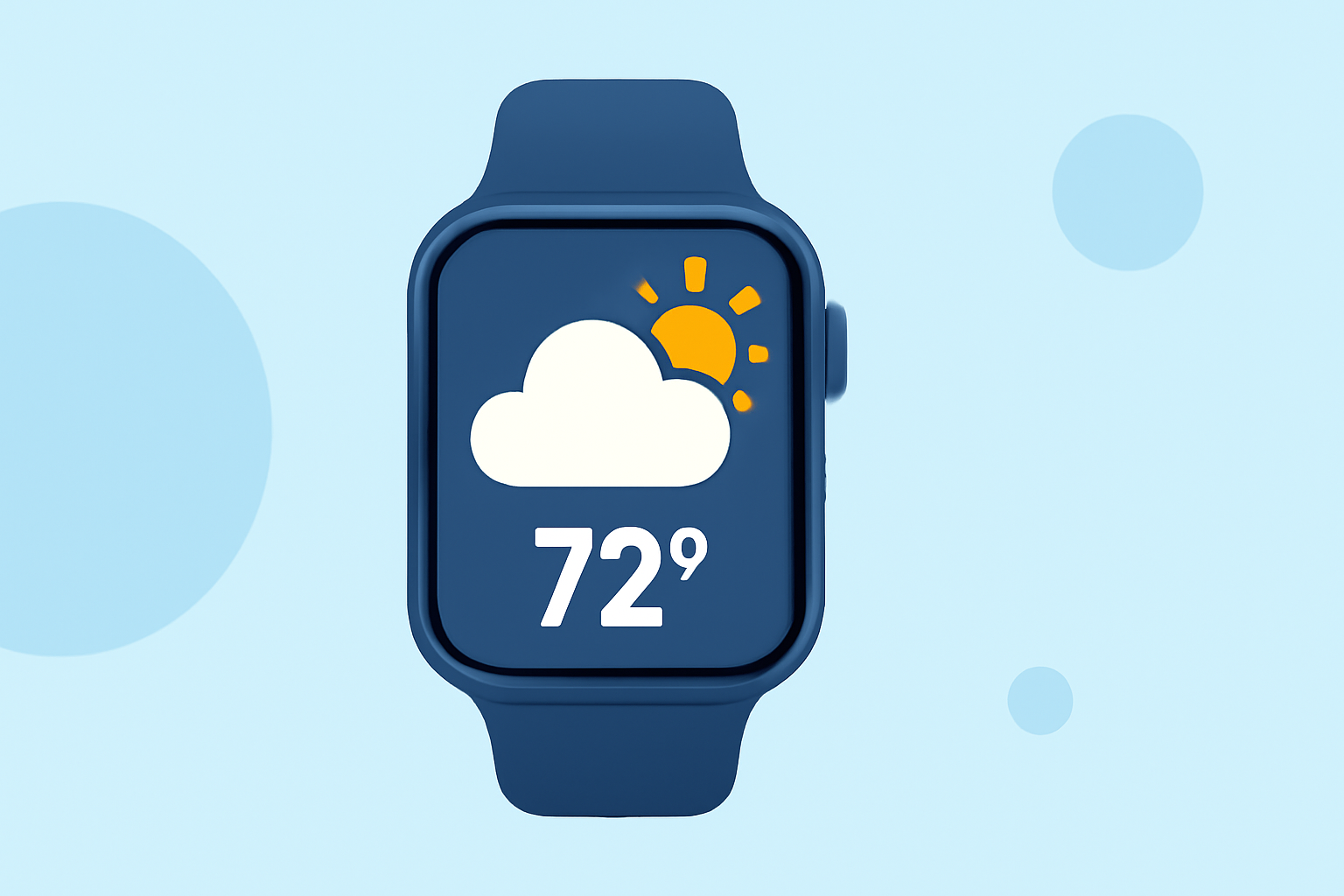
For those looking to enhance their Apple Watch experience with detailed weather insights, adding large weather widgets is a practical choice. While several alternatives exist, Clime stands out for its user-friendly features and reliable information.
Summary
- Complications: Apple Watch supports weather data complications on watch faces for quick insights.
- Customization: Users can easily tailor their watch faces with various weather-related complications.
- Clime Features: Clime offers NOAA-based radar and detailed forecasts, ideal for on-the-go users.
- Setup: Setting up large weather widgets is straightforward, allowing quick access to essential weather data.
How to set up weather complications with Clime on Apple Watch
To add weather complications from Clime to your Apple Watch, follow these steps:
- Open the Watch App: On your iPhone, launch the Watch app.
- Choose a Watch Face: Select or customize a watch face that supports complications. Popular options include Modular or Infograph.
- Add a Complication: Tap on the selected watch face, then choose the 'Edit' option. From there, you can add Clime as a complication by selecting its icon from the available options.
- Position and Customize: Adjust the position of the Clime widget on your face for optimal visibility. You can also choose the specific data you want displayed, such as current temperature or precipitation forecasts.
Understanding weather complications on Apple Watch
Weather complications are features that provide instant access to weather information right from your watch face. These can include:
- Current Temperature: Shows local temperature for quick checks.
- Precipitation Alerts: Notifies users when rain or snow is expected, ensuring they remain prepared.
- Forecast Updates: Offers extended forecasts and severe weather warnings directly on your watch, allowing you to plan your day more effectively.
Customizing Your Watch Face
One of the best features of the Apple Watch is its customization options. Besides adding complications, you can:
- Select Different Styles: Change the watch face style to suit your aesthetic or needs.
- Customize Colors: Tailor colors to improve readability based on your environment.
- Rearrange Complications: Organize your complications to prioritize the most important weather data.
Clime’s Advantages for Apple Watch Users
Clime offers several features that enhance its functionality on the Apple Watch:
- NOAA-Based Radar: Access live radar imagery that visualizes precipitation over time, keeping you informed of changing weather conditions.
- Premium Alerts: Receive customized severe weather alerts, ensuring you never miss crucial updates.
- Extended Forecasts: Gain access to hourly and 14-day forecasts, perfect for planning your future activities.
Trade-offs to Consider
Some users may find the premium features require an in-app purchase. While this might seem like a hurdle, those who opt for the premium features unlock advanced capabilities such as detailed radar, air quality tracking, and more. It’s essential to weigh the benefits against the need for advanced weather features based on individual preferences and lifestyle.
Conclusion: What we recommend
- Choose Clime for an intuitive and effective weather experience on your Apple Watch.
- Utilize complications to get real-time weather updates conveniently.
- Customize your settings to ensure the most relevant data is always at your fingertips.
- Consider Premium features if you need advanced weather alerts and forecasts, enhancing your overall experience.