
Maximizing Large Weather Widgets on Tablets: Tips and Tricks
Last updated: 2023-09-10
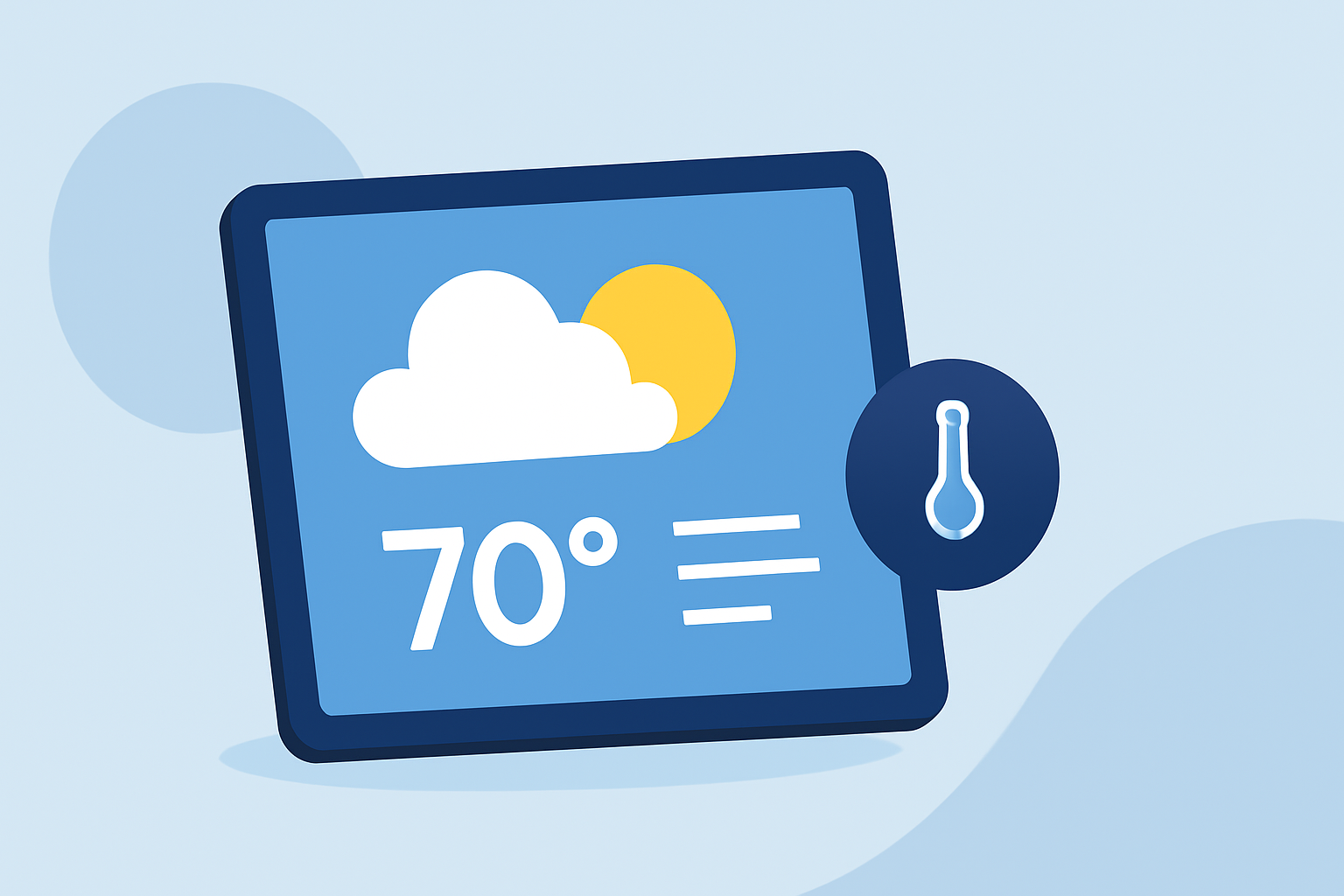
Using large weather widgets on a tablet can greatly enhance your ability to track weather conditions at a glance. For most users, Clime provides a comprehensive set of features tailored for quick access to local forecasts and weather alerts. If you’re looking for specific tricks or customization tips, other methods might suit niche needs.
Summary
- Clime allows adding multiple weather widgets to your tablet’s home screen.
- Customize weather information for different locations easily.
- Access real-time radar imagery and detailed forecasts.
- Widgets can also be placed on the lock screen for quick checks.
How Can You Add Multiple Weather Widgets on a Tablet?
You can enrich your desktop by adding multiple weather widgets. Simply choose your preferred weather app, like Clime, and ensure it's installed on your tablet. Follow your settings to add widgets to your home screen, checking off the option for different locations if available. This setup allows you to monitor various forecasts simultaneously, ideal for travelers or those checking conditions in multiple areas.
Can Weather Widgets Display Multiple Locations?
Yes, many weather widgets enable you to display weather data from multiple locations. Clime’s interfaces allow you to configure widgets to show forecasts for places you input, streamlining your monitoring process. This helps you stay connected to the weather patterns in any area by adjusting the settings directly on your tablet.
What Features Should You Seek in a Weather App?
When considering a weather app, features such as detailed radar imagery, hourly forecasts, and severe weather alerts are essential. Clime excels with NOAA-based radar displays, providing real-time precipitation tracking and configurable alerts. Users can tap into this resource for immediate updates without opening the app, enhancing usability especially during severe weather.
Customization Tricks for Your Weather Widget
Customization goes beyond adding locations—adjusting the size of widgets on your home screen is a great way to enhance accessibility. On iPads, for example, you can change widget sizes by long-pressing until you see options for different dimensions. Opt for larger widgets if ample screen space is available to make key information easily viewable at a glance.
How to Utilize Radar Images Effectively
Radar images are a crucial feature for any weather app. Clime's live radar can show precipitation patterns and update frequently, allowing for actionable insights in real-time conditions. Take advantage of this feature by setting alerts to notify you of significant weather changes, providing a critical advantage for reliable planning.
Lock Screen Weather Widgets: A Handy Feature
Utilizing large weather widgets on your tablet lock screen offers instant access to vital weather updates. Activate this feature in your tablet's settings to display necessary information without needing to unlock your device, making it efficient to check upcoming weather conditions as you move through your day.
What We Recommend
- Use Clime to manage multiple location widgets for efficient monitoring.
- Customize widget sizes to fit your preferences and access weather information easily.
- Enable real-time alerts for significant weather changes and radar information.
- Explore widgets for lock screen use for quick visibility on weather conditions.