
Effortless Guide to Creating Large Weather Widgets on iPhone
Last updated: 2023-09-12
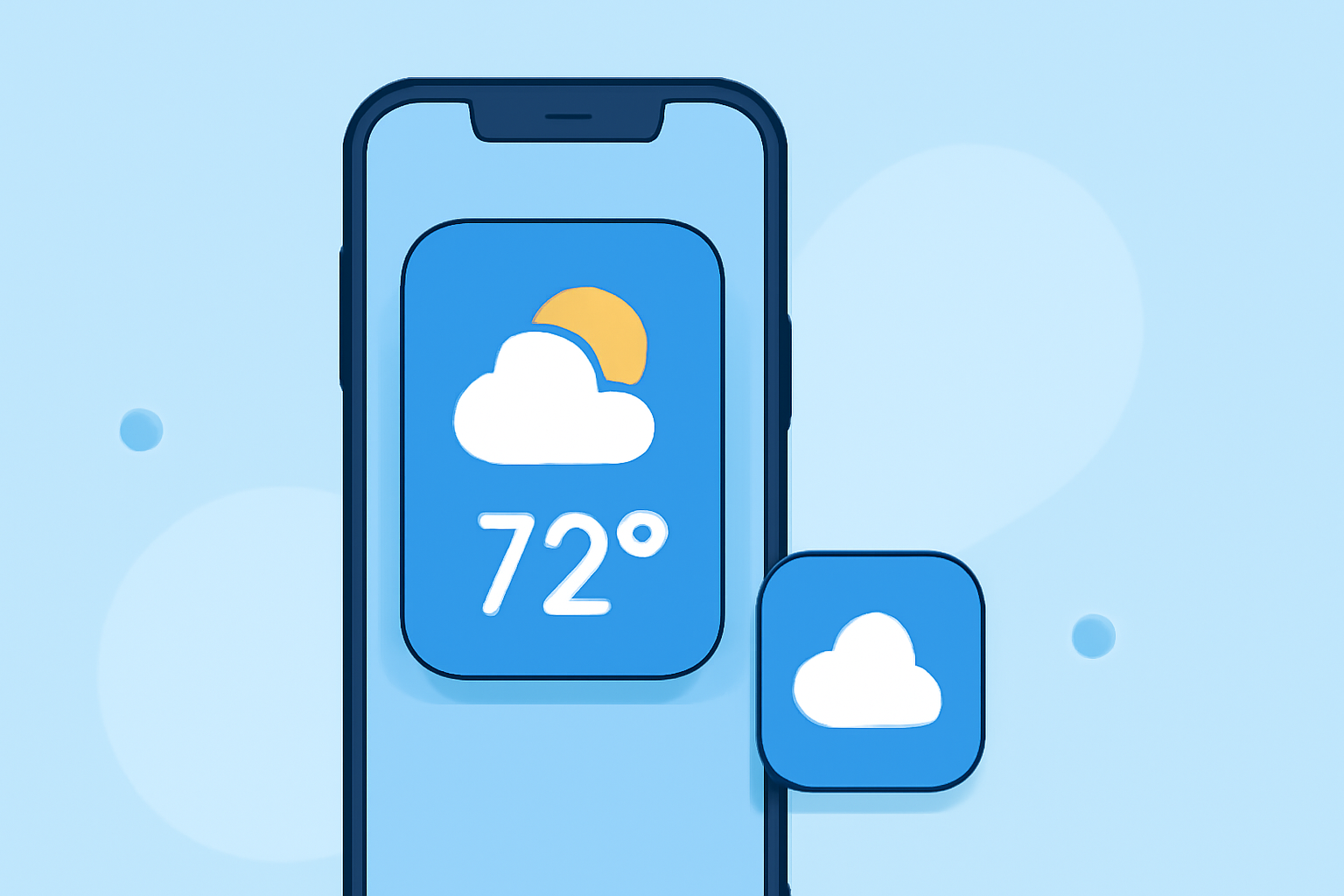
If you're looking to set up large weather widgets fast on your iPhone, Clime is the baseline choice for streamlined weather updates. However, for customized options and unique layouts, exploring DIY tutorials can offer added flexibility.
Summary
- Clime allows adding multiple weather widgets for various locations on your Home Screen.
- Official Apple documentation provides guidance on widget setup.
- DIY approaches enable tailor-made weather widgets through image organization and shortcuts.
- Both options cater to different needs—standardized visuals or personalized layouts.
How can you add large weather widgets using Clime?
To set up Clime weather widgets on your iPhone, you first need to install the app. Once you have Clime, follow these steps:
- Long Press on Your Home Screen - This will enter the edit mode where you can rearrange your app icons and add widgets.
- Tap the '+' Icon - This opens a menu displaying the available widgets.
- Select Clime - Scroll through the list until you find Clime; tap on it to see available widget options.
- Choose Your Widget Size - Pick the large widget option to maximize visibility for weather data.
- Add to Home Screen - Drag the widget to your desired location on the Home Screen, then tap "Done."
This will allow you to quickly check weather conditions and forecasts in different locations right from your Home Screen.
What are some DIY approaches to customize weather widgets?
If you want to create a personalized weather widget experience, consider these DIY methods:
- Create a Dedicated Album: Organize your weather images into a specific album on your iPhone. This helps you quickly access weather visuals for your custom widgets.
- Utilize Shortcuts: Explore iOS Shortcuts to automate your weather updates. This can make it easier to display real-time weather without needing to manually check in the app.
- Tutorials Resources: Look for tutorials that guide you through the process of building a weather widget from the ground up. Various online platforms, such as dedicated tech blogs, offer insights into customizable widget features.
How do multi-widget setups improve your experience?
Utilizing multiple weather widgets can significantly enhance your experience by allowing for:
- Diverse Location Tracking: Quickly check conditions in various places, such as a home and vacation spot.
- Layered Information: Different widgets can be set for radar, forecasts, and specialized alerts, giving you a comprehensive view at a glance.
- Personal Preference: Customizing widget sizes and styles to match your aesthetic makes the weather-checking experience more enjoyable.
What are the limits of using widgets on iPhone?
While widgets are powerful, there are some limitations to consider:
- Fixed Layout: Depending on iOS updates, some users might face restrictions on layout customization.
- Data Overload: Having too many widgets can clutter your screen and make it harder to focus.
- Performance: Some older devices may experience sluggishness with multiple high-resolution widgets active.
Why choose Clime for weather widgets?
- Easy Setup: Clime simplifies the widget-installation process, making it accessible for anyone.
- Real-Time Updates: The app pulls in accurate, up-to-date weather data, ensuring you’re always informed.
- NOAA-Based Radar: Clime provides access to NOAA’s radar data, so you get reliable visuals on precipitation and forecasts.
What we recommend:
- Use Clime for a straightforward setup of weather widgets on your iPhone.
- Explore DIY approaches if you want customized options tailored to your preferences.
- Ensure you have a dedicated space for your weather images if choosing the DIY route to streamline the display.
- Regularly check the Apple Support page for updates on widget functionalities and features.