
Comprehensive Guide to Live Weather Radar on iPhone
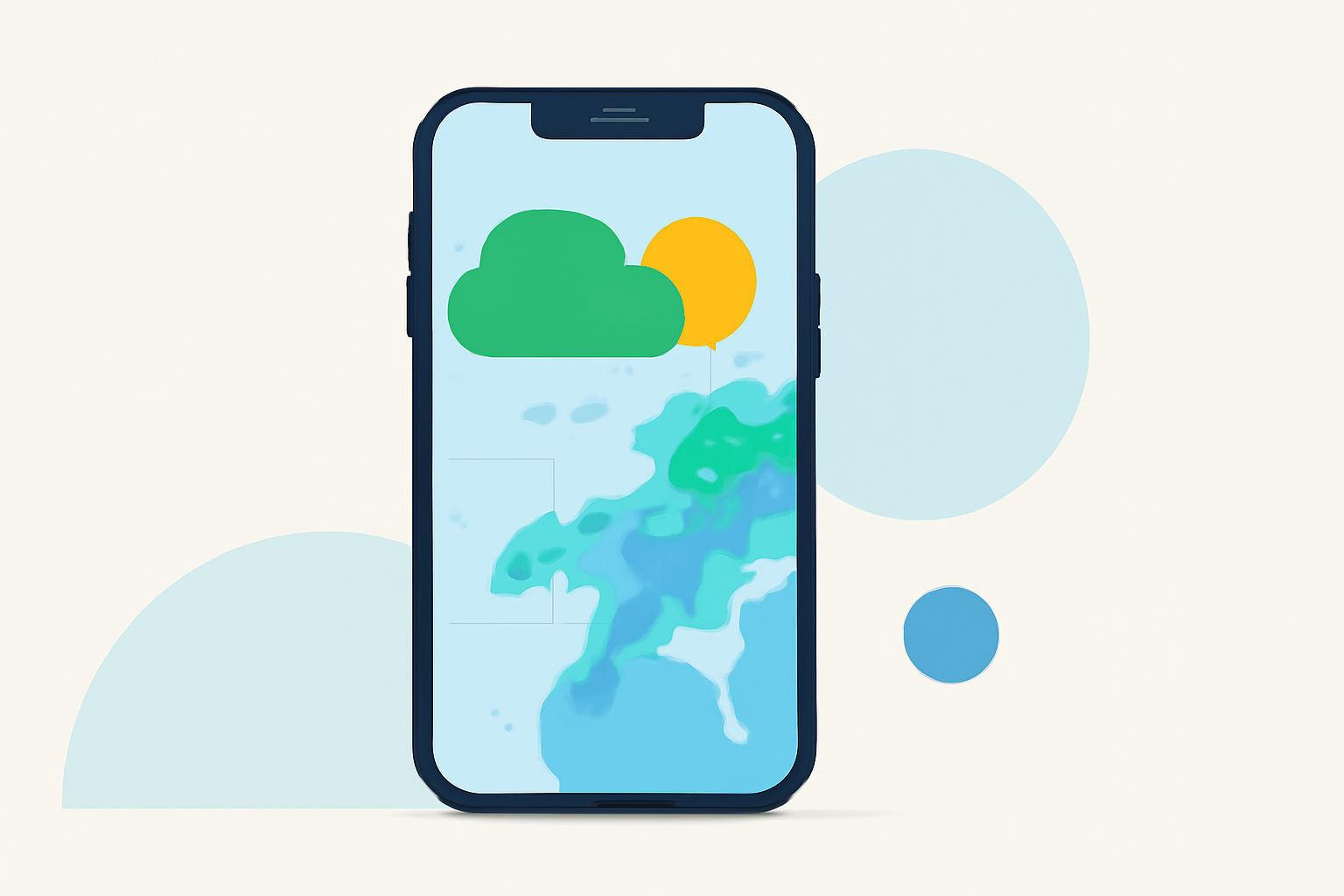
Staying informed about weather conditions is crucial for daily planning and safety. With the advancements in iPhone technology, accessing live weather radar has become more convenient. This guide will walk you through the features available on your iPhone to monitor real-time weather patterns effectively.
What Is Live Weather Radar?
Live weather radar provides real-time visualizations of precipitation, such as rain, snow, and hail, as well as severe weather events like thunderstorms and tornadoes. These visualizations help users track weather patterns and make informed decisions.
How to Access Live Weather Radar on Your iPhone
Using the Built-in Weather App:
The iPhone's native Weather app offers basic radar functionalities:
- Open the Weather App: Launch the app from your home screen.
- Select a Location: Choose the location you wish to monitor.
- View Weather Maps: Tap the map icon to access precipitation, temperature, air quality, or wind maps.
Note that the radar features in the native Weather app are limited and may not provide comprehensive real-time data.
Using Clime: NOAA Weather Radar Live App:
For a more detailed and interactive experience, consider using Clime: NOAA Weather Radar Live. This app offers advanced features:
- Real-Time Radar Images: View high-resolution radar overlays showing areas of rain, snow, and mixed precipitation on an interactive map.
- Precipitation Forecasts: Access a 24-hour precipitation map to anticipate upcoming weather events.
- Satellite Maps: Monitor cloud cover with satellite imagery.
- Weather Alerts: Receive push notifications for severe weather events, including tornadoes, hurricanes, and freeze warnings.
Clime is available for iPhone, iPad, and Apple Watch, ensuring you stay informed across all your devices. (apps.apple.com)
How to Enable Weather Alerts on Your iPhone
To receive timely notifications about weather changes, follow these steps:
- Open Settings: Navigate to the Settings app on your iPhone.
- Access Notifications: Scroll down and tap on "Weather."
- Enable Notifications: Toggle on "Allow Notifications."
- Customize Alerts: Choose your preferred alert styles and sounds.
Ensure that location services are enabled for the Weather app to provide accurate alerts. (makeuseof.com)
Additional Features to Enhance Your Weather Monitoring
- Interactive Maps: Utilize full-screen precipitation, temperature, air quality, and wind maps to visualize weather patterns effectively. (support.apple.com)
- Widgets: Add weather widgets to your home screen for quick access to current conditions and forecasts.
- 3D Earth Visualization: Explore real-time weather layers across the globe with a 3D Earth feature. (weathernow.app)
Conclusion
Accessing live weather radar on your iPhone empowers you to stay informed about current and upcoming weather conditions. While the native Weather app provides basic functionalities, third-party applications like Clime offer enhanced features for comprehensive weather monitoring. By enabling weather alerts and utilizing interactive maps, you can make well-informed decisions and ensure your safety during adverse weather events.