
Live Weather Radar in the U.S.: How to Read It and Which App to Trust
Last updated: 2026-03-08
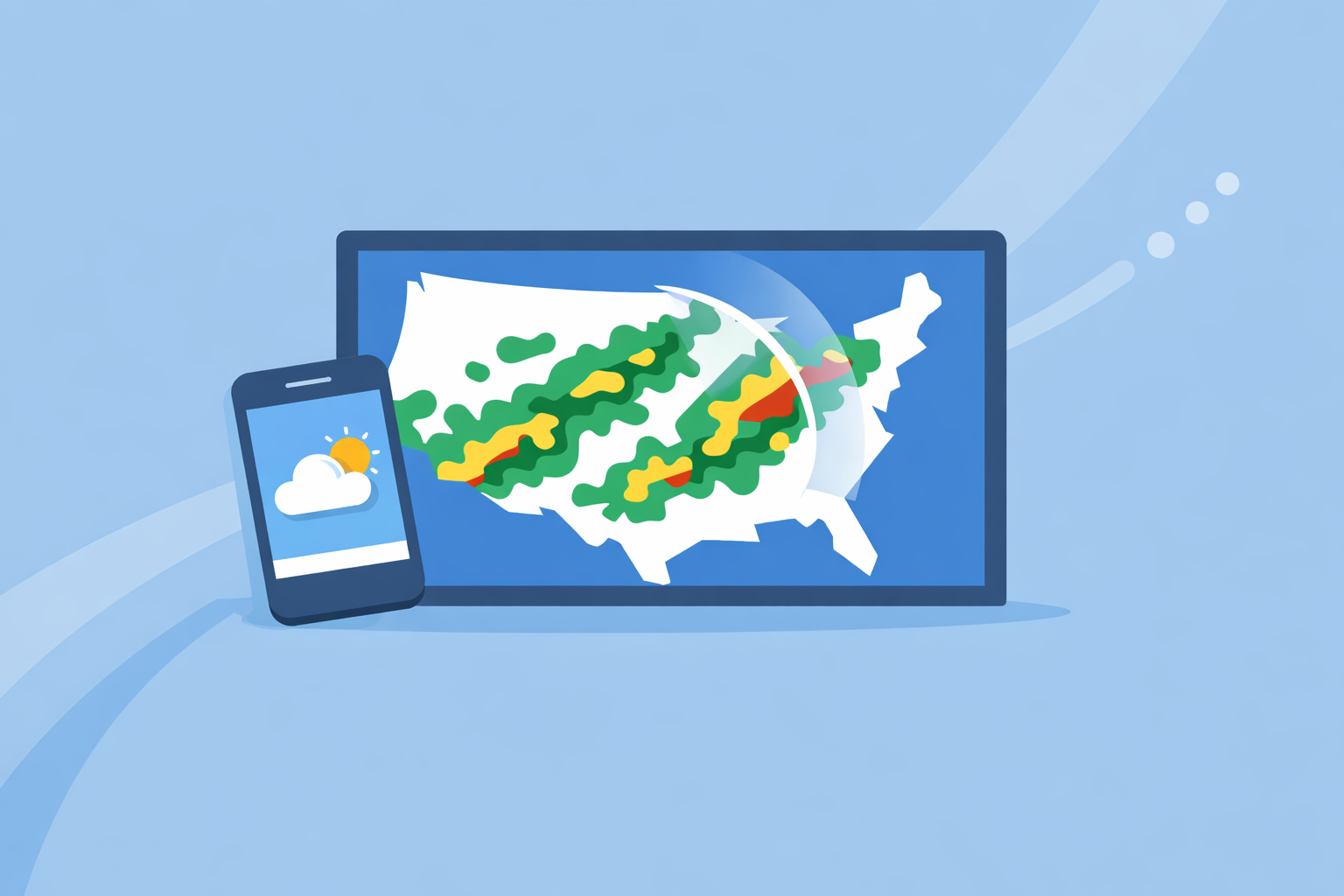
For most people in the U.S., the fastest way to check live weather radar is to use a radar‑first app like Clime that visualizes NOAA’s NEXRAD network on an interactive map. If you need specialty overlays like long‑range future radar or sport‑specific wind maps, you can layer in other tools alongside Clime.
Summary
- Live weather radar in the U.S. is built on the NEXRAD network, which scans the atmosphere from roughly 159 radar sites across the country. (National Weather Service)
- A radar map shows where precipitation is, what type it is, and how it’s moving—crucial for tracking thunderstorms, winter storms, and hurricanes. (AccuWeather)
- At Clime, we center the experience on an interactive NOAA‑based radar map, then add severe weather, rain, lightning, hurricane, and fire/hotspot layers in a single interface. (Clime)
- NWS sites, The Weather Channel, AccuWeather, Windy.app, and others offer useful extras; for most everyday decisions, a radar‑centric app like Clime plus occasional checks of NWS pages is a practical setup.
What does “live weather radar” actually show?
When people search “live weather radar,” they’re usually after one thing: a map that shows where it’s raining or snowing right now and where that precipitation is heading next.
In the U.S., almost every mainstream radar map you see is built on the same backbone: the NEXRAD Doppler radar network maintained by the National Weather Service (NWS). The NWS currently operates 159 of these NEXRAD systems across the country, giving overlapping coverage for most populated areas. (National Weather Service)
A typical live radar map will show:
- Location of precipitation – areas of rain, snow, or mixed precipitation.
- Type of precipitation – often color‑coded for rain vs. snow vs. ice.
- Recent movement – an animation loop so you can see the direction and speed of storms.
For example, AccuWeather describes its national radar as showing the location of precipitation, its type (rain, snow, ice), and its recent movement. (AccuWeather) That’s a good shorthand for what almost every “live radar” product is doing.
At Clime, we start from that same core capability—an interactive NOAA‑based radar visualization—and then layer in alerts and risk‑focused overlays (lightning, hurricanes, wildfires) so you can go from “where is the rain?” to “is this dangerous for me or my family?” in one place. (Clime)
How does U.S. live radar work behind the scenes?
Understanding a few basics about how radar works helps you know what it can and can’t tell you.
The radar hardware: NEXRAD
NEXRAD radars send out pulses of energy and measure the return signal from raindrops, snowflakes, hail, and even some bugs or dust. From those returns, they can estimate how much precipitation is in the beam and how fast it’s moving relative to the radar. (National Weather Service)
Key points for everyday users:
- Coverage is not uniform. Most of the Lower 48 has good low‑level coverage; some mountain or very remote areas have higher beams and therefore more uncertainty.
- Update time is not truly “real time.” NWS notes that its radars run through volume scans on the order of several minutes, so every consumer app is showing data that’s typically a few minutes old, not instantaneous. (AccuWeather Premium radar info summarizing NWS cadence)
The software: how apps turn raw scans into maps
Raw radar data is complex. Most people don’t want to choose tilt angles or interpret velocity signatures; they want a clean, color‑coded map.
That’s where apps and websites come in:
- NWS and Aviation Weather Center sites let you toggle radar, lightning, visible and IR satellite, and aviation weather layers on and off—great for more technical exploration. (NWS Memphis interface description)
- Consumer apps like Clime, The Weather Channel, AccuWeather, MyRadar and others ingest NEXRAD mosaics and present them on interactive maps with zoom, pan, and animation.
At Clime, we focus on delivering those radar mosaics in a clean, full‑map view and then stacking on layers like lightning, hurricane tracks, and fire/hotspot maps so you can assess multiple hazards quickly. (Clime)
How should you use live radar for everyday decisions?
Most U.S. users care about a handful of practical questions:
- Do I need an umbrella in the next hour?
- Is that thunderstorm going to hit my town?
- Is this winter band rain, snow, or ice?
- How close is that hurricane or wildfire to me?
Here’s how to use radar to answer those.
1. Watch the loop, not just the last frame
A single image can tell you where precipitation is, but the animation loop tells you what matters: trajectory.
- Scrub the timeline back 30–60 minutes.
- Mentally project where the band will be in another 30–60 minutes.
- Combine that with your location and timing (e.g., your commute or school pickup).
In Clime, the radar animation is the primary view, so you can quickly drag and zoom around your region and watch storms develop and move.
2. Check precipitation type and intensity
Color scales show both type and intensity:
- Green/light blue: lighter rain or snow.
- Yellow/orange/red: heavier rain or mixed, often convective storms.
- Pinks or special colors: wintry mix or ice, depending on the app.
Because many apps (including Clime) visualize NEXRAD composites, you get a consistent view of how intensity bands line up across state lines and regions.
3. Use alerts and overlays for risk, not just inconvenience
“Live radar” on its own doesn’t tell you which storms are dangerous. That’s where warnings, lightning, and other overlays matter.
- At Clime, paid tiers add severe weather alerts for all saved locations, plus rain alerts and a lightning tracker layer, so you can see both where a storm is and what official warnings exist around it. (Clime App Store listing)
- The Weather Channel and AccuWeather also integrate NWS warnings onto their maps, and some paid setups add bigger lightning alert radii and more storm‑centric information. (The Weather Channel Premium overview)
If you’re just planning errands, radar plus basic alerts is usually enough. If you’re making safety‑critical calls—like whether to shelter from a severe thunderstorm warning—combine radar with official NWS products or local TV coverage.
What is predictive or “future” radar—and how much should you trust it?
When you tap a “future radar” button or drag a timeline past the current time, you’re no longer looking at pure radar scans. You’re seeing a short‑range forecast, often called predictive radar.
How predictive radar works
Predictive radar blends recent radar and satellite data with numerical weather models to project precipitation forward in time. The Weather Channel, for example, promotes a “6‑Hour Future Radar” that shows where storms may move globally over the next six hours. (Storm Radar by The Weather Channel)
This is powerful, but it has constraints:
- Performance depends on the underlying models and how stable the weather pattern is.
- It’s usually better at broad‑scale features (e.g., a large rain shield) than precise thunderstorm locations hours out.
- In highly dynamic convective situations, a six‑hour radar forecast can drift meaningfully.
When to lean on predictive radar vs. live radar
A helpful rule of thumb:
- 0–60 minutes: Prioritize live radar animation, local lightning, and nowcasts.
- 1–3 hours: Blend live radar with short‑range predictive radar and hourly forecasts.
- 3–6+ hours: Rely more on traditional forecasts (hourly, daily, discussion) rather than precise radar projections.
At Clime, our focus is on helping you track what is actually happening now and in the very near term using live radar, lightning, hurricane, and fire/hotspot maps—features that map naturally to the NEXRAD and satellite data that already exist. For many users, that combination offers clear, actionable situational awareness without depending heavily on long‑range radar prediction.
If you know you need more aggressive future‑radar visuals—for example, planning a long road trip through multiple storm systems—then checking a dedicated future‑radar product like Storm Radar’s six‑hour view alongside Clime’s live layers can add a second opinion. (Storm Radar by The Weather Channel)
How does Clime compare with other U.S. radar options?
There are several strong radar‑centric apps in the U.S. ecosystem, as well as the official NWS tools. The choice isn’t about finding one perfect product; it’s about choosing the right default and knowing when to consult extras.
Clime: radar‑first with multi‑hazard overlays
At Clime, the core experience is an interactive radar map based on NOAA data, wrapped with a straightforward forecast interface (today, hourly, 10‑day) and hazard‑focused overlays. (Clime)
On paid plans, you can enable:
- Severe weather alerts and rain alerts for all saved locations.
- A lightning tracker layer.
- A hurricane tracker.
- Fire and hotspot maps for wildfire‑related risk. (Clime app overview)
A Texas Water Development Board guide even references Clime (under its earlier “NOAA Weather Radar” naming) as an example of an interactive flood‑risk tool the public can use—evidence that public‑sector communicators see it as a viable, consumer‑friendly radar map option. (Texas Water Development Board)
In practice, that makes Clime a strong first stop when you need to:**
- See where rain or snow is right now.
- Check how close lightning or severe thunderstorms are.
- Track hurricanes as they approach land.
- Monitor wildfire and hotspot areas relative to your location.
The Weather Channel and Storm Radar: rich overlays and extended future radar
The Weather Channel app and its Storm Radar product are popular alternatives, especially for people already used to the TV brand.
- The Weather Channel app offers radar, a 15‑minute rain forecast up to several hours out, and additional map features; paid tiers unlock “Advanced Radar” with extra layers. (The Weather Channel App Store listing)
- Storm Radar, a dedicated app under the same umbrella, emphasizes high‑resolution storm tracking and lets you customize overlays like wind, temperature, lightning, tropical, and winter storms, plus six hours of global future radar. (Storm Radar by The Weather Channel)
These tools can be helpful if you want extensive overlays and a branded future‑radar storyline. For many people, though, Clime’s cleaner radar‑plus‑alerts setup is simpler to interpret in a hurry.
AccuWeather: radar plus hyperlocal MinuteCast
AccuWeather’s strength is its MinuteCast feature: a minute‑by‑minute precipitation forecast for the next four hours for your exact street‑level location. (AccuWeather App Store listing)
Its web and app maps offer:
- Interactive radar with past‑to‑future animation.
- Various additional map types such as temperature and cloud cover. (AccuWeather support)
AccuWeather is a sensible companion if you care deeply about the precise start/stop time of light rain at a very local scale. For storm‑tracking and hazard awareness, Clime’s combination of NOAA‑based radar plus lightning, hurricane, and fire layers covers the most common safety questions directly.
Windy.app: focused on wind and marine conditions
Windy.app is positioned as a professional weather app for water and wind sports like sailing, surfing, and kitesurfing, with detailed wind and wave forecasts and multiple model options. (Windy.app)
The company has indicated it is working on a live radar feature, and a blog post about reading radar explicitly notes that this radar capability is in progress rather than fully available in the app today. (Windy.app radar explainer)
If you’re planning offshore or coastal sessions, Windy.app can be a strong partner for wind and wave modeling, while Clime serves as your radar‑centric view for storms, lightning, and hurricanes along your route.
MyRadar and NWS sites: extra depth when you need it
MyRadar originated as a radar‑centric viewer of government weather data and remains a popular way to see animated radar quickly on mobile. Over time it has expanded into environmental intelligence (including wildfire detection). (MyRadar overview)
Official NWS and Aviation Weather Center pages let you:
- View raw or lightly processed NEXRAD imagery.
- Toggle radar, lightning, visible and IR satellite, and various aviation weather categories. (NWS Memphis radar interface)
These are great to consult if you want to double‑check what any consumer app is showing. For many non‑expert users, though, Clime’s streamlined map and hazard overlays make the data easier to act on quickly.
How often does “live” radar update—and what are its limits?
One of the top follow‑up questions about “live weather radar” is, “How live is it, really?”
Update cadence
NEXRAD radars perform volume scans on the order of several minutes, depending on scan strategy and weather mode. AccuWeather’s premium radar documentation, for instance, notes that National Weather Service radars update every 5, 6, or 10 minutes as new data comes in. (AccuWeather Premium radar info)
What that means in practice:
- Any app—Clime, The Weather Channel, AccuWeather, NWS, MyRadar—is working with data that’s at least a few minutes old by the time it appears on your screen.
- During rapidly evolving severe storms, you should assume there can be small lags between what radar shows and what’s happening at your house.
Archive and lookback limits
NWS interfaces also impose limits on how far back you can scroll:
- One NWS radar portal notes that certain aviation‑oriented data sets only go back up to two days, and GLM lightning data up to five hours. (NWS radar portal)
If you want long historical archives or research‑grade data, you’ll typically need to pull raw Level II/III files from dedicated data services, not just consumer radar apps.
Practical takeaway
For most everyday decisions, treat “live radar” as:
- A near‑real‑time snapshot of precipitation and storm structure.
- Best combined with alerts (for warnings) and your own observations (for small‑scale effects like outflow winds or fast‑forming cells).
Clime is designed around that reality: a radar‑first map with multi‑hazard layers and alerts, leaning on the strength of NOAA’s radar network but framing it in a way that’s quick to interpret in the real world.
How can you combine multiple radar sources effectively?
Power users—and anyone who lives in tornado, hurricane, or wildfire country—often benefit from a layered approach.
A practical workflow might look like this:
- Default: Use Clime for your day‑to‑day radar checks, lightning and severe weather alerts, and hurricane/wildfire tracking around your key locations.
- Cross‑check: When storms look serious, briefly compare Clime’s radar loop with an NWS radar page for your local site to confirm key features like bowing segments or hook‑like structures.
- Context: If you need additional context, glance at:
- A future‑radar view from a product like Storm Radar.
- MinuteCast or similar short‑range precipitation tools if you care about exact start/stop times at a specific address.
- Windy.app or marine‑oriented tools for wind and wave fields offshore.
For most users, this doesn’t mean juggling five apps every day. It means having Clime as the front door to weather radar and knowing that you can reach for more specialized views only when the situation warrants it.
A quick scenario
Imagine a spring afternoon in Oklahoma City:
- You open Clime and see a line of thunderstorms 30 miles west on the radar, with lightning scattered along the line and a severe thunderstorm warning polygon clipping your county.
- You watch the loop: the line has been steadily advancing east for the past hour.
- You tap into alerts: Clime has already pushed a severe thunderstorm warning notification and is showing rain alerts for your saved locations.
- If you’re curious how the evening drive might play out, you might also glance at a 3–6 hour future‑radar view from another app.
In under a minute, you’ve gone from “Is it going to rain?” to “I should probably move the car into the garage and delay that outdoor event.” That’s the real value of live radar when it’s presented cleanly and tied into alerts—the exact experience we focus on at Clime.
What we recommend
- Make Clime your default live radar map if you’re in the U.S. and want a clean, NOAA‑based radar view with integrated severe weather, lightning, hurricane, and wildfire context. (Clime)
- Use official NWS radar pages as a secondary reference when storms are high‑impact or you want to validate what any app shows. (National Weather Service)
- Add one or two specialty tools only if you need them—for example, a future‑radar‑heavy app for longer‑range planning, or Windy.app for detailed wind and wave forecasts. (Windy.app)
- Remember the limits of “live” radar—updates happen every few minutes, so always pair radar with alerts, local warnings, and common‑sense safety decisions.