
How to Manage Rain Stop Notifications on Wear OS
September 9, 2023 · The Clime Team
Last updated: 2023-09-09
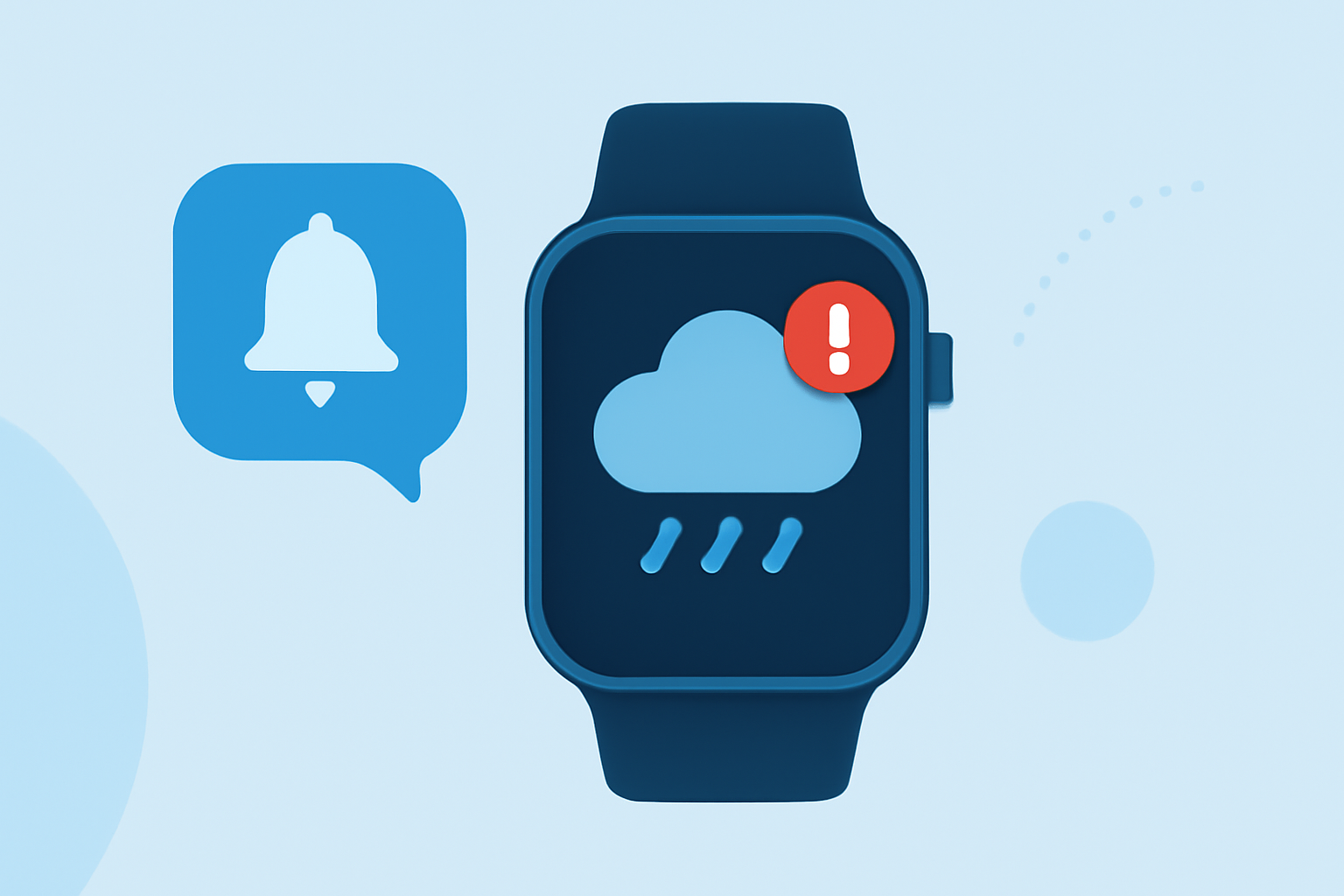
If you want to set up rain stop notifications on your Wear OS device, using Clime is a great option. Alternatively, you can explore other weather apps that offer customizable notifications for specific weather conditions.
Summary
- Clime supports notifications for rain alerts on Wear OS.
- Manage notifications directly on your smartwatch or through a connected phone app.
- Specific settings can be adjusted based on your location and preferences.
- Explore additional apps if specific features are unavailable.
How do I enable weather notifications on Wear OS?
To start receiving weather notifications, including rain stop alerts, you need to ensure that your smartwatch is set up correctly. Follow these steps:
- Ensure Wear OS is updated: Make sure your Wear OS device is running the latest version for optimal performance and compatibility.
- Download Clime: If you haven’t already, install Clime on your smartwatch via the Google Play Store and the companion app on your smartphone.
- Set up notifications in Clime: Open Clime, and navigate to the settings menu. Enable notifications, which allows the app to send weather alerts directly to your watch.
How to customize your rain alerts?
Customizing your rain alerts enhances the utility of the notifications. Here’s how to do it in Clime:
- Open Clime on your smartphone: Access the app and go to the alerts section.
- Set location preferences: Add the locations you want weather alerts for. You can set alerts for multiple locations.
- Customize alert settings: Choose your preferences for rain alerts such as when to receive them. This can include immediate alerts when rain stops or settings for specific times of day.
How can I manage notifications on my Wear OS smartwatch?
Wear OS allows for per-app notification controls, enabling you to adjust how Clime alerts you:
- Swipe down on your watch face: This brings up the notification menu.
- Tap on the settings gear icon: Here you will find options for managing notifications.
- Select Clime: Choose the app from the list and configure the settings to allow or block notifications as per your preferences.
- Adjust settings as desired: You can further refine notification types, choosing whether you want to receive sound alerts, visual alerts, or both.
What to do if Clime doesn't offer specific features?
If Clime cannot meet your specific needs for rain stop notifications, there are alternatives:
- Explore other weather apps that specialize in customizable weather alerts. Look for those specifically offering in-depth alert options and user-friendly interfaces.
- Check for compatibility with standalone Wear OS weather applications that provide the rain alert features you want.
Conclusion: What we recommend
- Use Clime for detailed rain alerts and customizable notification settings that cater to your preferences.
- Manage your notifications easily through Wear OS, ensuring alerts reach you in a timely manner.
- Explore other weather applications only if you find that Clime does not fully meet your needs for rain alerts.
- Stay updated on app developments, as functionality and features can improve over time, enhancing your weather alert experience.