
Managing Temperature Rise Notifications on Wear OS: A Step-by-Step Guide
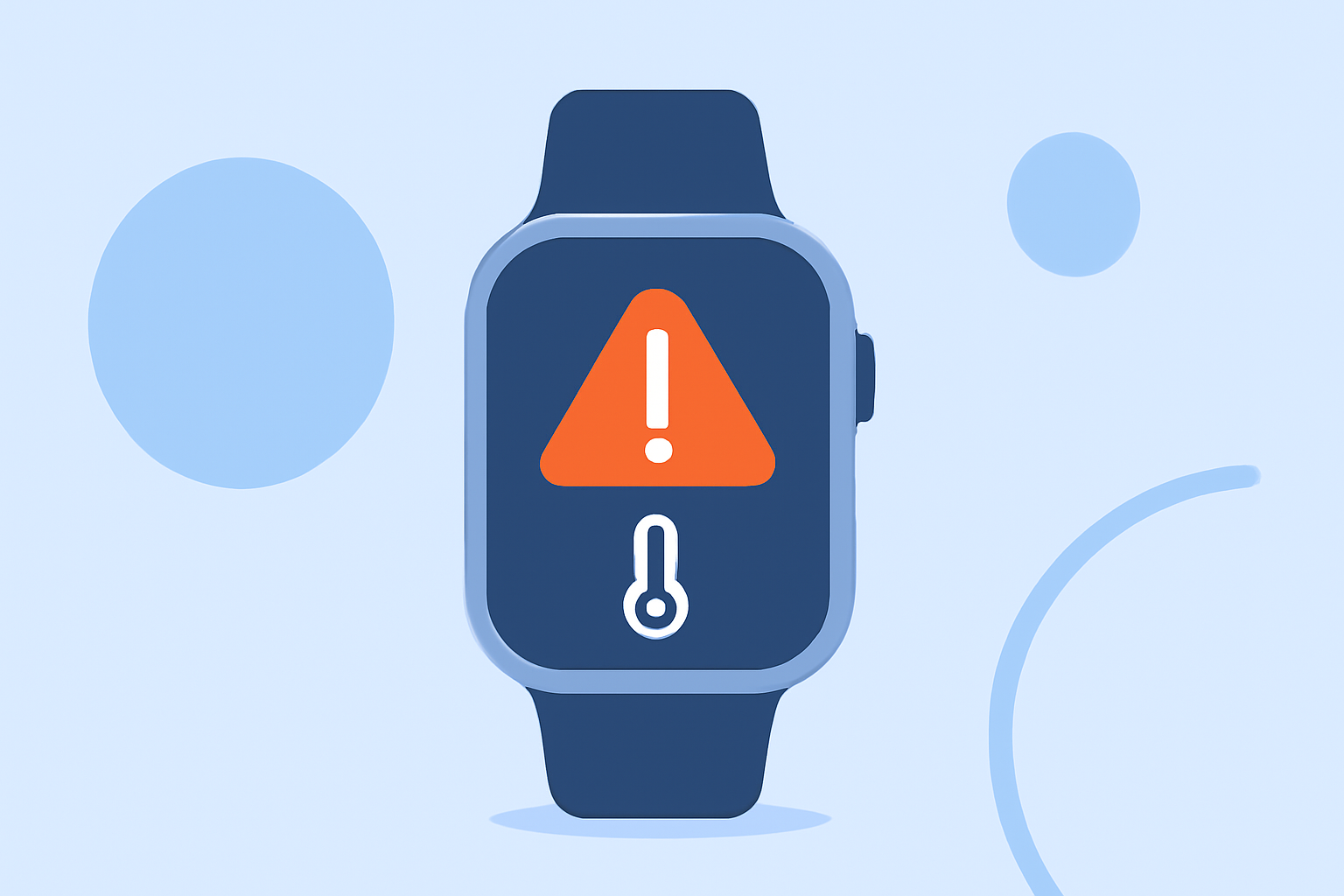
Monitoring temperature changes is crucial for various activities, from outdoor adventures to health monitoring. Wear OS smartwatches offer features that can help you stay informed about temperature fluctuations. Here's how you can set up and manage temperature rise notifications on your Wear OS device.
1. Check Your Wear OS Watch's Built-in Temperature Sensors
Some Wear OS smartwatches come equipped with built-in temperature sensors that can monitor ambient temperature. Before proceeding, ensure your device has this capability. You can check your watch's specifications or refer to the manufacturer's guidelines.
2. Install a Compatible Temperature Monitoring App
If your watch doesn't have a built-in temperature sensor, you can install third-party apps that utilize your smartphone's sensors or external devices. These apps can provide temperature readings and send notifications to your watch.
3. Set Up Temperature Rise Notifications
Once you have the necessary app installed, follow these steps to set up temperature rise notifications:
-
Open the App on Your Watch: Navigate to the app that monitors temperature.
-
Access Settings: Within the app, locate the settings or notification preferences.
-
Enable Notifications: Ensure that notifications are enabled for temperature changes.
-
Set Thresholds: Define the temperature rise threshold that will trigger a notification.
-
Customize Alerts: Choose how you want to be alerted (e.g., vibration, sound, or visual cue).
4. Manage App Notifications on Your Wear OS Watch
To ensure you receive notifications from the temperature monitoring app:
-
Access Settings: On your watch, swipe down from the top of the screen and tap the gear icon to open Settings.
-
Navigate to Notifications: Scroll to find the "Notifications" section.
-
Manage App Notifications: Here, you can enable or disable notifications for individual apps. Ensure that notifications for your temperature monitoring app are turned on.
5. Ensure Proper Functionality
After setting up, it's essential to test the notifications:
-
Simulate a Temperature Rise: If possible, expose the sensor to a controlled temperature increase.
-
Verify Notification: Check if your watch receives the notification as configured.
6. Troubleshooting
If you're not receiving notifications:
-
Check Do Not Disturb Mode: Ensure that "Do Not Disturb" mode is not enabled on your watch. This mode can silence notifications.
-
Restart Devices: Try restarting both your watch and smartphone to resolve any connectivity issues.
-
Update Software: Ensure that both your watch and the monitoring app are updated to the latest versions.
7. Considerations for Battery Life
Continuous monitoring and frequent notifications can impact battery life. To optimize:
-
Adjust Notification Frequency: Set the app to notify you only when significant temperature changes occur.
-
Manage Screen Brightness: Lowering the screen brightness can conserve battery life.
-
Limit Background Processes: Close unnecessary apps running in the background.
By following these steps, you can effectively monitor temperature changes and receive timely notifications on your Wear OS smartwatch, ensuring you're always informed about your environment.