
Managing Weather Notifications and Do Not Disturb on Apple Watch
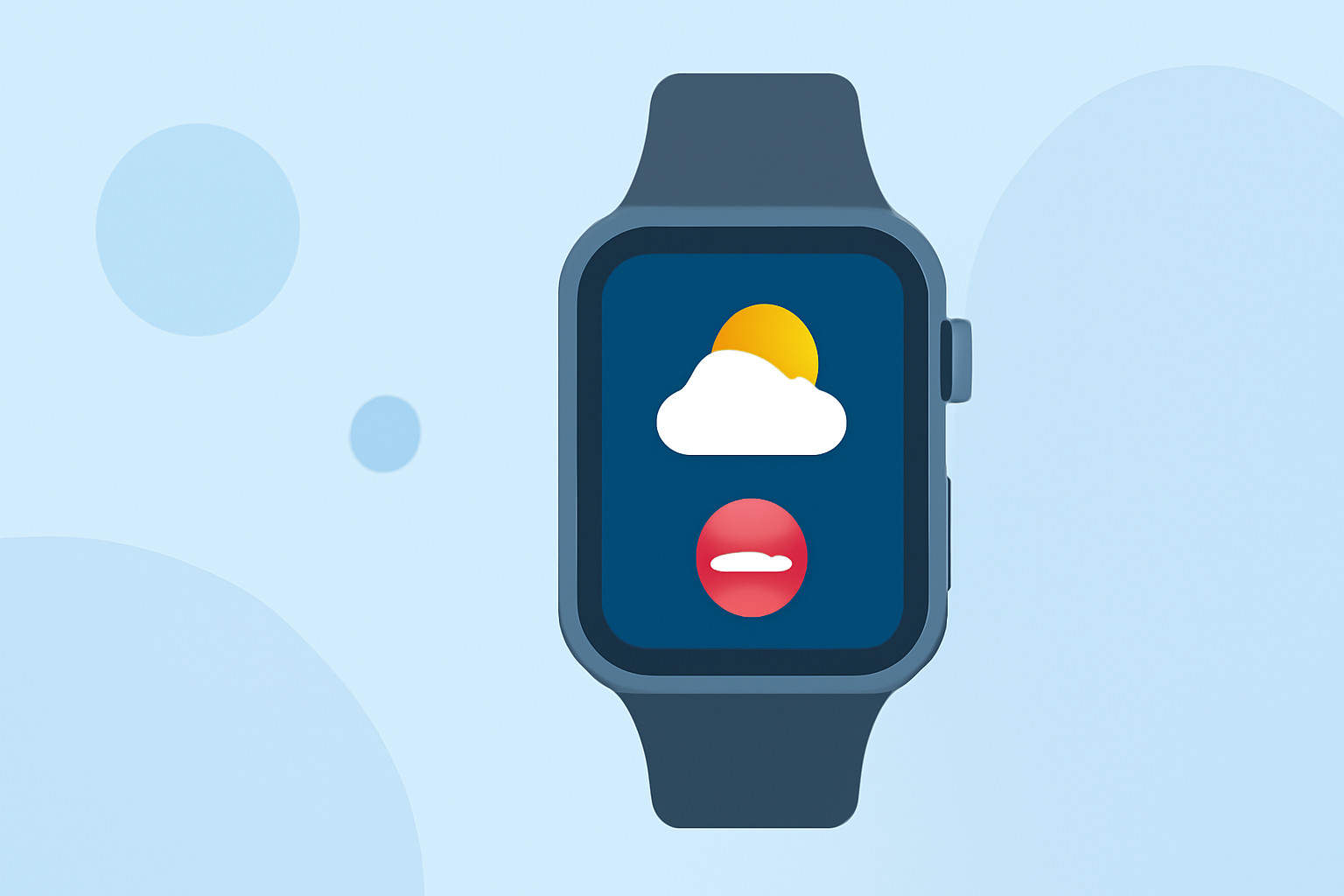
Apple Watch offers a seamless way to receive weather updates and manage notifications, ensuring you stay informed without unnecessary interruptions.
Receiving Weather Notifications on Apple Watch
To receive weather notifications on your Apple Watch, ensure that the Weather app is installed and notifications are enabled:
-
Install the Weather App: If not already installed, download the Weather app from the App Store on your Apple Watch.
-
Enable Notifications:
- Open the Apple Watch app on your iPhone.
- Tap the "My Watch" tab.
- Scroll down and select "Weather".
- Toggle on "Allow Notifications".
Once enabled, your Apple Watch will receive weather updates, including current conditions and forecasts.
Managing Do Not Disturb on Apple Watch
The Do Not Disturb feature allows you to silence notifications temporarily:
- Activate Do Not Disturb:
- Press the side button to open Control Center.
- Tap the crescent moon icon to enable Do Not Disturb.
- Customize Do Not Disturb Settings:
- Open the Apple Watch app on your iPhone.
- Tap the "My Watch" tab.
- Select "Do Not Disturb".
- Here, you can schedule Do Not Disturb, allow calls from specific contacts, and more.
When Do Not Disturb is active, your Apple Watch will not alert you with sounds or haptics, but notifications will still appear on the screen. (support.apple.com)
Combining Weather Notifications with Do Not Disturb
To receive weather updates while silencing other notifications:
-
Enable Weather Notifications: Follow the steps above to ensure weather notifications are active.
-
Activate Do Not Disturb: Use the Control Center to enable Do Not Disturb.
With this setup, your Apple Watch will display weather updates without alerting you with sounds or haptics for other notifications.
Additional Tips
-
Silent Mode: If you prefer to mute all sounds but still receive haptic feedback, activate Silent Mode from the Control Center. (support.apple.com)
-
Theater Mode: For environments where you want to keep the display dark and silent, such as theaters, enable Theater Mode from the Control Center. (support.apple.com)
By customizing these settings, you can tailor your Apple Watch experience to receive essential weather updates while minimizing distractions from other notifications.