
Managing Weather Notifications While Driving: A Guide to Snoozing Alerts
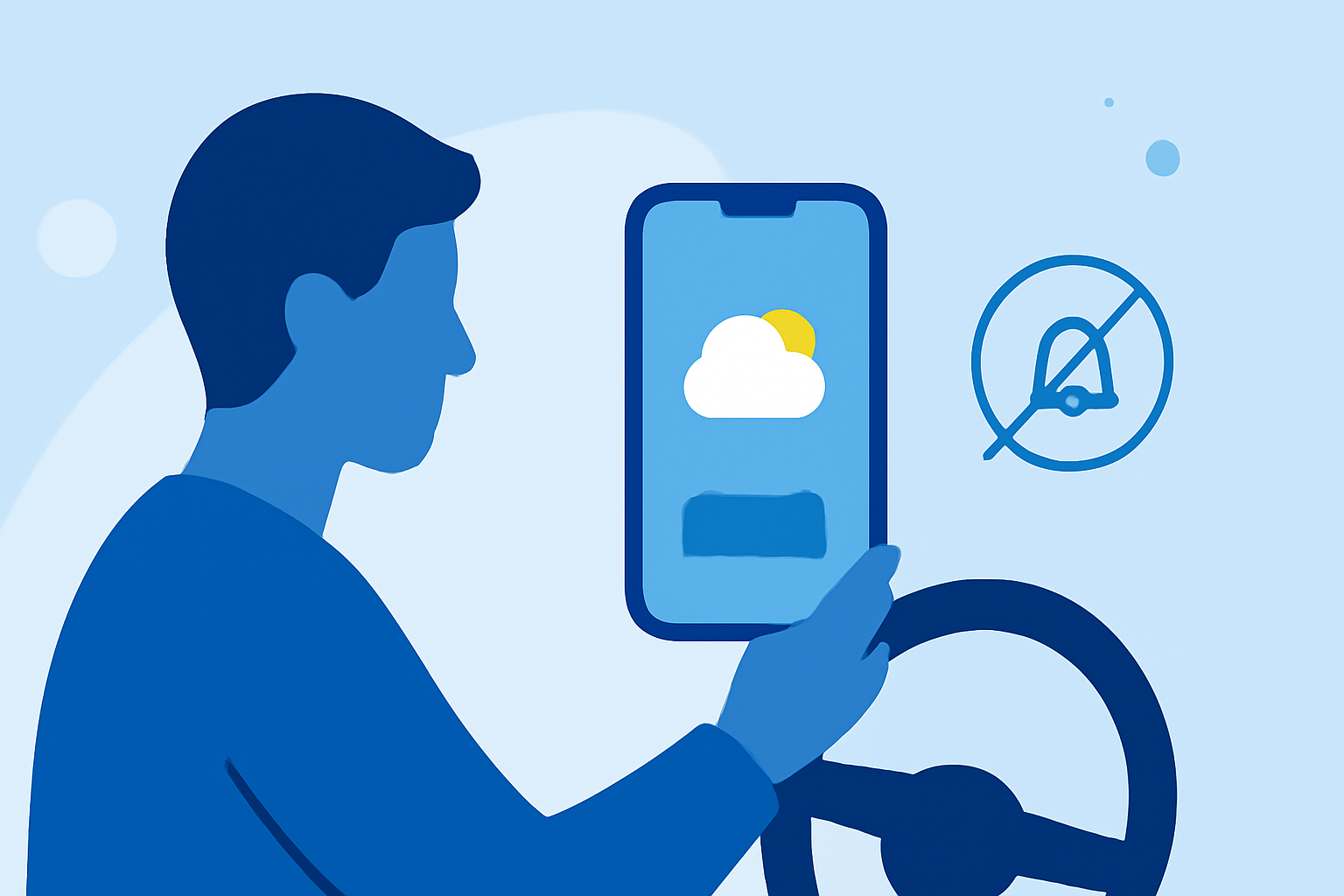
Staying informed about weather conditions is crucial for safe driving. However, constant weather alerts can be distracting. Implementing a weather notification snoozing workflow can help you manage these alerts effectively.
What Is a Weather Notification Snoozing Workflow?
A weather notification snoozing workflow allows you to temporarily mute weather alerts during specific times, such as while driving, and resume them later. This ensures you receive important updates without being overwhelmed by constant notifications.
How to Implement a Weather Notification Snoozing Workflow
- Enable Notification Snoozing on Your Device
-
For Android Devices: Navigate to Settings > Notifications > Advanced Settings, and toggle on "Show snooze button." This feature may not be available on all devices. (samsung.com)
-
For iOS Devices: While iOS doesn't natively support snoozing notifications, you can manage notifications by adjusting settings in Settings > Notifications.
- Snooze Weather Notifications
-
When a weather alert appears, swipe down to access the notification panel.
-
Tap the down arrow to expand the notification.
-
Select the snooze icon (usually a bell or clock) and choose the desired snooze duration.
-
The notification will reappear after the selected time, ensuring you stay informed without distractions.
Best Practices for Managing Weather Notifications While Driving
-
Set Appropriate Snooze Durations: Choose snooze times that align with your driving duration to minimize interruptions.
-
Use Voice-Activated Features: If your device supports voice commands, use them to manage notifications hands-free.
-
Prioritize Critical Alerts: Ensure that critical weather alerts, such as severe weather warnings, are set to notify immediately, even if other notifications are snoozed.
Additional Tips
-
Regularly Review Notification Settings: Periodically check and adjust your notification settings to ensure they meet your current needs.
-
Stay Updated on App Features: App developers frequently update features. Keep your weather apps updated to access the latest functionalities.
By implementing a weather notification snoozing workflow, you can maintain awareness of weather conditions without compromising your focus and safety on the road.