
Mastering Apple Watch Weather Widgets: A Comprehensive Guide
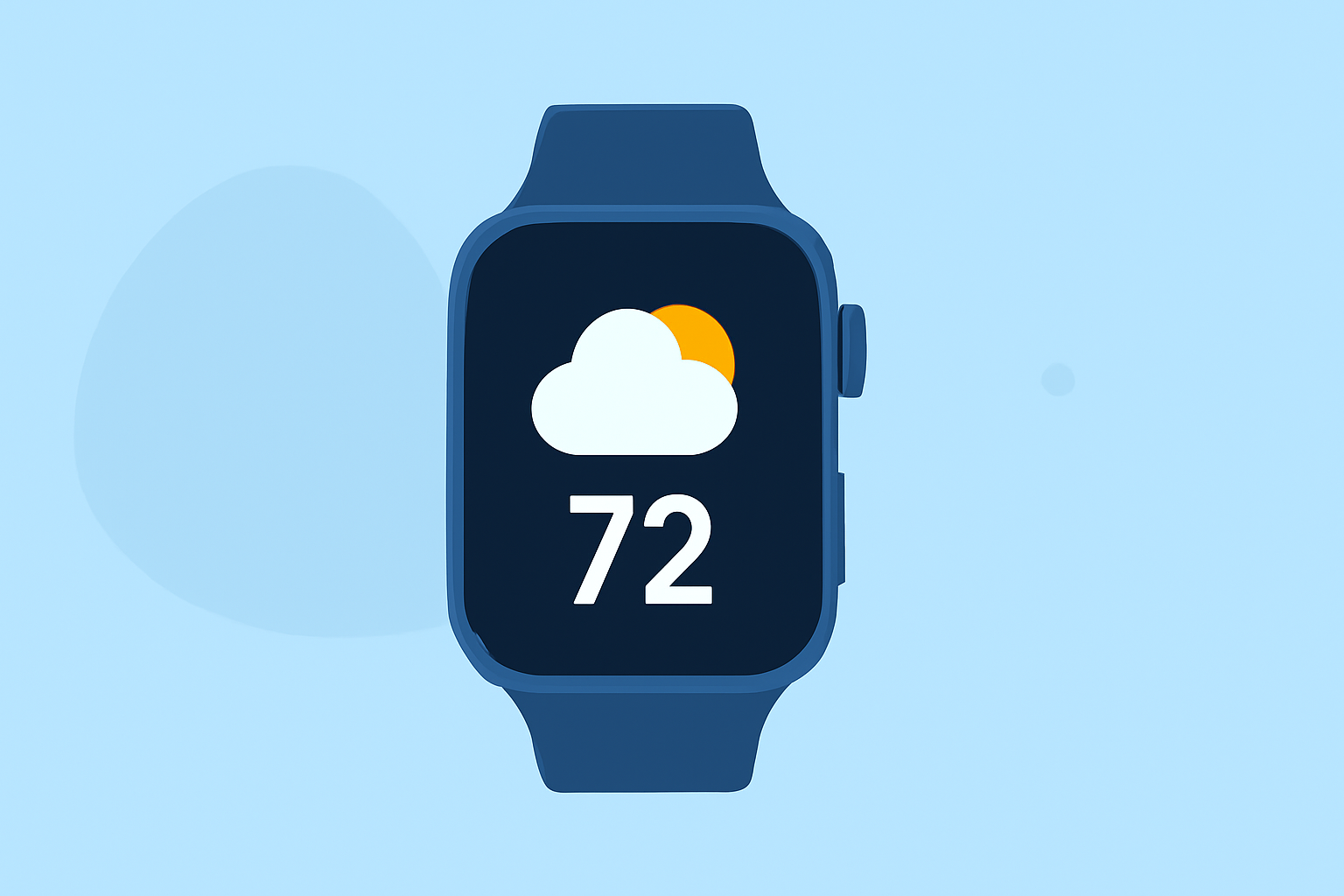
Apple Watch offers a convenient way to stay updated on weather conditions directly from your wrist. By utilizing the built-in Weather app and customizable complications, you can access real-time forecasts and essential weather metrics effortlessly.
What Are Weather Widgets and Complications on Apple Watch?
Weather widgets and complications are features that display weather information on your Apple Watch face or within the Smart Stack. They provide quick access to current conditions, forecasts, and other relevant weather data without needing to open the full Weather app.
How to Add a Weather Widget to Your Apple Watch Face
- Access Watch Face Customization: Press firmly on your current watch face to enter customization mode.
- Select a Complication Slot: Swipe left or right to choose a complication area (e.g., top-left, bottom-right) where you want the weather information to appear.
- Choose the Weather Complication: Turn the Digital Crown to scroll through available complications and select the one labeled "Weather."
- Save Your Changes: Press the Digital Crown to confirm and exit customization mode.
This process integrates weather information directly into your watch face, allowing for immediate access to current conditions and forecasts.
Customizing the Default Location for Weather Information
To ensure your Apple Watch displays weather data for your preferred location:
- Open Settings on Apple Watch: Press the Digital Crown and tap the "Settings" app.
- Navigate to Weather Settings: Scroll down and tap on "Weather."
- Set Default City: Tap "Default City" and select your desired location from the list.
This setting ensures that your watch face and complications show weather information for your chosen city.
Using the Smart Stack for Weather Updates
The Smart Stack is a feature that displays a stack of widgets, including weather updates, which you can cycle through by turning the Digital Crown or swiping up from the watch face. To add the Weather widget to your Smart Stack:
- Access the Smart Stack: Swipe up from the watch face to view the current widgets.
- Customize the Stack: Press and hold any widget until the "Edit Stack" option appears.
- Add Weather Widget: Tap the "+" button, then select "Weather" from the list of available widgets.
- Arrange Widgets: Use the "Edit Stack" mode to arrange the widgets in your preferred order.
This customization allows you to access weather information alongside other important data seamlessly.
Understanding Weather Icons and Symbols on Apple Watch
Apple Watch uses specific icons to represent various weather conditions:
- Sun Icon: Clear skies.
- Cloud Icon: Cloudy conditions.
- Raindrop Icon: Rain expected.
- Snowflake Icon: Snowfall anticipated.
- Sun Behind Cloud Icon: Partly cloudy.
These icons provide a quick visual reference for the current weather conditions. For a comprehensive understanding of all weather symbols used on Apple Watch, refer to Apple's official support page. (support.apple.com)
Additional Tips for Using Weather Features on Apple Watch
- Access Detailed Forecasts: Tap on the weather complication or widget to open the full Weather app, where you can view hourly and 10-day forecasts.
- Enable Severe Weather Alerts: Stay informed about significant weather events by enabling alerts in the Weather app settings.
- Use Siri for Quick Updates: Activate Siri and ask, "What's the weather like?" to receive immediate weather information.
By effectively utilizing these features, you can ensure that your Apple Watch provides timely and relevant weather updates tailored to your preferences.