
Mastering Daily Weather Forecasts on Your Apple Watch
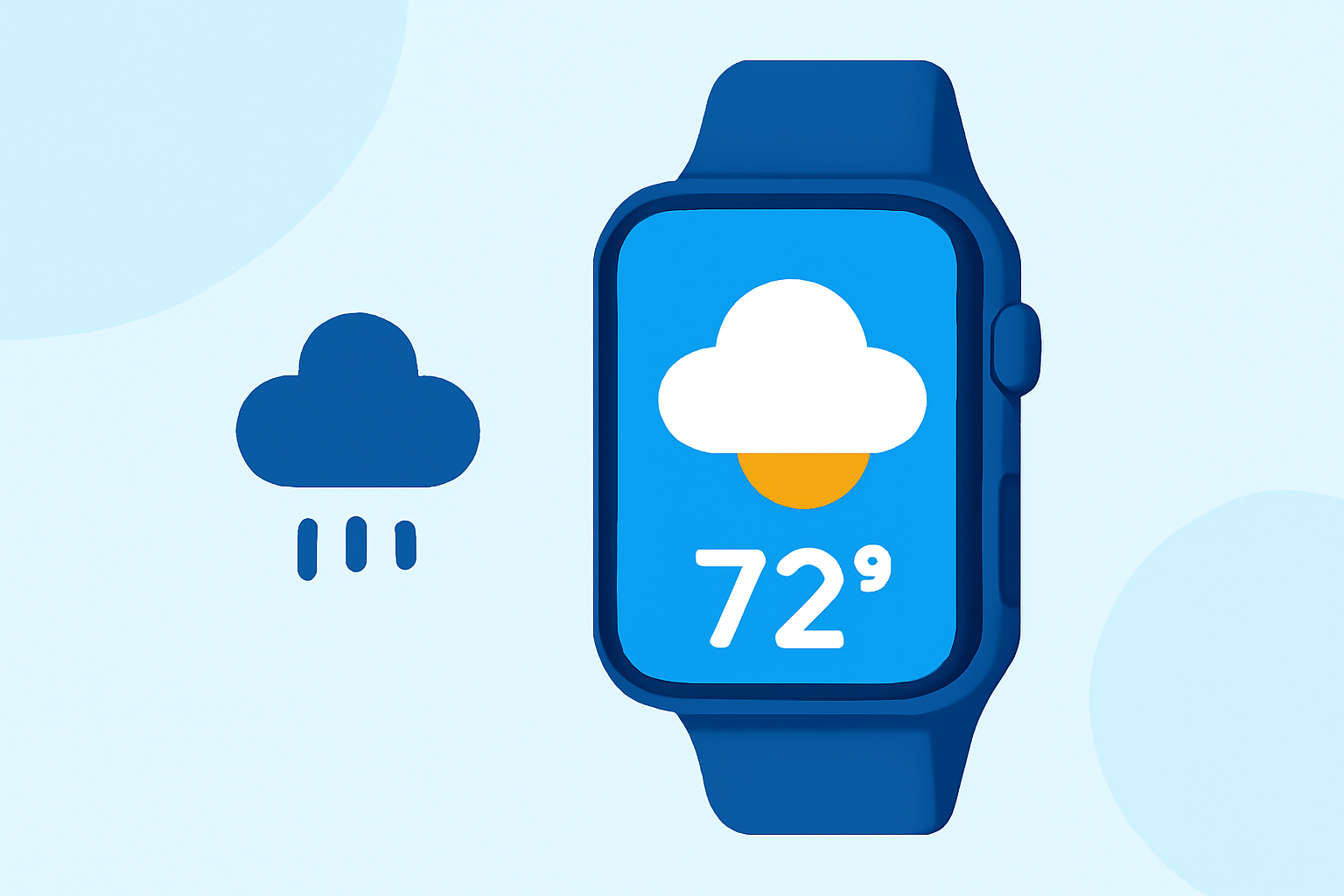
Your Apple Watch offers a convenient way to access daily weather forecasts directly from your wrist. By customizing your watch face with weather complications, you can stay informed about current conditions, forecasts, and more without needing to open an app.
What Are Complications on Apple Watch?
Complications are small widgets that display information from apps directly on your watch face. They provide quick access to data like weather updates, activity progress, and more. By adding a weather complication, you can view essential weather details at a glance.
How to Add a Weather Complication to Your Watch Face
-
Access Watch Face Customization: Press firmly on your current watch face to enter customization mode.
-
Edit Watch Face: Tap the 'Edit' button that appears.
-
Navigate to Complications: Swipe left to reach the complications customization screen.
-
Select a Complication Slot: Tap on the complication slot where you want to add the weather information.
-
Choose Weather Complication: Scroll through the available complications and select one related to weather, such as 'Weather' or 'Temperature'.
-
Save Changes: Press the Digital Crown to save your changes and return to your watch face.
For detailed instructions, refer to Apple's official guide on adding complications to your watch face. (support.apple.com)
Ensuring Accurate Weather Information
To receive accurate and up-to-date weather information on your Apple Watch, consider the following steps:
-
Enable Location Services: Ensure that Location Services are enabled on both your iPhone and Apple Watch. This allows the Weather app to access your current location for precise forecasts.
-
Check Internet Connectivity: Verify that your Apple Watch is connected to your iPhone via Bluetooth and that your iPhone has an active internet connection. This setup ensures that your watch receives the latest weather data.
-
Update Software: Keep your iPhone and Apple Watch updated to the latest versions of iOS and watchOS. Software updates often include fixes for known issues, including those affecting the Weather app.
If you encounter issues with the Weather complication not displaying data, Apple recommends resetting your iPhone's location settings. Navigate to Settings > Privacy & Security > Location Services, select Weather, and toggle the location access to 'Never' and then back to your preferred setting. (macrumors.com)
Alternative Weather Complications
While the built-in Weather app provides essential information, you might prefer additional features or different data presentations. Some third-party apps offer enhanced weather complications with more detailed forecasts, radar images, and customizable settings. When selecting a third-party weather complication, ensure it is compatible with your Apple Watch model and offers the features you desire.
Conclusion
By customizing your Apple Watch with a weather complication, you can effortlessly access daily forecasts and current conditions, keeping you prepared for any weather changes throughout the day.
Highlights:
- Apple Watch Users Report Weather Complication Issues in watchOS 10, Published on Monday, September 25
- Apple Watch doesn't always know how to check the weather due to watchOS 10 bug - 9to5Mac, Published on Sunday, September 24
- Apple Suggests Potential Fixes for Weather Complication Bug on Apple Watch, Published on Tuesday, September 26