
Mastering iPhone Weather Widget Stacks: A Comprehensive Guide
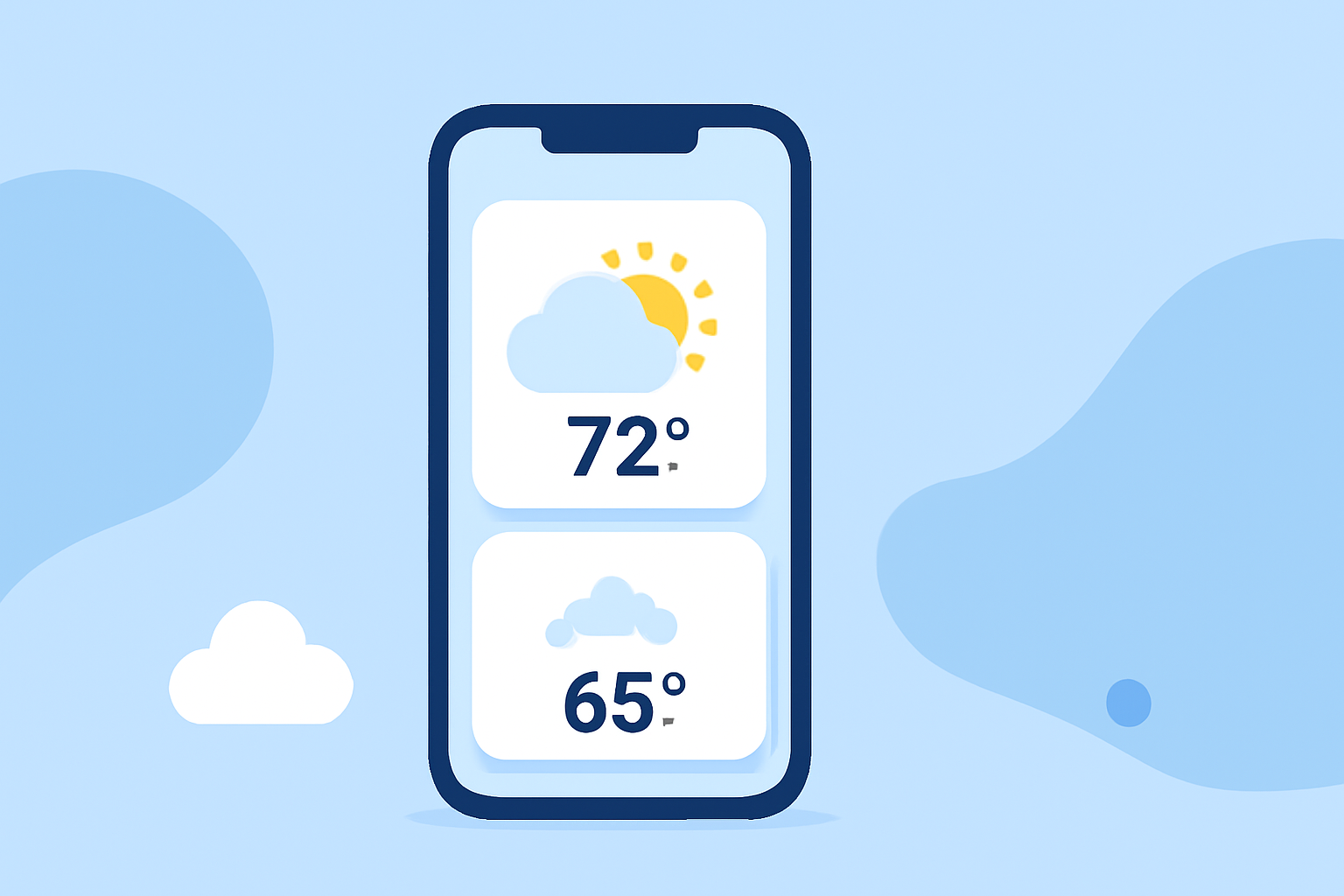
Stacking weather widgets on your iPhone allows you to access multiple forecasts seamlessly, enhancing your daily planning. This guide will walk you through the process of creating and customizing weather widget stacks, ensuring you have the most relevant information at your fingertips.
What Are Widget Stacks?
Widget stacks are a feature introduced in iOS 14 that enable you to group multiple widgets of the same size into a single stack on your Home Screen. This organization saves space and allows you to swipe through different widgets without cluttering your screen. For example, you can stack weather widgets for various locations, providing quick access to multiple forecasts.
How to Create a Weather Widget Stack
-
Enter Jiggle Mode: Touch and hold an empty area on your Home Screen until your apps start to jiggle.
-
Add Weather Widgets: Tap the plus sign (+) at the top-left corner to open the widget gallery. Scroll down and select the Weather widget. Choose the desired size (small, medium, or large) and tap "Add Widget." Repeat this step to add multiple weather widgets for different locations.
-
Create the Stack: Drag one weather widget on top of another to create a stack. Ensure all widgets in the stack are the same size. You can add up to 10 widgets in a single stack.
-
Reposition the Stack: Drag the stack to your desired location on the Home Screen.
-
Exit Jiggle Mode: Tap "Done" in the top-right corner to save your changes.
Customizing Your Weather Widget Stack
-
Edit Individual Widgets: Touch and hold the stack, then tap "Edit Stack." Here, you can reorder widgets by dragging the three horizontal lines next to each widget. To remove a widget, swipe left on its title and tap "Delete." To edit a specific widget, tap the "Edit Widget" option that appears when you touch and hold the widget. For the Weather widget, you can select a different location to display its forecast.
-
Enable Smart Rotate: In the "Edit Stack" menu, toggle on "Smart Rotate" to allow iOS to automatically display the most relevant widget based on factors like time of day, location, and activity. For instance, it might show the weather for your current location during the day and for your home city in the evening. (idownloadblog.com)
Tips for Effective Widget Stacking
-
Consistent Widget Sizes: Ensure all widgets in a stack are the same size. If you add a widget of a different size, it will not stack with the existing ones.
-
Limit the Number of Widgets: While you can add up to 10 widgets in a stack, consider limiting the number to maintain a clean and organized Home Screen.
-
Regular Updates: Periodically review and update your widget stacks to ensure they display the most relevant information.
Troubleshooting
-
Stacking Issues: If dragging one widget over another creates a folder instead of a stack, it may be due to the widgets being of different sizes or not supporting stacking. Ensure all widgets are the same size and support stacking. (discussions.apple.com)
-
Smart Rotate Not Working: If the Smart Rotate feature isn't functioning as expected, check that "Smart Rotate" is enabled in the "Edit Stack" menu. Also, ensure your iPhone is updated to the latest iOS version, as updates often include improvements to widget functionality.
Conclusion
Creating and customizing weather widget stacks on your iPhone provides a streamlined way to access multiple forecasts, keeping you informed throughout the day. By following the steps outlined above, you can tailor your Home Screen to display the most pertinent weather information for your needs.
For a visual demonstration of creating and editing widget stacks, you might find this tutorial helpful: