
Mastering iPhone Weather Widgets: A Comprehensive Guide
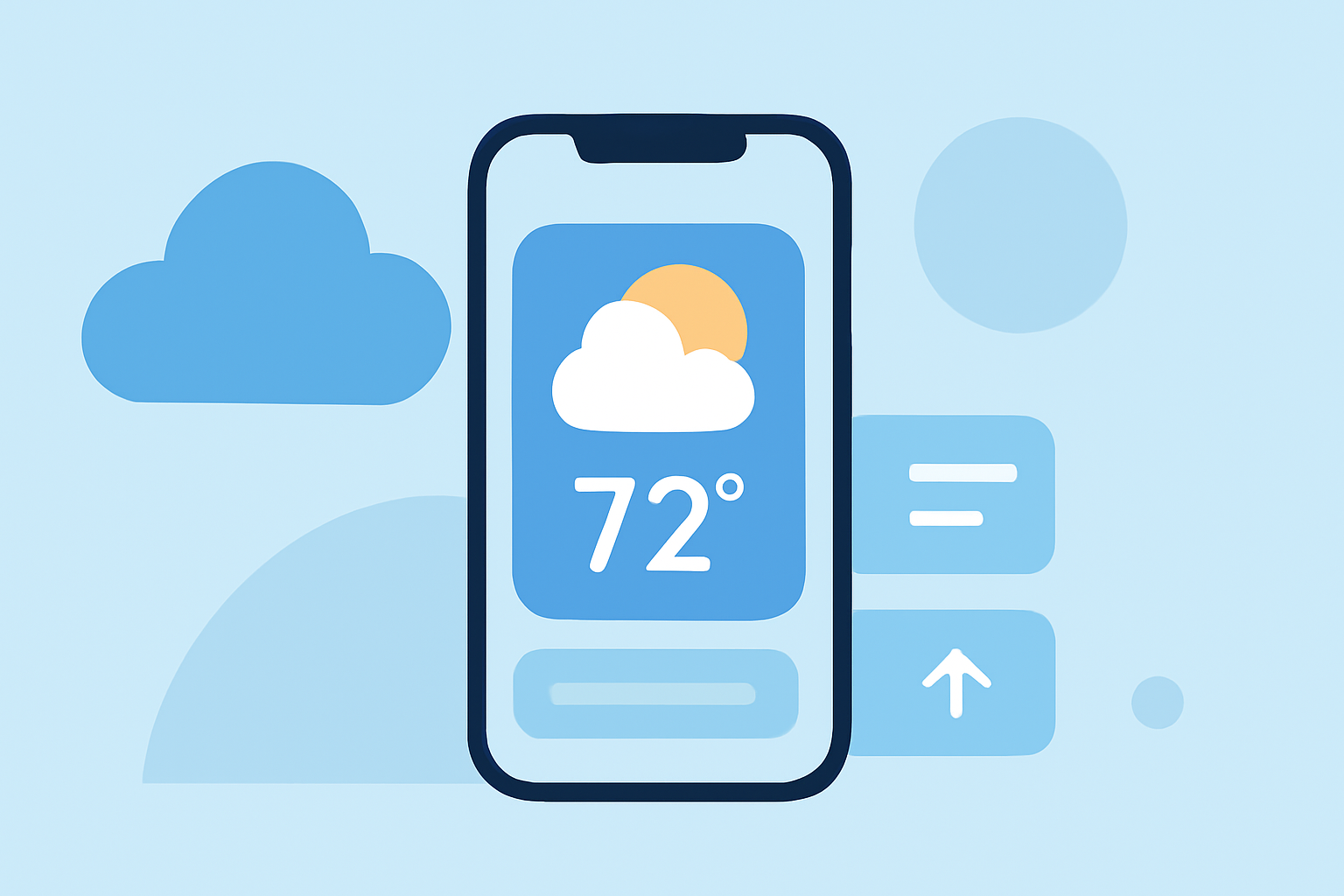
Weather widgets on your iPhone provide at-a-glance updates on current conditions and forecasts, enhancing your daily planning. This guide will walk you through adding, customizing, and optimizing these widgets on your Home and Lock Screens.
What Are Weather Widgets?
Weather widgets are interactive elements that display real-time weather information directly on your iPhone's Home or Lock Screen. They offer quick access to current conditions, hourly forecasts, and more, without the need to open the Weather app.
How to Add a Weather Widget to Your Home Screen
-
Enter Jiggle Mode: Touch and hold an empty area on your Home Screen until the app icons begin to jiggle.
-
Access the Widget Gallery: Tap the plus (+) button in the top-left corner to open the Widget Gallery.
-
Select the Weather Widget: Scroll through the list or use the search bar to find "Weather."
-
Choose a Widget Size: The Weather widget comes in small, medium, and large sizes, each displaying different amounts of information.
-
Add the Widget: Tap "Add Widget," then position it on your Home Screen as desired.
-
Exit Jiggle Mode: Tap "Done" in the top-right corner to finalize the placement.
Customizing the Weather Widget
To tailor the Weather widget to display information for a specific location:
-
Enter Jiggle Mode: Touch and hold the Weather widget on your Home Screen.
-
Edit the Widget: Tap "Edit Widget."
-
Select a Location: Tap "My Location," then search for or select the city you want to display.
-
Confirm Changes: Tap outside the widget to return to your Home Screen.
This customization allows you to monitor weather conditions in multiple locations simultaneously.
Adding Weather Widgets to the Lock Screen
With iOS 16 and later, you can add widgets to your iPhone's Lock Screen for immediate access:
-
Wake Your iPhone: Ensure your device is unlocked.
-
Enter Lock Screen Customization: Press and hold the Lock Screen until customization options appear.
-
Add a Widget: Tap the plus (+) button to open the Widget Gallery.
-
Select the Weather Widget: Find and choose the Weather widget.
-
Position the Widget: Place it in your preferred location on the Lock Screen.
-
Save Changes: Tap "Done" to apply the new Lock Screen setup.
Optimizing Widget Performance
To ensure your Weather widget provides accurate and timely information:
-
Enable Location Services: Go to Settings > Privacy & Security > Location Services, and ensure it's turned on for the Weather app.
-
Allow Background App Refresh: Navigate to Settings > General > Background App Refresh, and enable it for the Weather app to keep data current.
-
Manage Widget Updates: Be aware that widgets update at intervals set by iOS, which may vary.
By following these steps, you can effectively add, customize, and optimize weather widgets on your iPhone, keeping you informed about current conditions and forecasts at a glance.