
Mastering iPhone Weather Widgets: Your Ultimate Guide
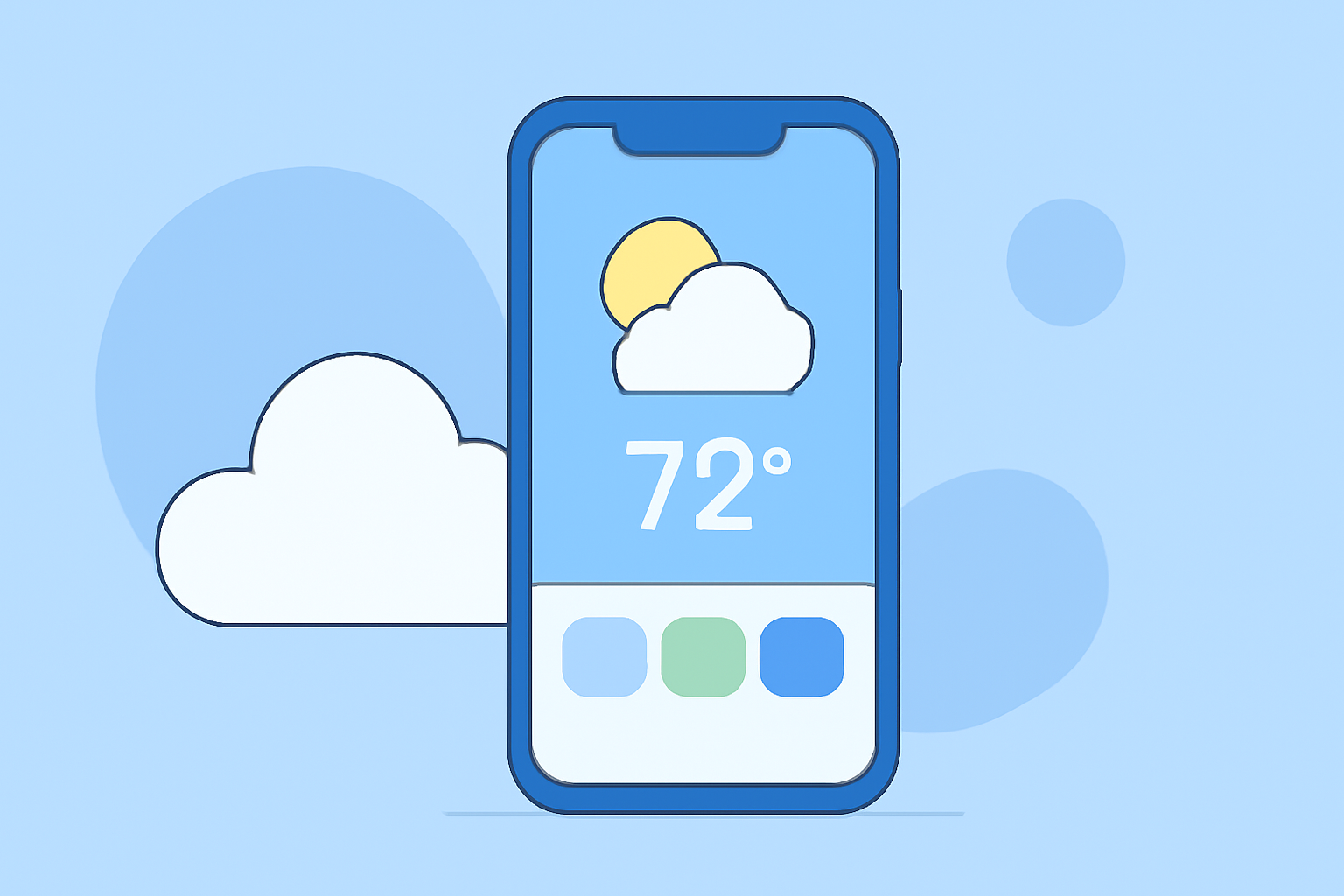
iPhone weather widgets provide a convenient way to access current conditions and forecasts directly from your Home Screen or Lock Screen. By customizing these widgets, you can tailor the information to your preferences, ensuring you have the most relevant weather updates at a glance.
What Are iPhone Weather Widgets?
Weather widgets are interactive elements that display weather information without the need to open the Weather app. They can show current conditions, hourly forecasts, and extended outlooks, providing quick insights into the weather.
How Do I Add a Weather Widget to My iPhone?
-
Enter Jiggle Mode: Tap and hold a blank area on your Home Screen until the apps start wiggling.
-
Access the Widget Gallery: Tap the plus (+) icon in the top-left corner to open the Widget Gallery.
-
Select the Weather Widget: Scroll through the available widgets or use the search bar to find the Weather widget.
-
Choose a Widget Size: The Weather widget comes in three sizes—small, medium, and large. Each size displays different amounts of information. For example, the small widget shows current conditions, while the large widget includes a forecast for the next few days.
-
Add the Widget: After selecting the desired size, tap "Add Widget." The widget will be placed on your Home Screen. You can drag it to reposition it as desired.
Can I Customize the Weather Widget to Show a Specific Location?
Yes, you can customize the Weather widget to display weather information for a specific location:
-
Edit the Widget: Tap and hold the Weather widget on your Home Screen until a quick action menu appears.
-
Select "Edit Widget": Tap "Edit Widget" from the menu.
-
Choose a Location: Tap "Location," then select the desired city or area from the list.
-
Save Changes: Tap "Done" to save your changes.
How Do I Add a Weather Widget to My iPhone's Lock Screen?
With iOS 16 and later, you can add widgets to your Lock Screen for quick access:
-
Enter Lock Screen Customization: Tap and hold your Lock Screen until the customization options appear.
-
Add Widgets: Tap the plus (+) icon to open the widget selection menu.
-
Select the Weather Widget: Scroll through the available widgets and tap on the Weather widget.
-
Choose a Widget Size: Select the desired size for the widget.
-
Add the Widget: Tap "Add Widget" to place it on your Lock Screen.
-
Save Changes: Tap "Done" to finalize the customization.
Can I Resize the Weather Widget?
Yes, you can change the size of the Weather widget:
-
Remove the Existing Widget: Tap and hold the current Weather widget until the quick action menu appears, then select "Remove Widget."
-
Add a New Widget: Follow the steps to add a Weather widget, choosing the desired size during the process.
How Do I Add a Weather Widget to the Today View?
To add a Weather widget to the Today View:
-
Access the Today View: Swipe right from your Home Screen or Lock Screen to open the Today View.
-
Edit the Today View: Scroll to the bottom and tap "Edit."
-
Add the Weather Widget: Tap the plus (+) icon, select the Weather widget, choose the desired size, and tap "Add Widget."
-
Save Changes: Tap "Done" to finalize the addition.
Can I Use the Weather Widget in CarPlay?
Yes, with iOS 26 and later, you can add widgets, including the Weather widget, to your CarPlay dashboard:
-
Update to iOS 26: Ensure your iPhone is running iOS 26 or later.
-
Access CarPlay Settings: Go to Settings > General > CarPlay, then select your connected vehicle.
-
Enable Widgets: Toggle on "Show Widgets" to display widgets on your CarPlay screen.
-
Customize Widgets: Manage which widgets appear by adding, removing, or rearranging them as desired.
By customizing your iPhone's Weather widget, you can have quick access to the most relevant weather information, tailored to your preferences and needs.
Highlights:
- iOS 26 brings widgets to CarPlay - here's how to customize your dashboard, Published on Monday, October 20