
Mastering Large Weather Widgets: A Comprehensive Guide
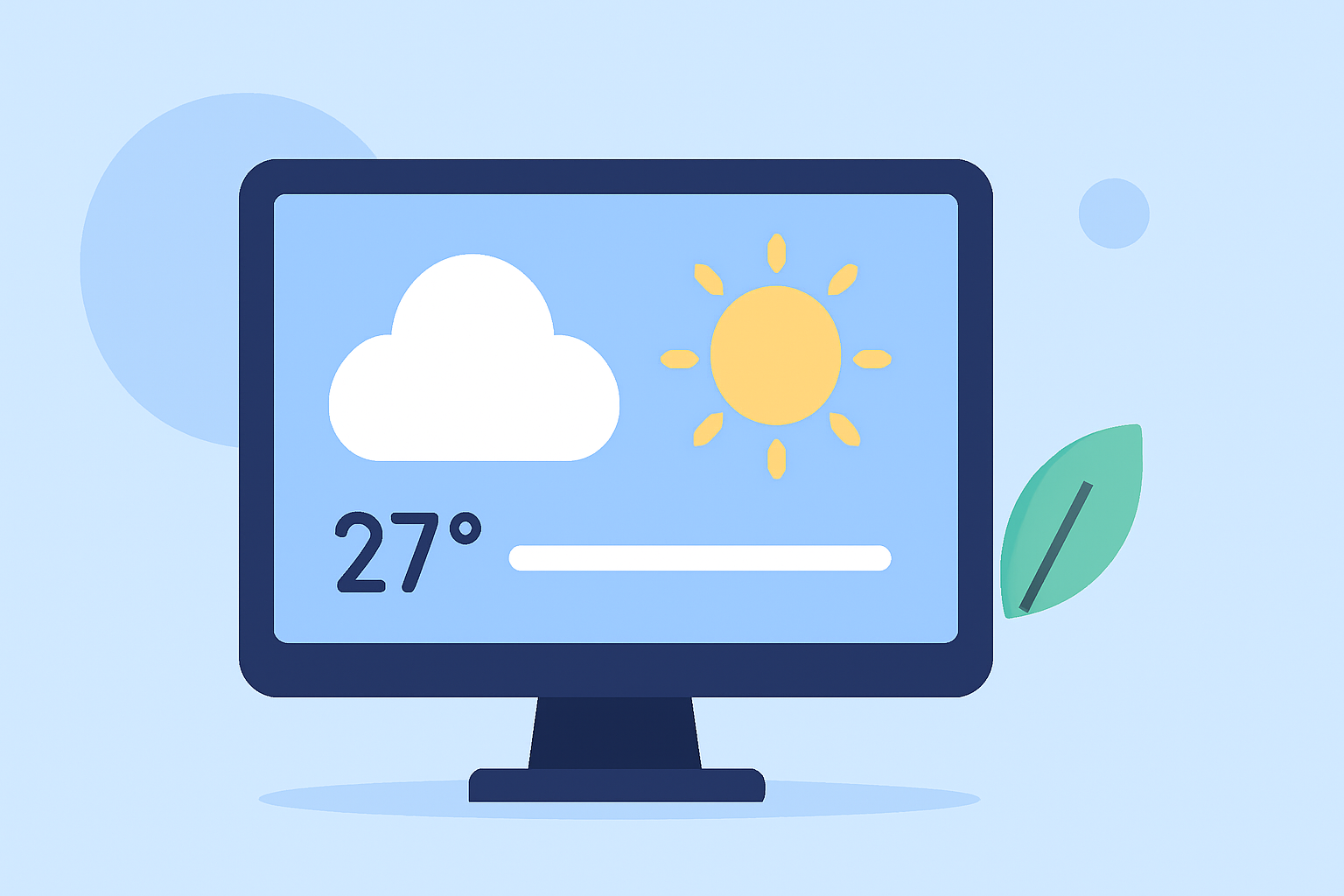
In today's fast-paced world, staying informed about the weather is crucial for planning daily activities, travel, and business operations. Large weather widgets offer a convenient way to access detailed weather information directly from your device's home screen or desktop. This guide explores the benefits, customization options, and best practices for integrating large weather widgets into your workflow.
What Are Large Weather Widgets?
Large weather widgets are interactive panels that display comprehensive weather information, such as current conditions, forecasts, and severe weather alerts, directly on your device's home screen or desktop. Their larger size allows for more detailed data presentation compared to standard widgets.
Why Integrate Large Weather Widgets into Your Workflow?
-
Instant Access to Information: Having weather data readily available helps in making timely decisions without the need to open separate applications.
-
Enhanced Productivity: By reducing the time spent searching for weather updates, you can focus more on your tasks.
-
Real-Time Updates: Stay informed about sudden weather changes that could impact your plans.
How to Add Large Weather Widgets to Your Device
For iPhone Users:
- Add a Widget to Your Home Screen:
- Touch and hold an empty area on your Home Screen until the apps jiggle.
- Tap the '+' button in the top-left corner.
- Scroll to find the Weather app and select it.
- Choose the large widget size and tap 'Add Widget'.
- Customize the Widget:
- Touch and hold the Weather widget on your Home Screen.
- Tap 'Edit Widget'.
- Select the location you want the widget to display.
For Android Users:
- Add a Widget to Your Home Screen:
- Tap and hold an empty area on your Home Screen.
- Tap 'Widgets'.
- Scroll to find the Weather widget and drag it to your Home Screen.
- Customize the Widget:
- Tap and hold the Weather widget on your Home Screen.
- Tap 'Edit'.
- Select the location and other preferences.
For Windows 11 Users:
- Add a Widget to Your Desktop:
- Click on the Widgets icon in the taskbar.
- Click on the '+' button to add a new widget.
- Select the Weather widget from the list.
- Customize the Widget:
- Click on the three dots on the Weather widget.
- Select 'Customize'.
- Choose your preferred location and other settings.
Best Practices for Using Large Weather Widgets
-
Regular Updates: Ensure your device's weather data is updated regularly to provide accurate information.
-
Location Accuracy: Set the widget to display weather information for your current location or other locations of interest.
-
Customization: Adjust the widget's appearance, such as size, theme, and layout, to match your device's aesthetic and your personal preferences.
-
Integration with Other Tools: Combine weather widgets with other productivity tools, such as calendars and to-do lists, to plan your day effectively.
Enhancing Your Workflow with Clime's Weather Widgets
Clime offers a suite of weather widgets designed to seamlessly integrate into your workflow, providing real-time weather updates and forecasts directly on your device's home screen or desktop. With Clime's widgets, you can customize the display to show detailed weather information, including current conditions, hourly forecasts, and severe weather alerts. The intuitive interface allows for easy setup and personalization, ensuring that you have the most relevant weather data at your fingertips.
Conclusion
Integrating large weather widgets into your workflow provides immediate access to essential weather information, enhancing your productivity and decision-making processes. By customizing these widgets to fit your needs and utilizing Clime's advanced features, you can stay informed and prepared for any weather conditions that come your way.