
Mastering Smart Stack Widgets on Your iPhone: A Beginner's Guide
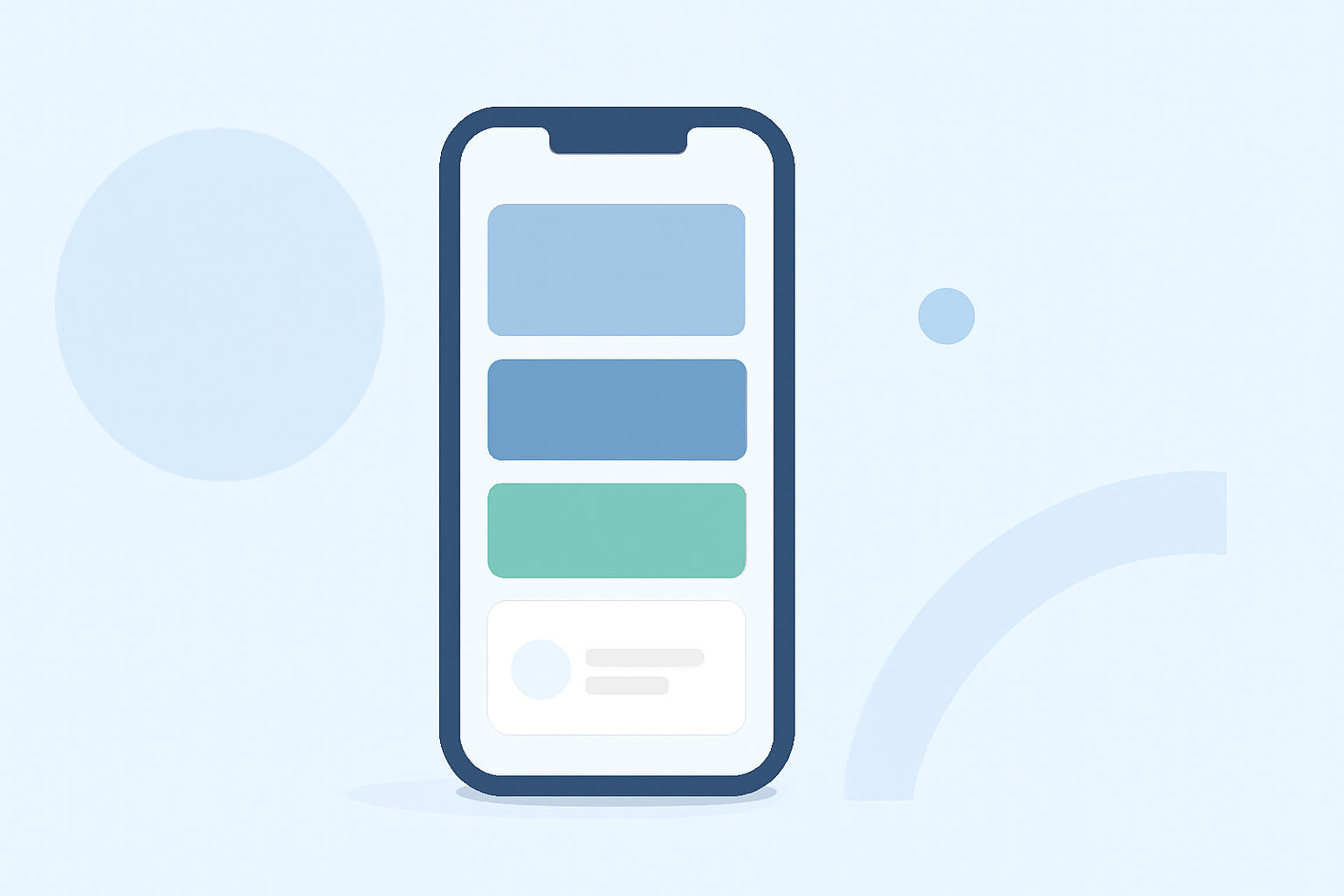
Smart Stack widgets on your iPhone provide a dynamic and personalized way to access timely information at a glance. By intelligently rotating through relevant widgets based on factors like time, location, and activity, Smart Stacks help you stay informed without cluttering your Home Screen.
What Are Smart Stack Widgets?
A Smart Stack is a collection of widgets stacked on top of each other, allowing you to swipe through them or let your iPhone display the most relevant widget automatically. For example, you might see your upcoming calendar events during the day and your commute time in the evening. (apps.apple.com)
How to Add a Smart Stack to Your Home Screen
- Enter Jiggle Mode: Touch and hold an empty area on your Home Screen until the apps begin to jiggle.
- Access the Widget Gallery: Tap the plus sign (+) in the top-left corner of the screen.
- Select Smart Stack: Scroll through the list of available widgets or use the search bar to find and select "Smart Stack."
- Choose a Widget Size: Swipe left and right to pick the size of the widget you want to add.
- Add the Widget: Tap "Add Widget," then drag it to your desired position on the Home Screen.
- Finish: Tap "Done" to exit jiggle mode.
Customizing Your Smart Stack
You can personalize your Smart Stack by adding, removing, or rearranging widgets to suit your preferences.
- Add a Widget: Open the Smart Stack, scroll to the bottom, tap "Edit," then tap the plus sign (+) to add a new widget.
- Remove a Widget: In edit mode, tap the minus sign (-) next to the widget you want to remove.
- Rearrange Widgets: Touch and hold a widget, then drag it to a new position within the stack.
- Pin a Widget: To keep a widget at the top of the stack, touch and hold it, then tap the pin icon.
These customization options allow you to tailor the Smart Stack to display the information most relevant to you throughout the day. (wareable.com)
Using Smart Stack with Live Activities
Live Activities, such as ongoing workouts or timers, can appear at the top of your Smart Stack for real-time updates. To access them:
- Open the Smart Stack: From the watch face, tap the Live Activity at the top of the screen.
- View Details: Tap the Live Activity to see more information or interact with it.
- Return to Watch Face: Press the Digital Crown to go back to the watch face.
By integrating Live Activities into your Smart Stack, you can monitor ongoing events without leaving your Home Screen. (support.apple.com)
Tips for Effective Use of Smart Stacks
- Limit the Number of Widgets: Avoid overcrowding your Smart Stack to maintain its effectiveness.
- Regularly Review and Update: Periodically check and adjust the widgets in your Smart Stack to ensure they remain relevant to your current needs.
- Utilize Widget Suggestions: Enable Widget Suggestions to allow your iPhone to automatically add widgets to your Smart Stack based on your usage patterns.
By following these steps and tips, you can set up and customize Smart Stack widgets on your iPhone, creating a personalized and efficient Home Screen experience.