
Mastering Weather Notification Snoozing on Android
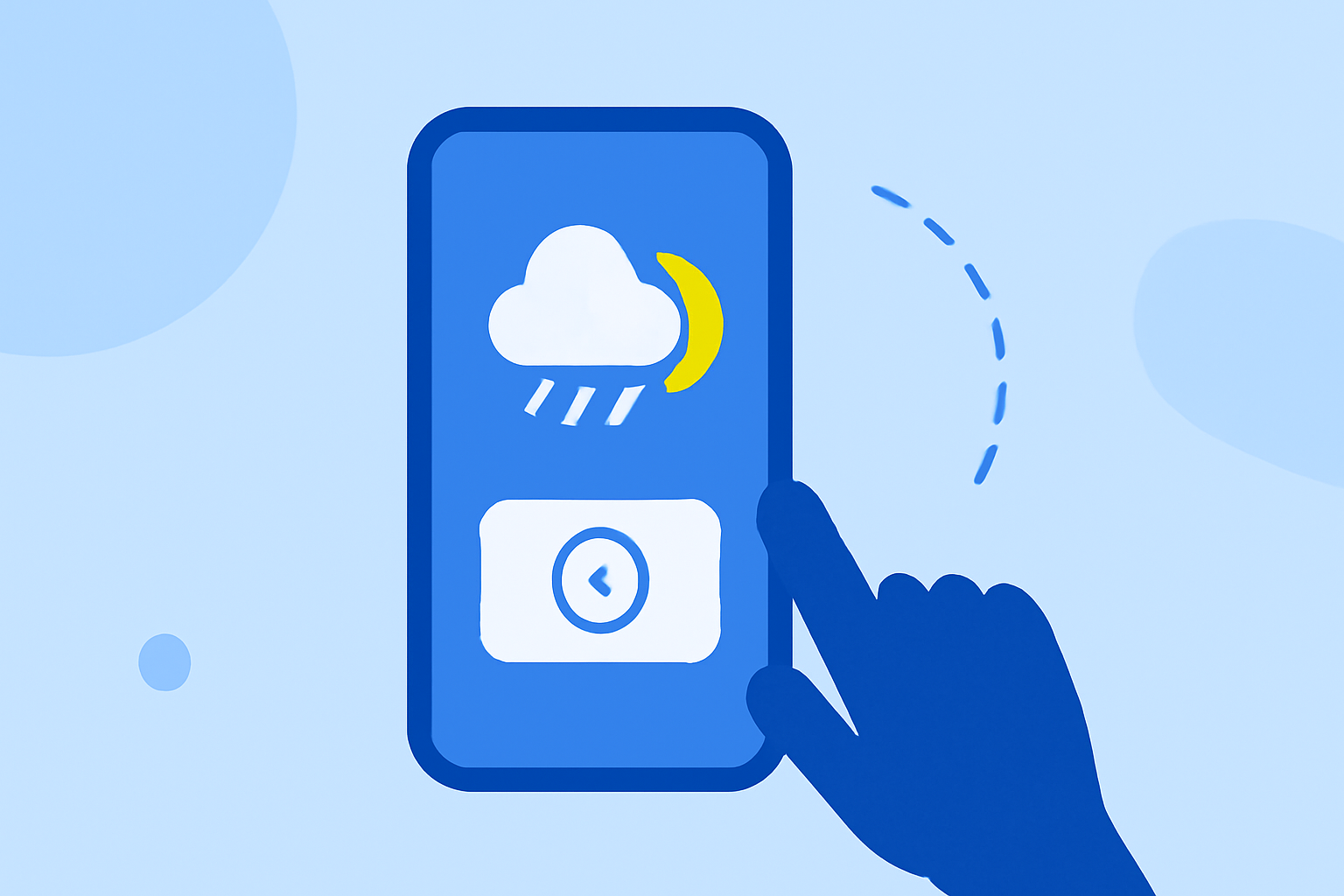
Managing weather notifications on your Android device ensures you stay informed about changing conditions without unnecessary interruptions. By utilizing the snooze feature, you can temporarily silence notifications and receive them at a more convenient time.
What Are Weather Notifications?
Weather notifications provide real-time updates on weather conditions, alerts, and forecasts. These notifications can originate from various apps, including built-in weather applications and third-party services.
How to Enable Weather Notifications on Android
To receive weather alerts, ensure that your device's weather app has the necessary permissions:
- Access App Settings: Long-press the Weather app icon and select "App info."
- Manage Notifications: Tap on "Notifications."
- Enable Alerts: Toggle on "Weather alert" to receive notifications.
This process may vary slightly depending on your device and Android version. (androidauthority.com)
How to Snooze Weather Notifications
Snoozing allows you to temporarily silence notifications and receive them later. Here's how to use this feature:
- Enable Notification Snoozing:
- Open your device's Settings app.
- Navigate to Notifications.
- Toggle on Allow notification snoozing.
- Snooze a Notification:
- Swipe down from the top of your screen to access the notification shade.
- Locate the weather notification you wish to snooze.
- Tap the down arrow to expand the notification.
- Tap the Snooze icon (usually a clock or bell) and select the desired snooze duration (e.g., 15 minutes, 30 minutes, 1 hour, or 2 hours).
After the snooze period, the notification will reappear, ensuring you don't miss important updates. (support.google.com)
Managing Notifications for Individual Apps
If you prefer to control notifications for specific apps:
- Access App Notifications:
- Open Settings.
- Go to Apps & Notifications.
- Select See all apps.
- Choose the app you want to manage.
- Adjust Notification Settings:
- Tap on Notifications.
- Toggle off All notifications to disable them entirely or adjust specific notification categories as desired.
This method allows you to tailor your notification experience for each app. (howtogeek.com)
Additional Tips
-
Notification History: Some devices offer a notification history feature, allowing you to view dismissed or snoozed notifications. To access this:
-
Open Settings.
-
Navigate to Notifications.
-
Tap on Notification history to view past notifications. (support.google.com)
-
Do Not Disturb Mode: For a more comprehensive approach to silencing notifications, consider using the Do Not Disturb mode, which mutes all notifications during specified times.
By effectively managing and snoozing weather notifications, you can stay informed about changing conditions without unnecessary distractions.
Highlights:
- Control notifications on Android - Android Help
- How to Snooze Notifications for Individual Apps on Android, Published on Wednesday, November 02
- Android: How to snooze notifications, Published on Thursday, January 04