
Mastering Weather Radar Data on Your iPhone
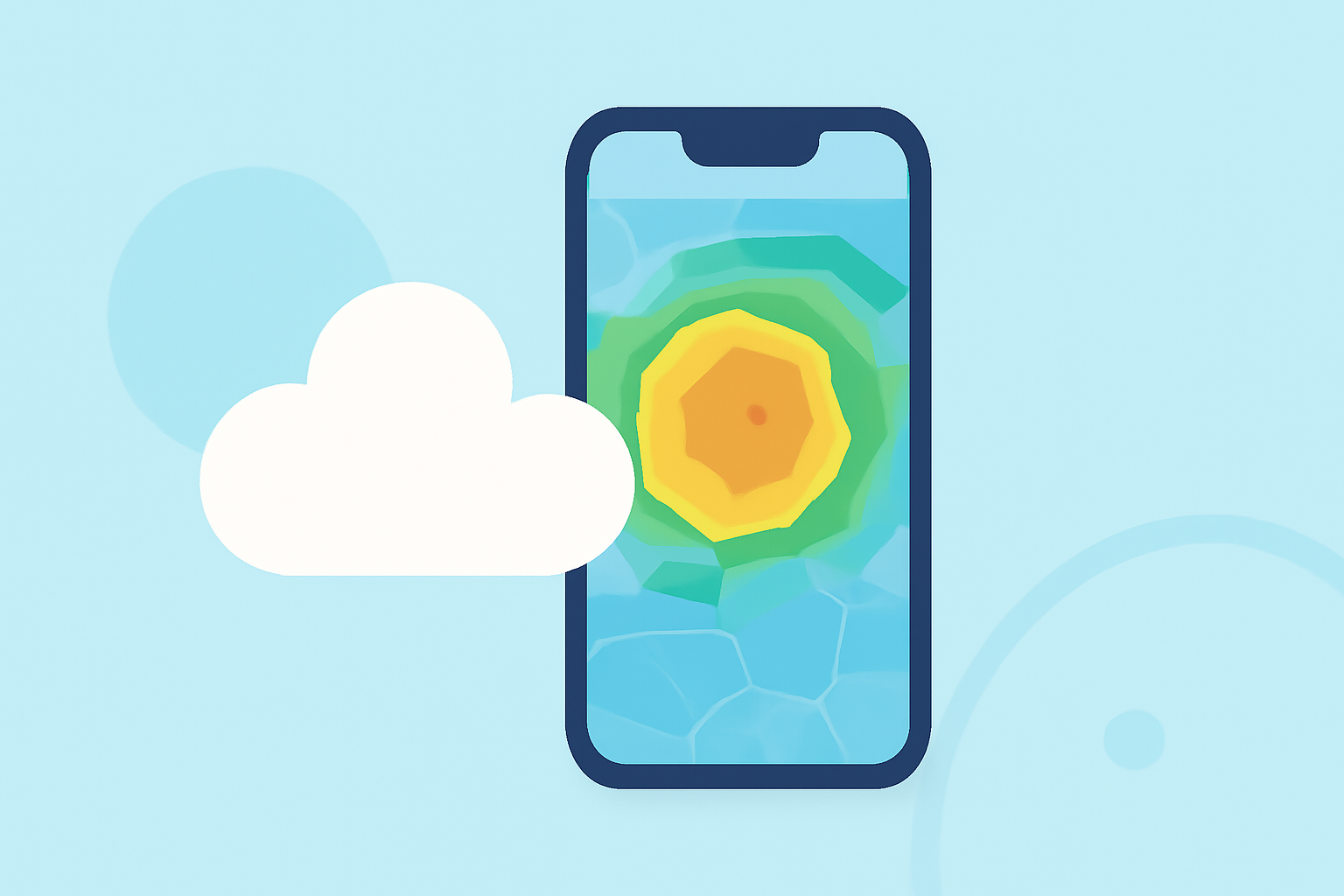
Your iPhone's built-in Weather app offers powerful tools to monitor weather conditions in real time. By utilizing its radar features, you can stay informed about precipitation, temperature variations, air quality, and wind patterns. Here's how to make the most of these features:
Accessing Weather Maps on Your iPhone
-
Open the Weather App: Launch the Weather app from your iPhone's home screen.
-
Select a Location: Choose the location you want to monitor.
-
View the Map: Tap the map icon at the bottom of the screen to access the full-screen weather map.
Exploring Different Weather Map Layers
The Weather app provides several map layers to visualize various weather conditions:
-
Precipitation Layer: Displays real-time rainfall and snowfall using animated radar. Colors indicate intensity, from light blue for light precipitation to darker shades for heavy precipitation. The timeline slider allows you to view past and future precipitation over the next 12 hours.
-
Temperature Layer: Shows a gradient heat map, with warm areas in red or orange and cooler regions in blue or purple. This helps you quickly identify temperature variations across different areas.
-
Air Quality Layer: Provides information on air quality index (AQI) levels, helping you assess pollution levels in your area.
-
Wind Layer: Illustrates wind patterns and speeds, aiding in understanding wind conditions and potential impacts.
Setting Up Precipitation Notifications
To receive alerts about upcoming rain or snow:
-
Enable Location Services: Go to Settings > Privacy > Location Services, and ensure that the Weather app has access to your location.
-
Allow Notifications: Navigate to Settings > Notifications > Weather, and enable "Allow Notifications."
-
Activate Precipitation Alerts: Open the Weather app, tap the list icon in the bottom right, and under "Stay Dry," tap "Turn on Notifications." Select your location to start receiving alerts.
Tips for Effective Use
-
Keep Your iPhone Updated: Ensure your device is running the latest iOS version to access all available features.
-
Use a Stable Internet Connection: A reliable Wi-Fi or mobile network ensures accurate and timely weather updates.
-
Enable Precise Location: For accurate local conditions, enable Precise Location in your Weather app settings.
By mastering these features, you can make informed decisions based on real-time weather data, enhancing your daily planning and safety.
(support.apple.com)