
Mastering Weather Widget Customization on Your iPhone
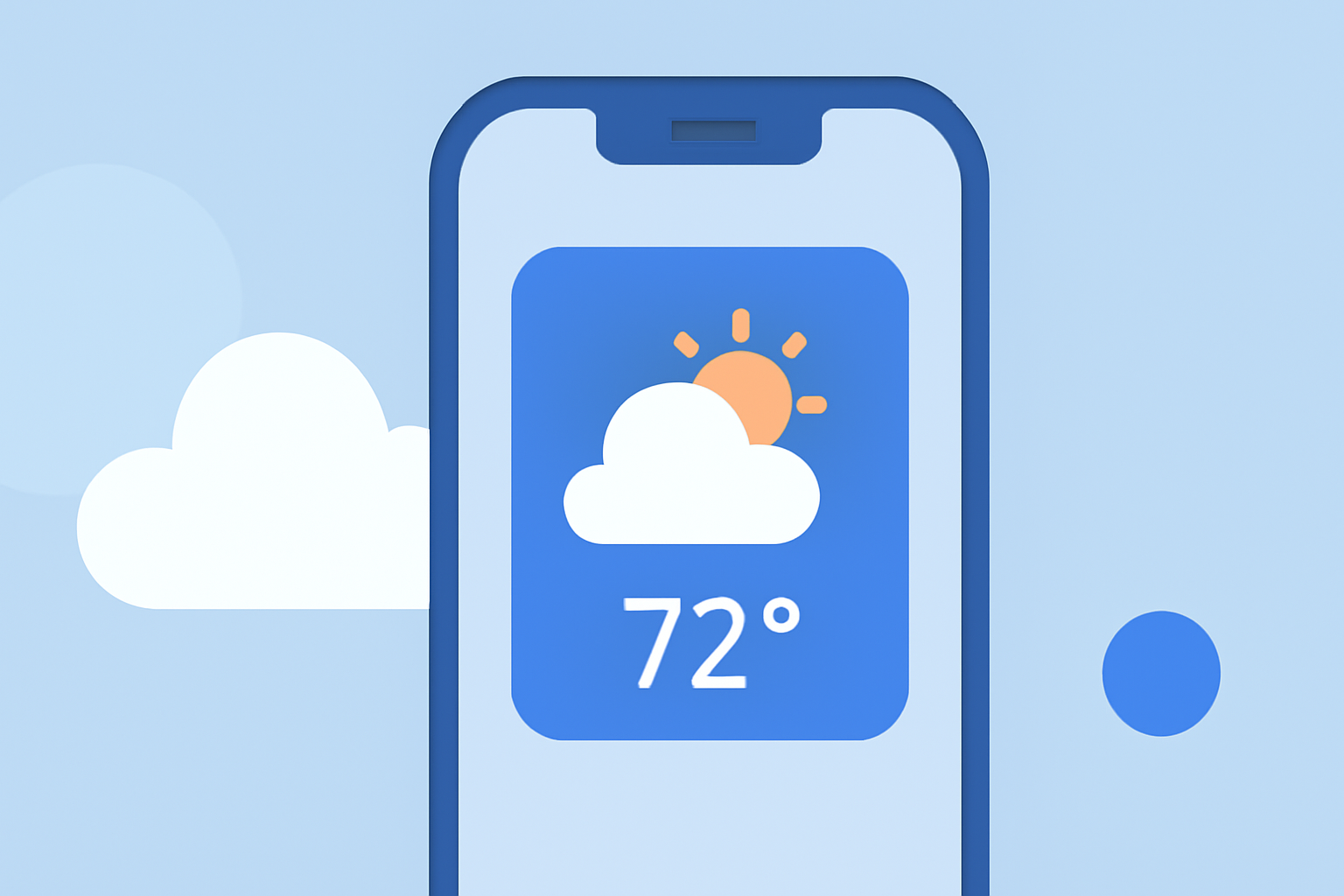
Customizing the Weather widget on your iPhone allows you to access essential weather information directly from your Home Screen, Lock Screen, or Today View. Here's how you can tailor the Weather widget to suit your preferences:
1. Adding the Weather Widget to Your Home Screen
To begin, add the Weather widget to your Home Screen:
-
Enter Jiggle Mode: Touch and hold an empty area on your Home Screen until the apps jiggle.
-
Access the Widget Gallery: Tap the plus (+) icon in the top-left corner to open the Widget Gallery.
-
Select the Weather Widget: Scroll through the list or use the search bar to find the Weather widget.
-
Choose a Widget Size: The Weather widget is available in small, medium, and large sizes, each displaying different amounts of information. For instance, the small widget shows current conditions, while the large widget includes a forecast for the next few days. (macrumors.com)
-
Add the Widget: Tap 'Add Widget' to place it on your Home Screen. You can drag it to reposition as desired.
2. Customizing the Weather Widget's Location
To display weather information for a specific location:
-
Edit the Widget: Touch and hold the Weather widget on your Home Screen until a quick actions menu appears.
-
Select 'Edit Widget': Tap 'Edit Widget' from the menu.
-
Choose a Location: Tap 'Location' and select the desired city or location from your list. If the location isn't listed, you can add it by tapping the plus (+) icon and searching for the city. (support.apple.com)
-
Save Changes: Tap outside the widget to return to your Home Screen.
3. Adding the Weather Widget to Your Lock Screen
With iOS 16 and later, you can add widgets to your Lock Screen:
-
Access Lock Screen Customization: Touch and hold the Lock Screen until the customization options appear, then tap 'Customize'.
-
Add Widgets: Tap 'Add Widgets' and select the Weather widget from the list.
-
Position the Widget: Place the widget in your preferred location on the Lock Screen.
-
Save Your Customization: Tap the close button, then tap 'Done' to apply the changes. (support.apple.com)
4. Creating and Managing Widget Stacks
To save space and access multiple widgets:
-
Create a Stack: Touch and hold a widget until it jiggles, then drag it on top of another widget to create a stack.
-
Add More Widgets: Continue adding widgets to the stack by dragging them on top.
-
Edit the Stack: Touch and hold the stack, then tap 'Edit Stack' to reorder widgets or enable 'Smart Rotate' for automatic widget rotation based on factors like time of day or activity. (support.apple.com)
5. Utilizing Third-Party Apps for Advanced Customization
For more personalized widget designs:
- Explore Widget Customization Apps: Apps like Widgetsmith allow you to create custom widgets with personalized fonts, colors, and layouts. These apps offer a variety of templates and customization options to enhance your Home Screen's appearance. (howtogeek.com)
By following these steps, you can effectively customize the Weather widget on your iPhone to display the most relevant weather information at a glance, enhancing your daily experience.
Highlights:
- iOS 26 brings widgets to CarPlay - here's how to customize your dashboard, Published on Monday, October 20
- iOS 26 gives your iPhone's lock screen a cool 3D look with spatial scenes - here's how to do it, Published on Thursday, July 31