
Mastering Weather Widgets on Android: A Comprehensive Guide
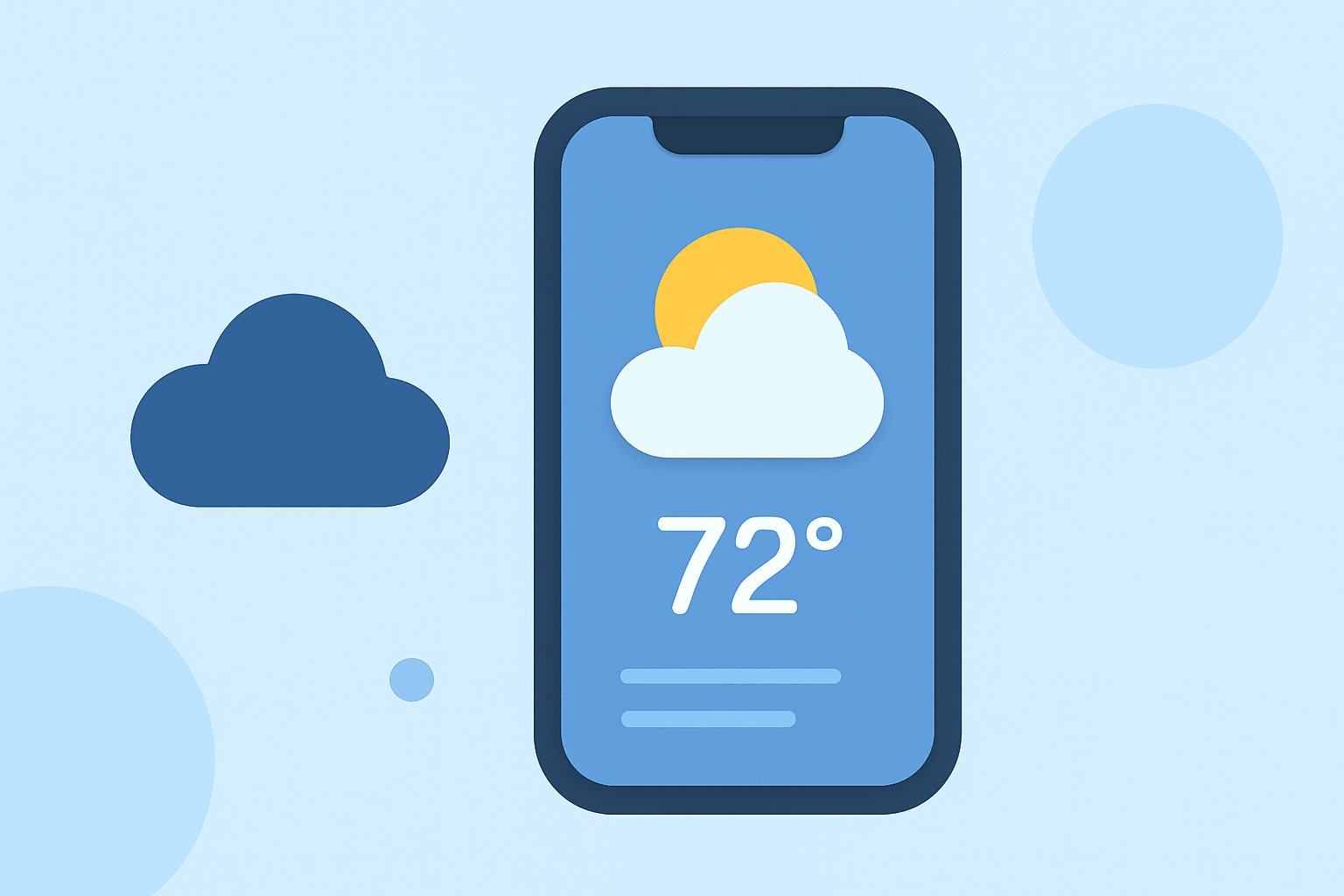
Weather widgets on Android devices provide at-a-glance information about current conditions and forecasts, enhancing your home screen's functionality. This guide will walk you through adding, customizing, and optimizing weather widgets on your Android device.
What Are Weather Widgets on Android?
Weather widgets are interactive elements that display weather information directly on your home screen, eliminating the need to open a dedicated app. They offer real-time updates on temperature, humidity, precipitation, and forecasts, allowing you to stay informed with minimal effort.
How to Add a Weather Widget to Your Home Screen
For Android 12 and Newer Devices:
- Access Widgets: Long-press an empty space on your home screen.
- Select Widgets: Tap on "Widgets" from the menu that appears.
- Choose Weather Widget: Scroll through the available widgets and locate the weather widget.
- Add Widget: Tap and hold the weather widget, then drag it to your desired location on the home screen.
- Resize Widget: Adjust the widget's size by dragging its corners to display more or less information.
This process is standard for devices running Android 12 or newer. (androidauthority.com)
For Older Android Versions:
If your device is running Android 11 or earlier, or if the default weather widget doesn't meet your needs, you can use third-party apps to add weather widgets. Many weather apps available on the Google Play Store offer customizable widgets that can be added to your home screen. (howtogeek.com)
How to Customize Your Weather Widget
- Access Widget Settings: Long-press the weather widget on your home screen.
- Select Settings: Tap on "Settings" or "Customize" from the options that appear.
- Adjust Preferences: Modify settings such as location, update frequency, size, and appearance to suit your preferences.
Customizing your widget ensures it provides the most relevant and timely information for your needs.
How to Remove a Weather Widget
- Access Widgets: Long-press an empty space on your home screen.
- Enter Edit Mode: Tap on "Widgets" to view all available widgets.
- Remove Widget: Long-press the weather widget you wish to remove and drag it to the "Remove" area that appears at the top or bottom of the screen.
This action will remove the widget from your home screen without uninstalling the associated app.
How to Optimize Your Weather Widget
- Update Frequency: Set the widget to update at intervals that balance accuracy and battery life.
- Location Settings: Ensure the widget is set to your current location or a location of interest for accurate weather information.
- Appearance: Customize the widget's theme, transparency, and size to match your home screen layout and aesthetic preferences.
Optimizing your weather widget enhances its functionality and ensures it complements your device's interface.
Conclusion
Adding and customizing a weather widget on your Android device provides quick access to essential weather information, helping you plan your day effectively. Whether using built-in options or third-party apps, tailoring your widget to your preferences ensures it meets your specific needs.
For a visual guide on adding and customizing weather widgets on Android, you can watch the following video: