
Mastering Weather Widgets: How to Display Multiple Locations on Your iPhone Home Screen
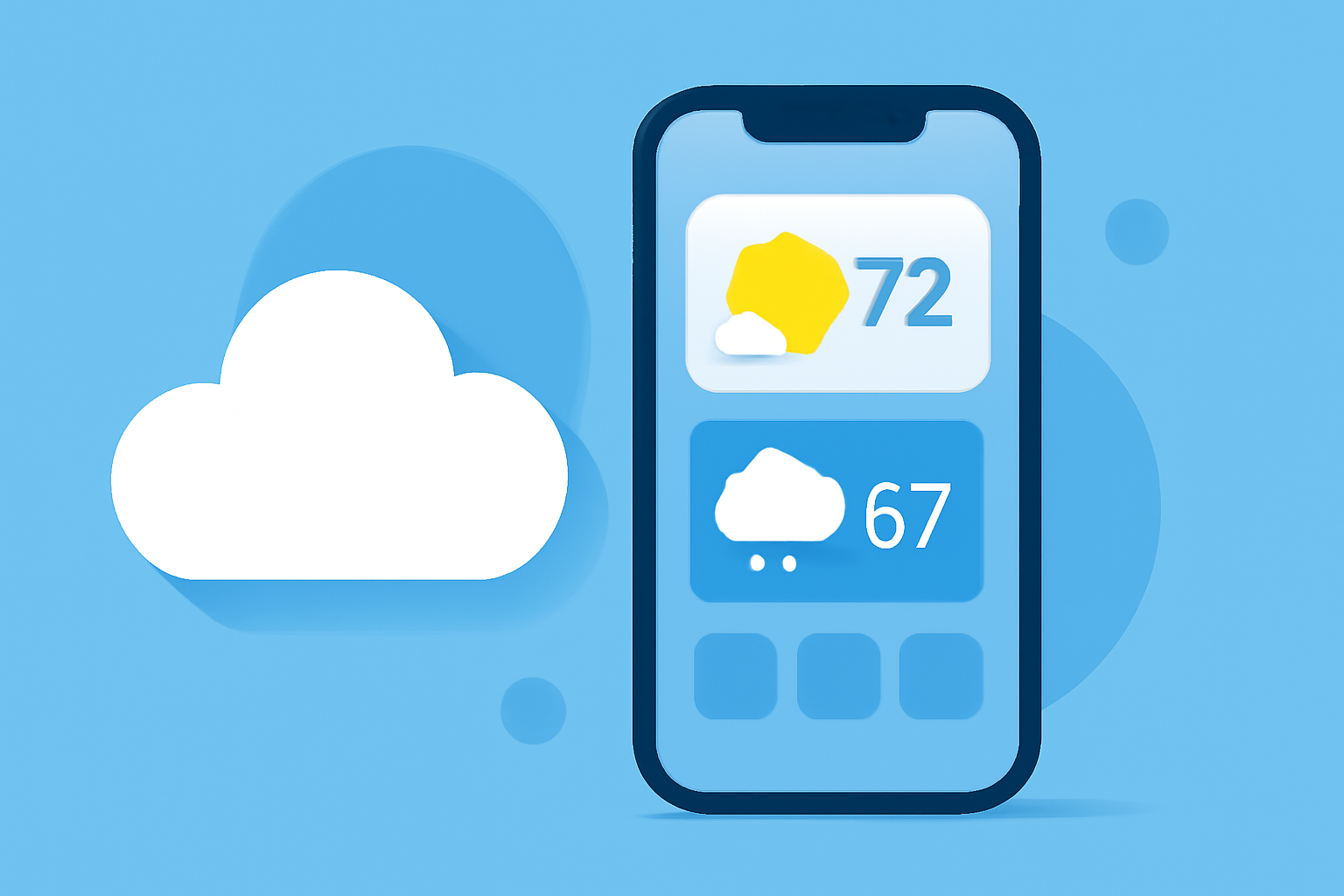
Weather widgets on your iPhone provide a convenient way to access real-time weather information directly from your Home Screen. By displaying multiple locations, you can stay informed about weather conditions in various places simultaneously. This guide will walk you through the process of adding and customizing weather widgets to display multiple locations on your iPhone.
Understanding iPhone Weather Widgets
iPhone weather widgets allow you to view current conditions, forecasts, and other weather-related information without opening the Weather app. These widgets come in various sizes and can be customized to show different types of information, such as hourly forecasts, daily forecasts, or severe weather alerts.
Adding Multiple Weather Widgets to Your Home Screen
To display weather information for multiple locations on your iPhone Home Screen, follow these steps:
- Add the First Weather Widget:
- Touch and hold an empty area on your Home Screen until the apps begin to jiggle.
- Tap the + button in the top-left corner to open the widget gallery.
- Scroll down and select Weather from the list of available widgets.
- Choose the widget size (small, medium, or large) that suits your preference.
- Tap Add Widget to place it on your Home Screen.
- Customize the Widget for a Specific Location:
- Touch and hold the newly added Weather widget.
- Tap Edit Widget.
- Tap Location and select the city or location you want the widget to display.
- Tap Done to save your changes.
- Add Additional Weather Widgets for Other Locations:
- Repeat the process to add more Weather widgets to your Home Screen.
- For each new widget, customize it to display the desired location by following the steps above.
By adding multiple Weather widgets, each set to a different location, you can view weather information for various places at a glance.
Using Widget Stacks for Multiple Locations
If you prefer to keep your Home Screen organized, you can use Widget Stacks to combine multiple widgets into a single stack that you can swipe through. Here's how:
- Create a Widget Stack:
- Touch and hold an empty area on your Home Screen until the apps begin to jiggle.
- Tap the + button in the top-left corner to open the widget gallery.
- Scroll down and select Weather.
- Choose the widget size (medium or large) that you prefer.
- Tap Add Widget to place it on your Home Screen.
- Add More Widgets to the Stack:
- Touch and hold the Weather widget you just added.
- Tap Edit Stack.
- Tap Add Widget and select another Weather widget.
- Repeat this process to add more Weather widgets to the stack.
- Customize Each Widget in the Stack:
- Touch and hold the Weather widget stack.
- Tap Edit Stack.
- Tap the Location field for each widget and select the desired location.
- Tap Done to save your changes.
Now, you can swipe through the stack to view weather information for different locations.
Using Third-Party Apps for Enhanced Functionality
While the built-in Weather app allows for basic customization, third-party apps can offer more advanced features for displaying multiple locations. Here are some options:
The 15 Best Weather Apps | GearMoose Weawow A free weather app that offers customizable widgets and supports multiple weather providers. It provides detailed weather information and beautiful weather photos from around the world. The app is ad-free and offers a variety of widget sizes and styles. (apps.apple.com)
Dual Degree in Economics + Applied Mathematics Dual Degrees An app designed for users who need to see both Celsius and Fahrenheit temperatures side by side. It supports multiple locations and offers a range of widgets, including lock screen widgets. The app provides real-time, hyper-local weather data with a sleek, modern interface. (dualdegrees.io)
Get started with accessibility features on iPhone - Apple Support Widget Weather An app that allows users to customize weather widgets with various icon sets and layouts. It supports multiple forecast services and offers a responsive design that looks great on any device. The app is available exclusively for iOS. (widgetweather.net)
Conclusion
Displaying multiple weather locations on your iPhone Home Screen is a convenient way to stay informed about weather conditions in various places. By adding and customizing weather widgets, you can access real-time information at a glance. Whether you use the built-in Weather app or explore third-party options, having multiple locations displayed ensures you're always prepared for the weather, no matter where you are.
For a visual guide on adding cities and changing locations in the Weather app, you can watch the following video:
iPhone Weather App: How to Add Cities, Remove Cities and Change Locations
By following these steps and utilizing the available tools, you can effectively manage and display weather information for multiple locations on your iPhone, keeping you informed and prepared for any weather conditions.