
Maximizing Sunrise and Sunset Times on Wear OS: A Comprehensive Guide
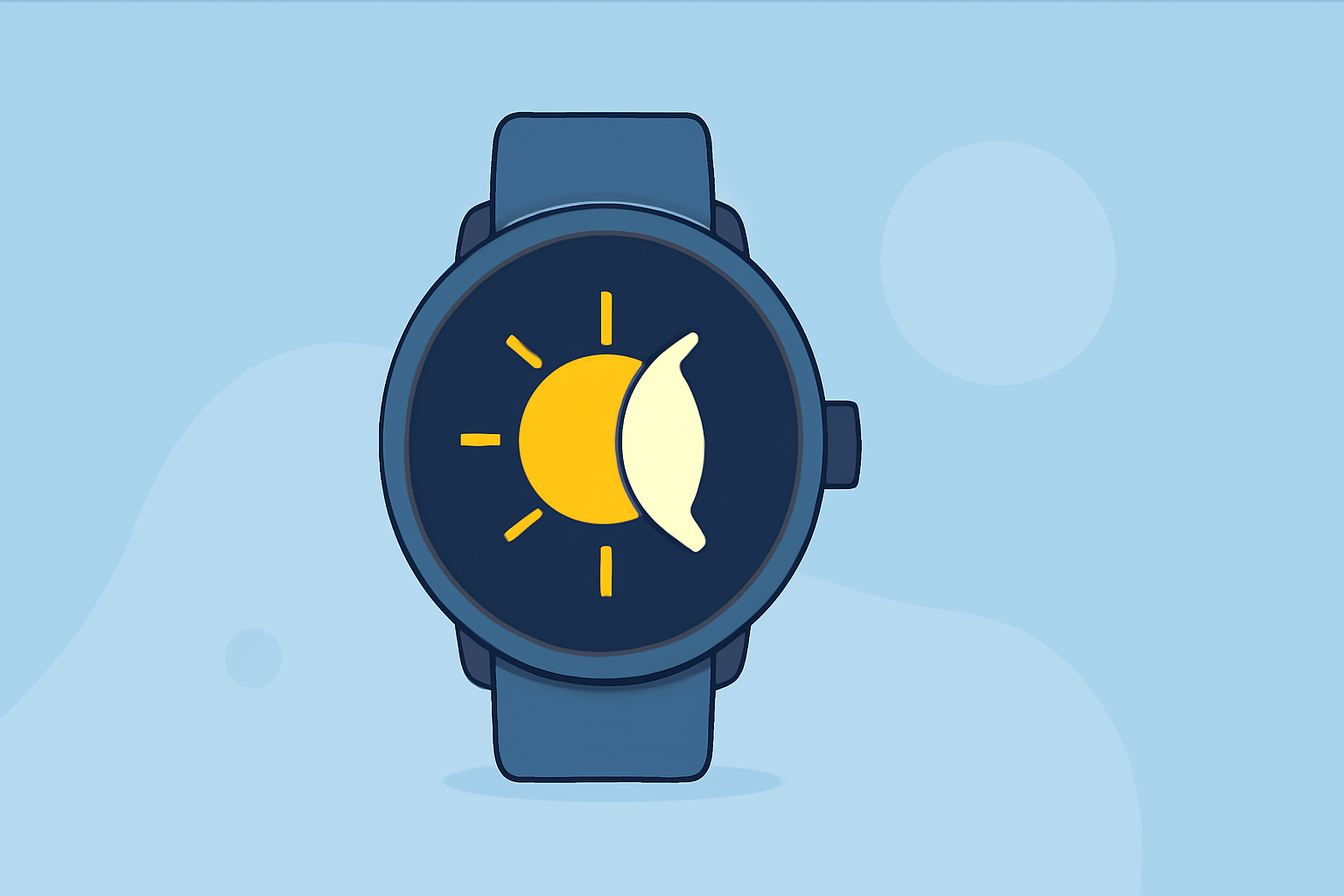
Understanding sunrise and sunset times is essential for planning outdoor activities, photography sessions, or simply enjoying nature's beauty. With Wear OS smartwatches, you can conveniently access this information directly from your wrist. Here's how to make the most of this feature:
1. How Can I Access Sunrise and Sunset Times on My Wear OS Watch?
While Wear OS doesn't natively provide sunrise and sunset times, you can utilize third-party watch faces and apps to display this information. For instance, the "Sunrise Sunset Watch Face" app offers real-time sunrise and sunset times, along with twilight periods, directly on your watch face. This allows you to see at a glance the daylight you have left and when to expect the sunrise or sunset. (androidwearcenter.com)
2. How Do I Install a Watch Face That Displays Sunrise and Sunset Times?
To install a watch face that shows sunrise and sunset times:
- Open the Google Play Store on your Wear OS watch.
- Search for "Sunrise Sunset Watch Face" or a similar app.
- Select the app from the search results.
- Tap "Install" to add the watch face to your collection.
- To apply the new watch face, press and hold the current watch face, select "Change watch face," and choose the newly installed one.
3. Are There Any Apps That Provide Sunrise and Sunset Times on Wear OS?
Yes, several apps are designed to provide sunrise and sunset times on Wear OS devices. These apps often offer additional features such as weather forecasts, moon phases, and tide information, enhancing your outdoor planning. You can find these apps by searching the Google Play Store on your Wear OS watch or through the Wear OS app on your smartphone.
4. How Can I Adjust My Watch's Screen Brightness for Optimal Viewing of Sunrise and Sunset Times?
To ensure clear visibility of sunrise and sunset times on your Wear OS watch, adjusting the screen brightness is crucial:
- Swipe down from the top of your watch's screen to access quick settings.
- Tap the sun icon to adjust brightness.
- Slide your finger along the arc to increase or decrease brightness.
Alternatively, you can enable "Sunlight Boost" mode for enhanced brightness in outdoor conditions. To activate this mode:
- Swipe down from the top of your watch's screen.
- Tap the Settings icon.
- Select "Display."
- Toggle "Sunlight Boost" to the on position.
5. How Can I Extend My Wear OS Watch's Battery Life While Using Sunrise and Sunset Features?
Utilizing features like sunrise and sunset times can impact your watch's battery life. To extend battery life:
-
Enable Battery Saver Mode: This mode reduces background activity and dims the display to conserve power.
-
Adjust Screen Timeout: Set a shorter screen timeout to prevent the display from staying on unnecessarily.
-
Manage Notifications: Limit notifications to essential apps to reduce battery drain.
By implementing these strategies, you can enjoy the benefits of sunrise and sunset information without compromising your watch's battery life.
By integrating these features into your Wear OS smartwatch, you can effectively plan your day around natural light, enhancing your outdoor experiences and daily routines.